



 Belinda Raman
Want to convert YouTube to M4A for smooth, high-quality playback on your iPhone? You're not alone. Millions of users search for a reliable way to extract audio from YouTube videos and save them in M4A format - Apple's preferred audio format for iPhone, iPad, and Mac.
YouTube is packed with great music, podcasts, interviews, and lectures, but it doesn't offer a built-in way to download audio in M4A. That's why a good YouTube to M4A converter has become essential. In this guide, we'll introduce the best ways to convert YouTube videos to M4A, including free online tools and professional desktop software, so you can quickly get high-quality M4A files that play perfectly on all Apple devices.
- Part 1. Why Convert YouTube to M4A?
-
🔥 Part 2. Best Way to Convert YouTube to M4A with Macsome Music One
Editor's ChoiceConvert YouTube to M4A with high-quality audio output, faster processing speed, and stable batch downloading.
- Part 3. Best Free Online YouTube to M4A Converters (Tested & Working)
- Part 4. FAQs About Converting YouTube to M4A
Part 1. Why Convert YouTube to M4A?
There are several important reasons why users prefer to convert YouTube to M4A instead of other audio formats, such as MP3. M4A (AAC audio format) offers better sound quality at smaller file sizes, making it one of the most efficient formats for streaming and offline listening.
Compared with MP3, M4A delivers higher audio efficiency and clearer sound quality, especially at the same bitrate. This makes it a preferred choice for Apple device users, including iPhone, iPad, and Mac, where M4A is natively supported for smooth playback.
For users who download music, podcasts, or educational videos from YouTube, M4A is an ideal format because it balances audio quality, storage efficiency, and device compatibility.
Part 2. Best Way to Convert YouTube to M4A with Macsome Music One
If you want a more stable, high-quality, and long-term way to convert YouTube to M4A, using a dedicated desktop tool is often the best solution.
Macsome Music One is a professional YouTube audio converter that helps users download and convert music from YouTube and other streaming platforms into high-quality M4A format with ease. It also supports converting YouTube audio to multiple formats, including MP3, WAV, FLAC, AIFF, and ALAC, while preserving original audio quality and ID3 tags, even when using a free account.
Unlike basic online converters, Macsome Music One supports batch downloading, allowing users to convert multiple YouTube videos or playlists at once for improved efficiency. The software also includes a download history feature, making it easy to manage and revisit previously converted files. In addition, it offers high-speed conversion performance, ensuring a smooth and efficient workflow when processing audio files.
Key Features of Macsome Music One
- Download YouTube videos and playlists to M4A, MP3, WAV, FLAC, AIFF, or ALAC formats.
- Convert local audio files (MP3, WAV, FLAC, AIFF, ALAC) to M4A format.
- Preserve original ID3 tags, including title, artist, album, genre, artwork, etc., automatically.
- Support high-quality audio output up to 320kbps for a better listening experience.
- Batch download and convert multiple files efficiently to improve workflow productivity.
- High-speed and stable conversion performance with no ads, pop-ups, or browser limitations.
- Compatible with major streaming platforms, including YouTube Music, Spotify, Apple Music, and more.
- Fully compatible with both Windows and macOS systems.
How to Convert YouTube Videos to M4A with Macsome Music One
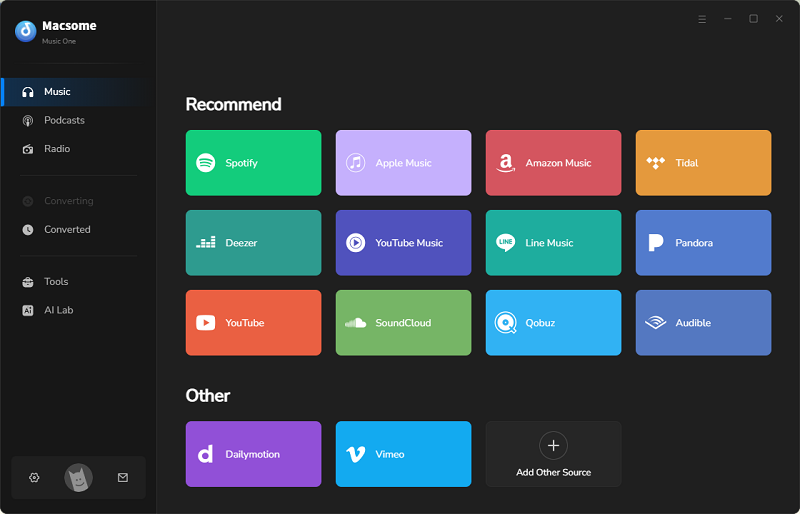
Step 1. Download, install, and launch Macsome Music One on your Windows PC or Mac. From the home interface, select the "YouTube" module to open the built-in YouTube web player.
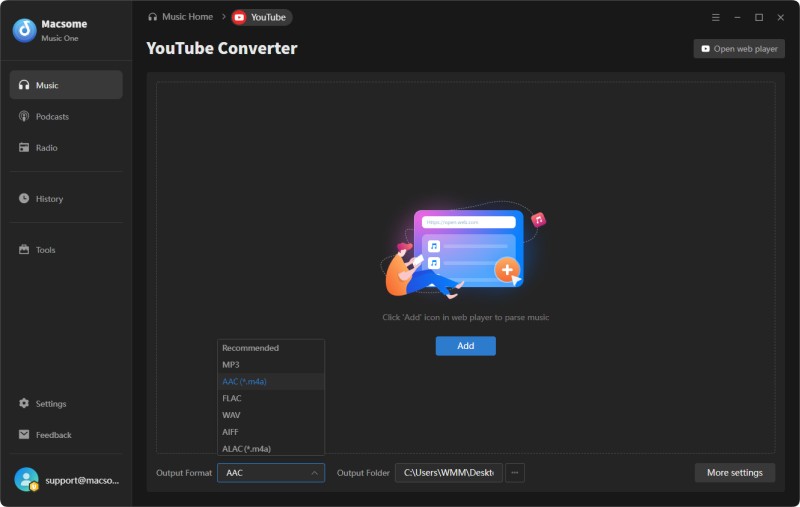
Step 2. Choose AAC (.m4a) as the output format at the bottom of the interface. Click "More Settings" to customize the output folder, audio quality, bitrate, output file name, and other conversion preferences.
Step 3. Browse YouTube or YouTube Music within the built-in web player and open the video, song, playlist, album, or podcast you want to convert. Click "Click to add", then select "Add" to import the content into the conversion list. You can also add multiple videos or playlists for batch conversion.
Step 4. Click "Convert" to download and convert the selected YouTube content to M4A. When the conversion is complete, open the "History" section and click the "Folder" icon to locate your converted M4A files.
Pros:
- Download and convert YouTube videos to M4A with high stability.
- Export high-quality M4A (AAC) for iPhone, iPad, Mac, and other Apple devices.
- No ads, pop-ups, redirects, speed limits, or download restrictions.
- Download YouTube videos, playlists, channels, podcasts, and YouTube Music.
- Batch convert multiple YouTube videos to M4A simultaneously.
- Preserve original ID3 tags, including title, artist, album, genre, and artwork.
- Support additional output formats, including MP3, FLAC, WAV, AIFF, and ALAC.
- Customize output quality, bitrate, output folder, and file naming.
- Faster, safer, and more reliable than most online YouTube to M4A converters.
- Fully compatible with Windows and macOS.
Cons:
- Requires downloading and installing desktop software.
- The free trial converts only the first minute of each file.
- Not as convenient as online converters for one-time or occasional use.
Part 3. Best Free Online YouTube to M4A Converters (Tested & Working)
We tested dozens of online tools and found the ones that can successfully convert YouTube to M4A and produce playable audio files. The following free YouTube to M4A converters were selected based on conversion success, ease of use, output quality, and overall user experience. While every tool has its own strengths and limitations, all of them can help you download YouTube audio as M4A without installing desktop software.
#1 YTMP3 - YouTube M4A Converter
Link: https://media.ytmp3.gg/tool/youtube-m4a-converter
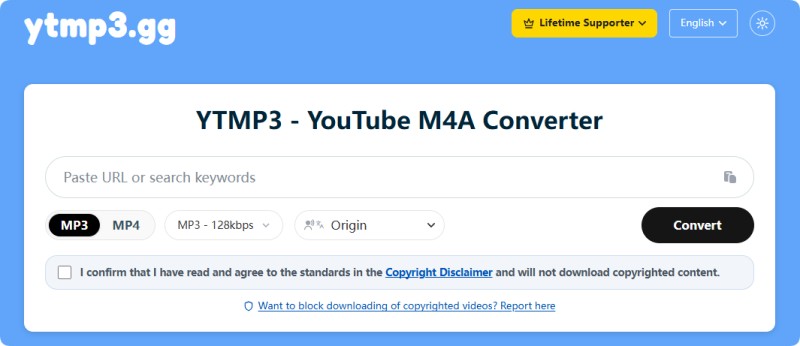
YTMP3 is a clean and easy-to-use YouTube to M4A converter. Simply paste a YouTube URL, confirm the copyright disclaimer, and the video is parsed automatically. It supports both single videos and playlists with separate input links. Besides M4A, it also offers MP3 and MP4 output. Free downloads are limited to 128 kbps, while higher-quality audio requires a paid upgrade.
Pros:
- Clean interface with no intrusive ads
- Supports both videos and playlists
- Preserves the original video title
- Multiple output formats available
Cons:
- Free M4A output is limited to 128 kbps
- Higher-quality downloads require payment
#2 CutYT YouTube to M4A Converter
Link: https://www.cutyt.com/yt-m4a
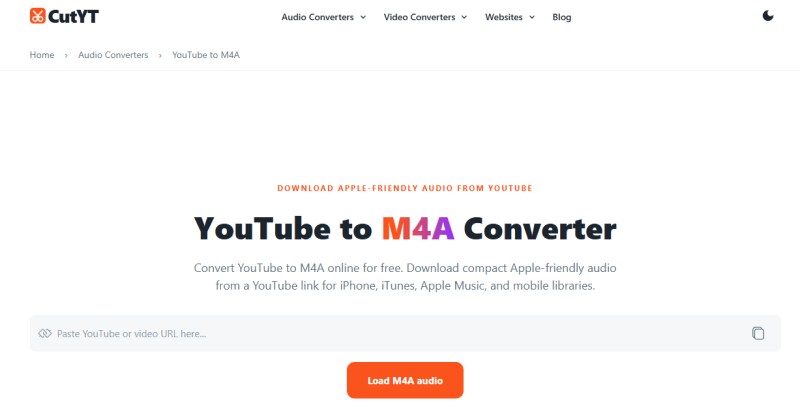
CutYT is a reliable free YouTube to M4A converter that automatically analyzes videos after you paste the link. It displays video details and even includes a basic Trim Clip feature before downloading. The free version can generate M4A files at around 392 kbps, although filenames may contain extra characters converted from unsupported symbols. Some advanced features appear to be reserved for premium users.
Pros:
- No ads during testing
- High-quality M4A output
- Built-in Trim Clip feature
- Simple download process
Cons:
- Video parsing may take longer
- Filenames can include extra characters
- Some advanced features require payment
#3 ClipTap YouTube Audio Downloader
Link: https://www.cliptap.ai/tools/youtube-audio-downloader
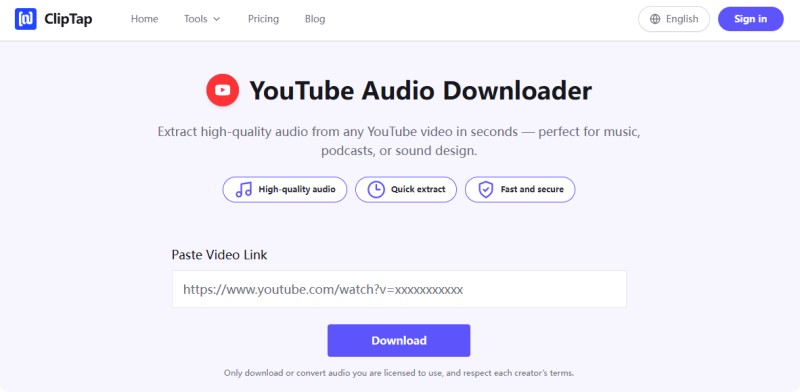
ClipTap provides a straightforward way to convert YouTube videos to M4A. After entering a video URL, switch to the Audio tab and choose between two M4A quality options. Clicking Download opens a new playback page where you manually save the file. During testing, the audio played normally, although the filename remained "videoplayback.m4a" and the file size was incorrectly displayed as 0 KB.
Pros:
- No intrusive ads
- Easy conversion process
- Two M4A quality options
- Playable output file
Cons:
- Opens a separate playback page
- Generic filename
- Incorrect file size display
#4 TubeRipper - Download M4A Audio from YouTube
Link: https://tuberipper.click/18/save/m4a
TubeRipper is a feature-rich YouTube to M4A online tool supporting M4A, MP3, WAV, FLAC, OGG, and more. It also lets you search for videos directly without copying a YouTube URL. During testing, banner ads appeared below the search box, so it's best to avoid clicking them. The site also displays recently downloaded videos, which may raise privacy concerns.

Pros:
- Supports many audio formats
- Video search without a URL
- Multiple quality options
- Fast conversion
Cons:
- Contains advertisements
- Adds extra text to filenames
- Recently downloaded list may affect privacy
#5 AnyUkit - Free YouTube to M4A Converter
Link: https://anyukit.com/youtube-to-m4a/
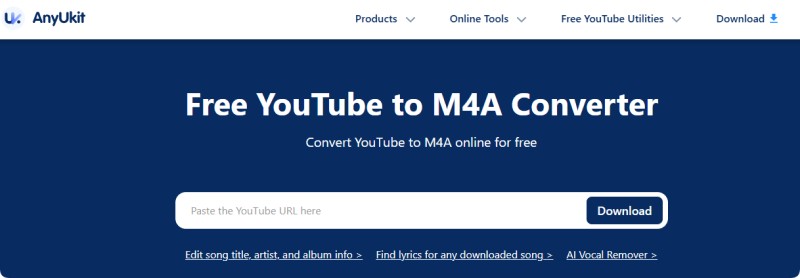
AnyUkit offers a beginner-friendly way to download YouTube audio as M4A. After pasting a video link, it displays available download options including M4A (129 kbps), MP3, and free MP4 resolutions. The original video title is preserved, although metadata such as tags is not included. Higher-quality downloads require installing the desktop version and upgrading to a paid plan.
Pros:
- Simple interface
- Keeps the original video title
- Supports M4A, MP3 and MP4
- Easy for beginners
Cons:
- Limited free audio quality
- Doesn't preserve metadata
- Premium version required for higher quality
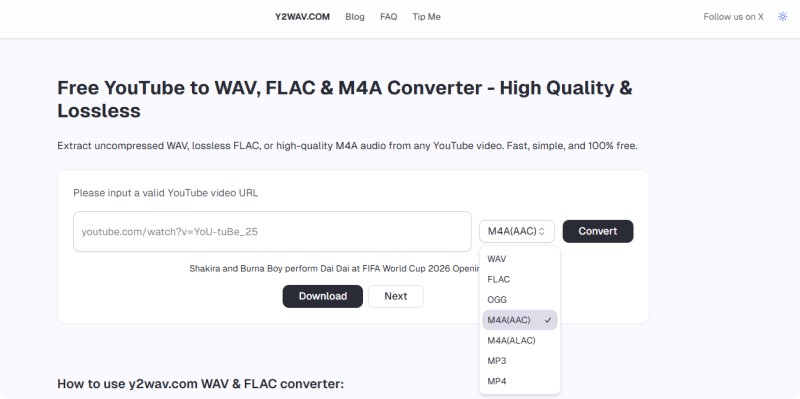
#6 Y2WAV.COM - Free YouTube to WAV, FLAC & M4A Converter
Link: https://y2wav.com/
Y2WAV is a simple online YouTube to M4A converter supporting M4A (AAC), WAV, FLAC, OGG, MP3, and MP4. Paste the video link, choose M4A, and click Convert to download the audio. The original title is detected correctly, but filenames may include long numeric prefixes. An additional browser tab opens during conversion and can simply be closed.
Pros:
- Supports multiple audio formats
- Clean and simple interface
- Easy conversion process
- Original video title detected
Cons:
- Opens an extra browser tab
- Adds numbers to filenames
- Limited customization options
Part 4. FAQs About Converting YouTube to M4A
- 1. What is the best YouTube to M4A converter?
- The best YouTube to M4A converter depends on your needs. If you only need a quick conversion, an online tool can be convenient. For higher audio quality, batch downloads, playlist support, and better stability, a desktop converter like Macsome Music One is usually a more reliable option.
- 2. Is M4A better than MP3?
- Generally, yes. M4A uses the AAC audio codec, which usually delivers better sound quality than MP3 at the same bitrate. It is also the preferred audio format for iPhone, iPad, iTunes, and Apple Music.
- 3. Can I convert YouTube videos to M4A for free?
- Yes. Many free online YouTube to M4A converters allow you to convert and download audio without installing software. However, free services may limit audio quality, file size, download speed, or the number of conversions.
- 4. Will the converted M4A file keep the original audio quality?
- Not always. Since YouTube audio is already compressed, converting it to M4A cannot improve the original quality. A good converter can preserve the available audio quality, but it cannot restore information that isn't present in the source.
- 5. Is it legal to convert YouTube to M4A?
- It depends on how the content is used and your local copyright laws. Downloading copyright-protected videos without permission may violate YouTube's Terms of Service and copyright regulations. Only download content you own or have permission to use.
- 6. Can I convert an entire YouTube playlist to M4A?
- Some online YouTube to M4A converters support playlist downloads, while others only work with individual videos. Desktop software generally offers better playlist support, batch conversion, and faster download speeds.
- 7. Why isn't my YouTube to M4A converter working?
- Online converters may stop working when YouTube updates its website, when servers are overloaded, or when a video is unavailable. If one tool fails, try another converter or use desktop software, which is typically updated more quickly to maintain compatibility.
- 8. Which devices can play M4A files?
- M4A files are supported by most modern devices, including Windows PCs, Macs, iPhones, iPads, Android phones, and many media players. They also work with Apple Music, iTunes, VLC, and other popular audio players.
Conclusion
Choosing the right YouTube to M4A converter comes down to your actual needs. For quick, occasional use, online tools are convenient and easy to access. However, they often come with limitations in quality, stability, or advanced features.
If you frequently convert YouTube to M4A, download playlists, or want more consistent audio quality, a dedicated desktop solution is a better long-term option. It provides faster performance, higher-quality output, and more control over your downloads compared to most YouTube to M4A online converters.
👉 Ready to get started? Try Macsome Music One to convert YouTube videos to M4A with better quality, batch support, and a smoother experience. Enjoy your favorite audio offline anytime.