



 Belinda Raman
Found a podcast episode you want to keep beyond the Apple Podcasts app? While Apple Podcasts makes it easy to stream and download episodes for offline listening, saving an episode as a standalone MP3 file requires a different approach. Whether you want to archive your favorite episodes, play them on devices without Apple Podcasts, or manage your podcast library in a more flexible format, there are several ways to do it.
In this guide, we’ll show you how to download Apple Podcasts to MP3 and explore practical ways to save Apple Podcasts episodes as MP3 files. We’ll cover desktop podcast downloaders, free methods, and online tools, so you can choose the option that best fits your needs.
- ⭐ Method 1. Download Apple Podcasts to MP3 with Macsome Music One
- 🔍 Method 2. Download Apple Podcasts to MP3 from the Page Source
- 📡 Method 3. Download Apple Podcasts from an RSS Feed
- 💻 Method 4. Download Apple Podcasts on Windows with iTunes
- 🌐 Method 5. Download Apple Podcasts to MP3 Online for Free
- 📊 Compare the Best Ways to Download Apple Podcasts to MP3
- ❓ FAQs About Downloading Apple Podcasts to MP3
Method 1. Download Apple Podcasts to MP3 with Macsome Music One
One of the easiest ways to save Apple Podcasts as MP3 files is to use a dedicated desktop downloader such as Macsome Music One. It features a built-in Apple Podcasts module with two download options: Apple Podcasts Download Mode, which is the default option, and Recording Mode. You can download or record publicly available podcast episodes from Apple Podcasts and save them in popular audio formats, including MP3, AAC, WAV, FLAC, AIFF, and ALAC. Before downloading, you can customize the output quality and select a destination folder to organize your files.
Macsome Music One also includes a free built-in podcast downloader with access to more than 120,000 podcasts. In addition to Apple Podcasts, it supports podcasts from platforms such as Spotify, Amazon Music, and Pandora. Once downloaded, you can listen to your favorite episodes offline on smartphones, MP3 players, car stereos, and other devices. The software is compatible with both Windows and macOS, providing a convenient way to save and manage your podcast collection.
Key Features of Macsome Apple Podcasts Downloader
- Download publicly available podcast episodes from Apple Podcasts for offline listening.
- Save Apple Podcasts in multiple formats, including MP3, AAC, WAV, FLAC, AIFF, and ALAC.
- Choose the output quality and destination folder before downloading.
- Download multiple podcast episodes in batch to save time.
- Preserve important metadata, including podcast title, episode title, artist, and album when available.
- Offer both Apple Podcasts Download Mode and Recording Mode.
- Download podcasts from other popular platforms, including Spotify, Amazon Music, Pandora, etc.
- Includes free tools such as a podcast downloader, radio downloader, tag editor, and local file converter.
- Compatible with both Windows and macOS.
How to Download Apple Podcasts to MP3 with Macsome Music One?
Macsome Music One makes it easy to download Apple Podcasts and save podcast episodes as MP3 files. Follow the steps below to get started.
Step 1. Download and launch Macsome Music One.
Download and install Macsome Music One on your Windows or Mac computer, then launch the program.
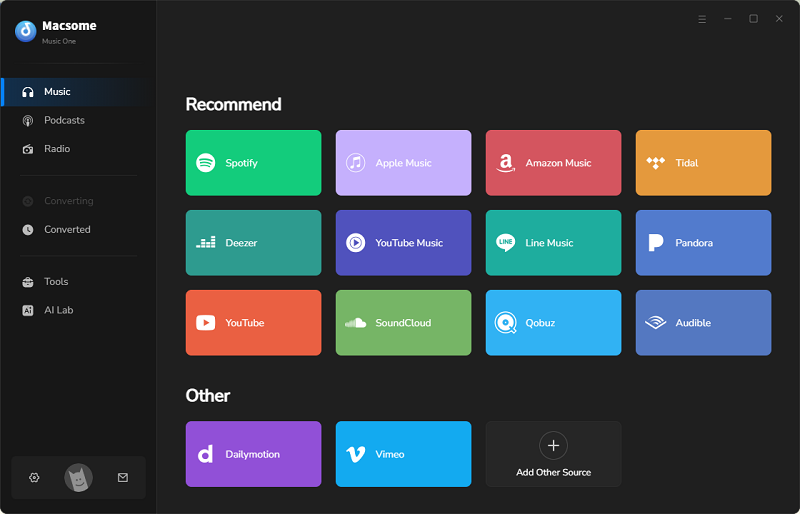
Step 2. Open the Apple Podcasts module.
Select the Apple Podcasts module from the main interface. You'll need to sign in with your Apple ID regardless of the download mode, as an Apple ID is required to access and play podcast content. Click Sign In, enter your Apple ID and password, and complete any verification if prompted.
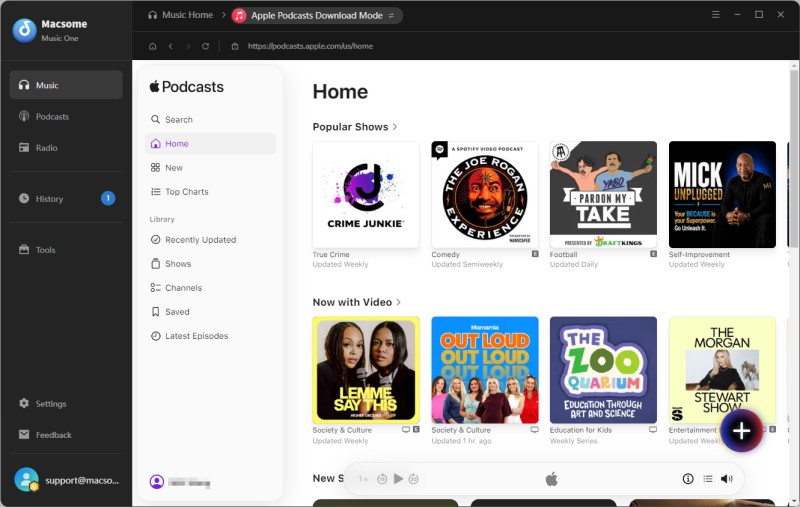
Step 3. Find and add a podcast.
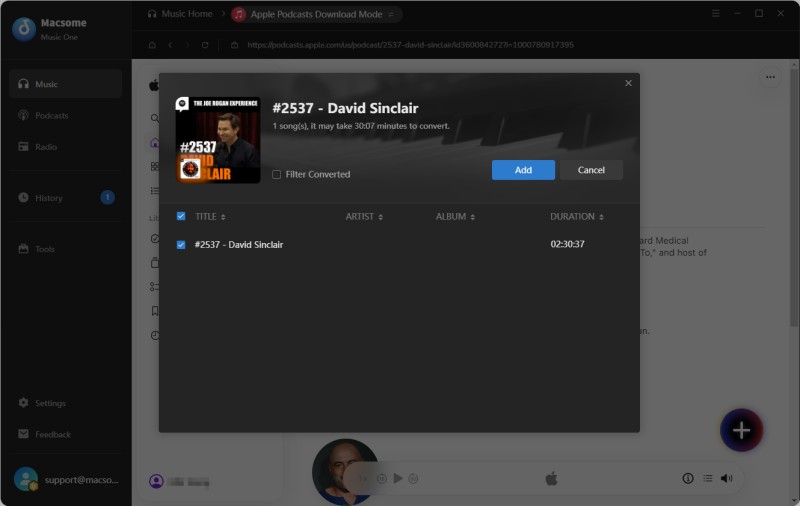
Once signed in, browse or search for the Apple Podcast you want to save. Select the desired podcast episode and click Click to add. Macsome Music One will parse the selected episode and display it in the download list. Click Add to import the episode and prepare it for download.
Step 4. Choose MP3 as the output format.
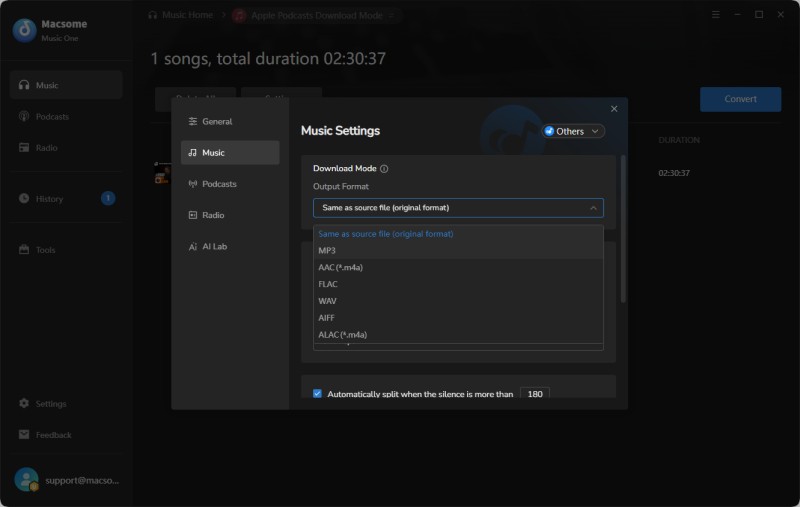
Click Settings to customize the output settings. Select MP3 to save Apple Podcasts as MP3 files, or choose Same as source file (original format), AAC (*.m4a), FLAC, WAV, AIFF, or ALAC (*.m4a) if you prefer another format. You can also adjust the output quality and select a destination folder for your downloaded podcast episodes.
Step 5. Download Apple Podcasts to MP3.
After configuring the output settings, click Convert to start downloading the selected Apple Podcasts episodes. Once the conversion is complete, go to the History tab to locate your downloaded episodes. You can find the MP3 files in the selected output folder and play them on any compatible device.
Method 2. Download Apple Podcasts to MP3 from the Page Source
For some publicly available podcast episodes, the episode page may contain a direct link to the audio file in its HTML source. If the publisher provides the episode as a standard MP3 file and the URL is publicly accessible, you may be able to find and save the file directly from your browser without installing additional software.
How to Find and Download an Apple Podcast Episode from the Page Source
Step 1. Open the podcast episode.
Go to the podcast or episode page on
Apple Podcasts
and open the episode you want to download.
Step 2. Open the page source.
On Windows, press Ctrl + U to open the page source. On Mac, press Option + Command + U in supported browsers.
You can also right-click the page and select View Page Source if this option is available in your browser.
Step 3. Search for an audio file URL.
Press Ctrl + F on Windows or Command + F on Mac to open the search box.
Try searching for terms such as .mp3, audio, or enclosure to check whether the page source contains a direct audio file URL.
Step 4. Open and save the MP3 file.
If you find a publicly accessible direct MP3 URL, copy the URL and open it in a new browser tab.
Once the audio file opens, right-click it and select Save Audio As or use Ctrl + S on Windows or Command + S on Mac to save the file to your computer.
Method 3. Download Apple Podcasts from an RSS Feed
A podcast RSS feed provides structured information about a show's episodes, including episode titles, descriptions, publication dates, and links to the corresponding audio files. For publicly available podcasts, the RSS feed may contain a direct link to the original audio file, allowing you to download an episode without relying solely on the Apple Podcasts interface.
How to Download a Podcast Episode from an RSS Feed
Step 1. Find the podcast's RSS feed.
Visit the podcast's official website and look for an RSS, Subscribe, or Podcast Feed link.
If you cannot find it, search for:
[Podcast Name] RSS feed
Step 2. Open the RSS feed.
Copy the RSS feed URL and open it in an RSS reader, podcast app, or another tool that can display the feed's contents.
Step 3. Find the episode and audio link.
Locate the episode you want to download and look for its associated audio file URL.
In an RSS feed, this is typically provided as an enclosure or media URL.
Step 4. Download the audio file.
If the feed provides a publicly accessible MP3 URL, open the audio link in your browser and save the file to your computer.
You can then play the downloaded MP3 file on compatible devices or media players.
Method 4. Download Apple Podcasts on Windows with iTunes
iTunes historically offered podcast browsing, subscription, and download features on Windows. Although Apple's podcast experience on Windows has changed over time, users with a compatible version of iTunes may still be able to download certain podcast episodes as local audio files.
How to Download a Podcast with iTunes on Windows
Step 1. Open iTunes and find the podcast.
Install and launch a compatible version of iTunes on your Windows PC. Search for the podcast you want to download and open its available episodes.
Step 2. Download the episode.
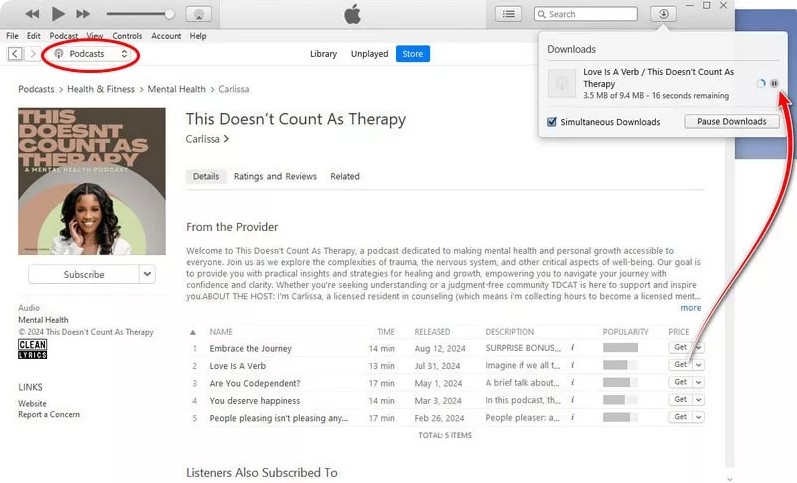
Select the desired episode and use the available Download option to save it locally.
Depending on the iTunes version and how the podcast is distributed, you may need to subscribe to the podcast before downloading an episode.
Step 3. Locate and check the downloaded file.
After the download is complete, use iTunes' available file-location option to open the episode's folder in Windows Explorer.
The downloaded file may be in MP3, M4A, or another supported audio format, depending on the podcast publisher.
If you need an MP3 file and the episode is provided in another format, you can convert it with an audio conversion tool.
Method 5. Download Apple Podcasts to MP3 Online for Free
Another option for downloading Apple Podcasts episodes as MP3 files is to use an online podcast downloader. These web-based tools typically allow you to paste the URL of a publicly available Apple Podcasts episode and retrieve its associated audio file without installing additional software.
Several online services support Apple Podcasts downloads, including podcast download and RSS-based tools. In this guide, we use Swell AI Apple Podcast Downloader as an example because its workflow is straightforward and similar to other online podcast downloaders.
How to Download Apple Podcasts with an Online Downloader
Step 1. Copy the Apple Podcasts episode URL.
Open the podcast episode you want to download on
Apple Podcasts
and copy the episode URL from your browser's address bar.
Step 2. Open an online podcast downloader.
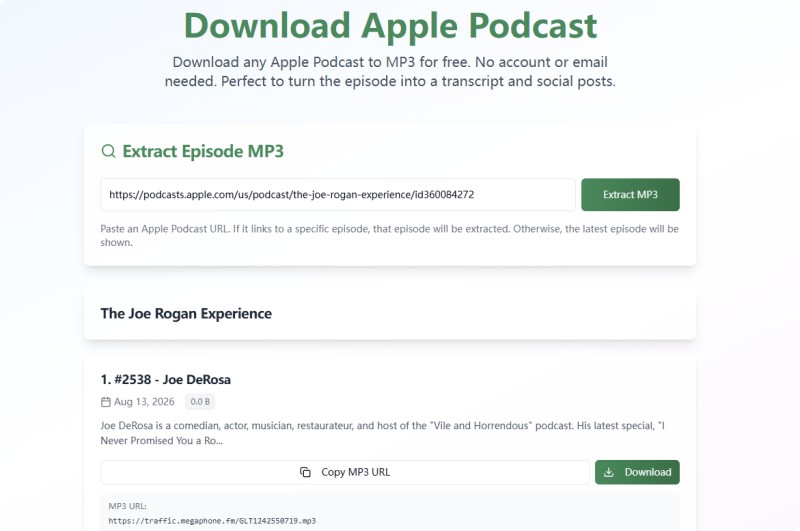
Open the Swell AI Apple Podcast Downloader in your browser and locate the URL input field.
Step 3. Extract the podcast audio.
Paste the Apple Podcasts episode URL into the input field and click Extract MP3.
Wait for the service to process the link and retrieve the available episode information.
Step 4. Download the MP3 file.
Once the episode is ready, click Download to save the audio file.
If the service provides a Copy MP3 URL option instead, copy the audio URL, open it in a new browser tab, and save the file using Save Audio As.
On Windows, you can also press Ctrl + S; on Mac, press Command + S.
Compare the Best Ways to Download Apple Podcasts to MP3
| Method | Ease of Use | MP3 Support | Batch Download | Installation | Best For |
|---|---|---|---|---|---|
| Macsome Music One | ★★★★★ | ✓ | ✓ | Required | Most users |
| Page Source | ★★ | ✓ | ✗ | Not required | Technical users |
| Podcast RSS Feed | ★★★ | ✓ | Limited | Not required | Free downloading |
| iTunes on Windows | ★★★ | Limited | Limited | Required | Windows users |
| Online Downloader | ★★★★ | ✓ | Limited | Not required | Quick downloads |
Each method has its own advantages and limitations. If you want the simplest way to download Apple Podcasts episodes to MP3, a dedicated downloader such as Macsome Music One offers a more convenient solution, especially when you need to download multiple episodes or manage your podcast library.
FAQs About Downloading Apple Podcasts to MP3
- Can I download Apple Podcasts to MP3 for free?
- Yes. You can try free methods such as accessing the podcast RSS feed or retrieving the audio file from the page source. Some online podcast downloaders may also allow free downloads. However, free methods may require more manual steps or have limitations on supported episodes, download options, or batch processing.
- Is it legal to download Apple Podcasts episodes to MP3?
- The legality depends on the podcast, its distribution terms, and how you use the downloaded content. Before downloading or redistributing an episode, check the podcast creator's terms and applicable copyright laws. Downloaded content should generally be used for personal purposes unless you have permission for other uses.
- Can I download Apple Podcasts to MP3 without installing software?
- Yes. You can use methods such as accessing a podcast's RSS feed, finding the direct audio URL from the page source, or using an online podcast downloader. These methods do not require desktop software, although they may involve additional steps and may not offer convenient batch download features.
Conclusion
As you can see, there are several ways to download Apple Podcasts to MP3, from browser-based methods and RSS feeds to free online tools and dedicated desktop software. The right option depends on what you need. If you only want to save an occasional public episode, a browser or online downloader may be enough. However, if you regularly download podcasts, need to process multiple episodes, or want more control over the output format and quality, a dedicated downloader can provide a much more convenient workflow.
Among the methods covered in this guide, Macsome Music One offers a comprehensive solution for downloading and recording publicly available Apple Podcasts content. With support for multiple output formats, including MP3, AAC, FLAC, WAV, AIFF, and ALAC, it gives you greater flexibility for organizing and listening to your podcast library offline.
Ready to save your favorite podcast episodes? Try Macsome Music One to download Apple Podcasts in the format that works best for you and enjoy your podcasts offline on more devices.