



 Wyatt Maxwell
Why can't I change my Spotify username?
Spotify is one of the world's most popular music streaming platforms, offering millions of songs, playlists, and podcasts to users. Personalizing your profile is essential for self-expression and engaging with others. However, many new users often wonder why they can't change their Spotify username.
Your Spotify username is a unique identifier created when you first sign up for the platform. This username is primarily used for login purposes and isn't visible to others. It’s important to note that Spotify does not allow you to change your username once it's been set. However, don't worry! While your username is locked in, you can still change your display name, which is visible to others on your profile. The display name can be customized anytime, giving you the flexibility to reflect your style, interests, or personality.
In this guide, we'sll show you how to easily change your display name on both the desktop, and mobile versions of Spotify. Plus, we'll walk you through how to download Spotify music without needing a Premium account.
Part 1. How to Change Your Spotify Display Name
It's easy to change your Spotify display name, and you can do so from either the desktop or mobile app.
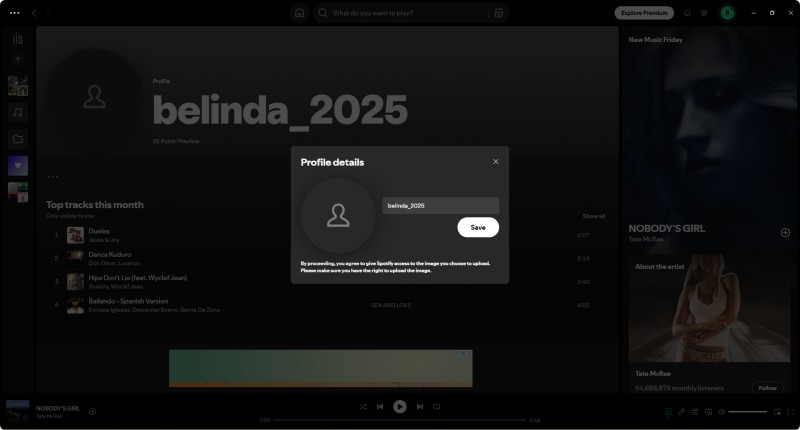
Change Your Spotify Display Name On Desktop (Windows/Mac)
1. Launch the Spotify application on your desktop or go to the Spotify website and log into your account.
2. On the home screen, look at the top-right corner of the Spotify interface. You should see your current display name along with your profile picture (or a default avatar). Click on your profile name.
3. A drop-down menu will appear. Select Profile to go to your profile settings. On your profile page, you will see an option labeled Edit Profile. Click on this button.
4. A dialog box will appear where you can change your display name. Enter the new name you wish to use and click Save. Your new display name will now be visible to anyone who views your profile.
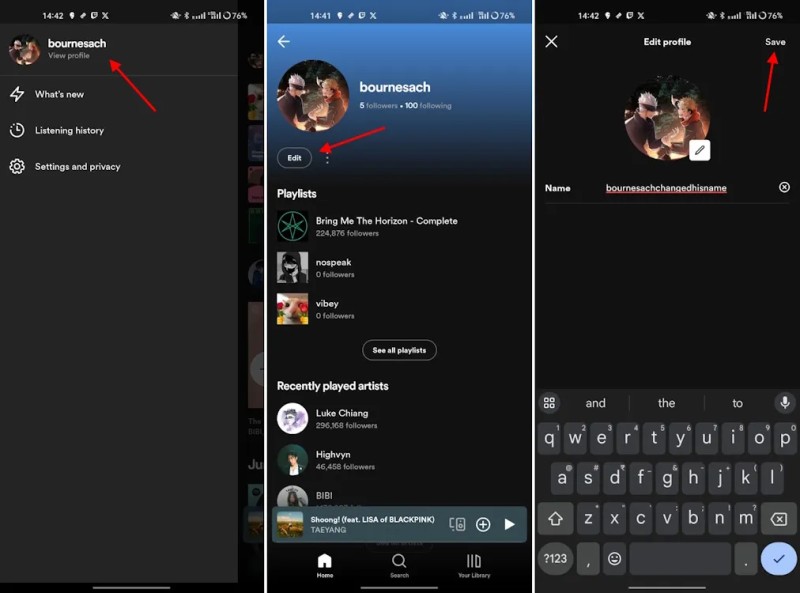
Change Your Spotify Display Name On Mobile (Android/iOS)
1.: Launch the Spotify app on your phone. Tap on Your Library at the bottom-right corner of the screen.
2.: At the top of the Library page, you'll see your profile picture (or avatar). Tap on it to open your profile page.
3.: On your profile page, tap the Edit Profile button. You will now be able to change your display name. Type in the new name, and when you're done, tap Save or Done in the top-right corner.
Your display name will be updated immediately, and anyone who views your profile will see the new name.
Part 2. How to Change Spotify Username (Workarounds & Tips)
Unfortunately, you cannot change your Spotify username directly. It's a fixed identifier tied to your account. However, if you're really set on having a new username, the only option is to create a new Spotify account.
✨ How to Create a New Account
Spotify links playlists to accounts, which makes changing your username difficult. However, you can create a new account with a new username and then contact Spotify's customer support. They can transfer your playlists and other data to your new account. Before you do this, you’ll need to close your current account. If you have a subscription, be sure to cancel it before closing the account to avoid any issues with billing.
Please Note: Closing your account means you'll lose your playlists, followers, and music/library collections. However, you can contact the Spotify support team within seven days of closing the old account to help you move to a new one.
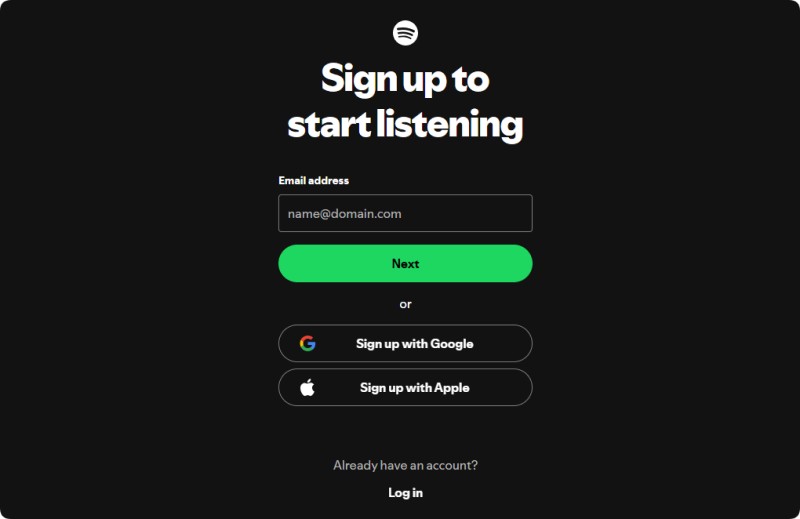
Spotify offers multiple sign-up options, depending on your preference. Choose how you want to sign up:
👤 Sign Up for Spotify Using Email
Open your browser and navigate to Spotify's homepage. You'll find this option at the top-right corner of the page. Click it to start the registration process. Once you've filled in all your details, hit the "Sign Up" button.
👤 Sign Up for Spotify Using Google
Click the "Sign up with Google," you can also sign up using your Google account for convenience. Allow Spotify to access your Google account. Once connected, Spotify will create your account using your Google profile.
After creating your account, you will be directed to your Spotify homepage. Then, you can set up your profile. If you signed up via email or Google, remember that your Spotify username will be a random string of characters that you won't be able to change.
Part 3. Customize Your Spotify Content: How to Download Music Without Premium
Customizing your Spotify experience means more than just changing your display name or creating the perfect playlist. One of the best ways to make Spotify your own is to have access to all your favorite tracks, albums, and playlists offline, whether you have a Spotify Free or Premium account. However, if you have a free account, you can't download music for offline listening. What if you could download and enjoy your Spotify music without upgrading to Premium?
This is the perfect time to use Macsome Spotify Downloader. With this powerful tool, you can download your favorite Spotify tracks and playlists in MP3, AAC, WAV, FLAC, AIFF, and ALAC formats, even without a Premium subscription. Once downloaded, the music retains its original quality and ID3 information like title, artist, and album. You can then enjoy it offline in your car, studio, or on any MP3 player or device. It helps you build a custom music library for offline use, enhancing your overall Spotify experience.

Key Features of Macsome Spotify Downloader
- Download Spotify songs, playlists, audiobooks, and podcasts with high quality.
- Convert Spotify songs to MP3, AAC, WAV, FLAC, AIFF, or ALAC.
- Download music from both the Spotify app and the Spotify web player.
- Download music from the Spotify web player without logging in.
- Customize the quality of your output of Spotify songs at up to 320 kbps.
- One click to burn CDs & import Spotify songs to Apple Music.
- Play Spotify music offline with both Spotify Free and Premium users.
- Support batch downloading Spotify music at up to 40x faster speed.
- Almost all the ID3 tags will be preserved.
How to Download Spotify Music Without Premium
Step 1. Launch Macsome Spotify Downloader.
Download, install, and launch the Macsome Spotify Downloader. This tool is compatible with both the Spotify desktop app and web player. In this guide, we'll use the desktop app version, which will open automatically, allowing you to sign in to your Spotify account. Alternatively, you can also download tracks directly from the web player without needing to log in, providing greater flexibility.
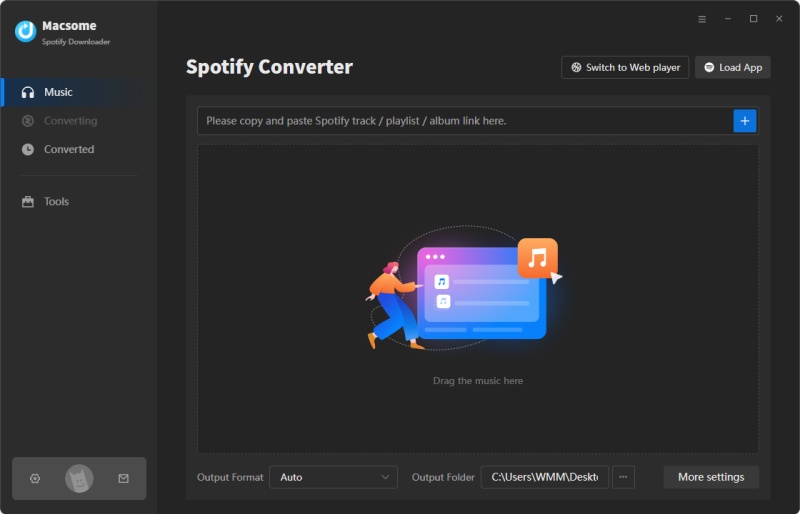
Step 2. Import Spotify Music to Macsome.
In the Spotify app, go to the playlists you want to download. Click the "Click to add" button to load the tracks into Macsome. Then, click "Add" to include them in the conversion list. To add more playlists in batches, click "Add More."
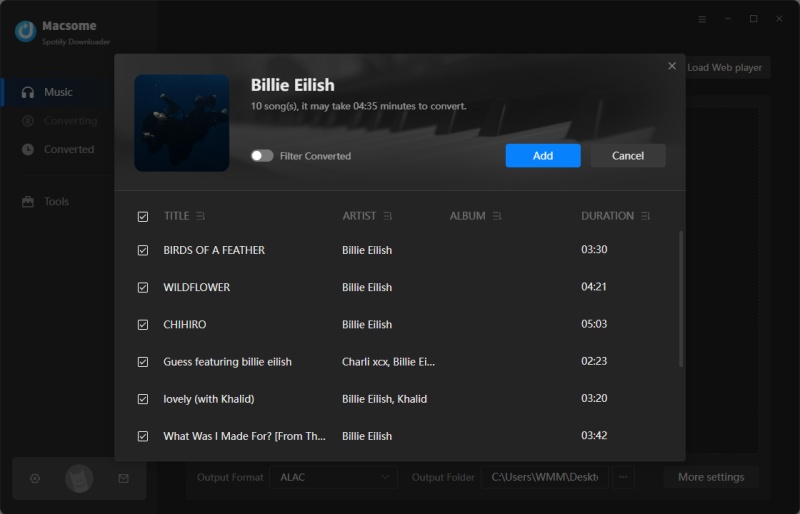
Step 3. Set Output Parameters.
Click "Settings" on the left to select your preferred output format (MP3, AAC, WAV, FLAC, AIFF, or ALAC). You can also customize the audio quality by adjusting the bit rate and sample rate and modify the output folder, file name, and organization.
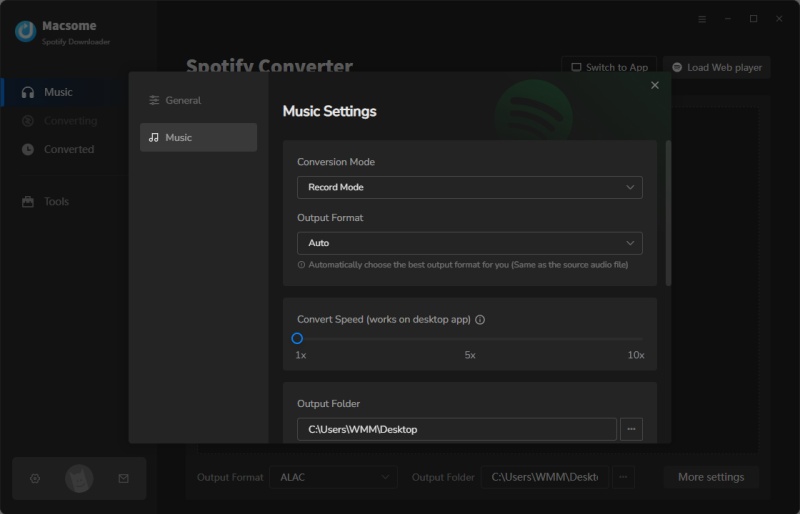
Step 4. Start to Download Spotify Music.
Click the "Convert" button to start downloading Spotify music using Macsome. After the download is finished, go to the "History" tab to see a list of all your downloaded tracks. To locate the music on your computer, click the "Folder" icon.
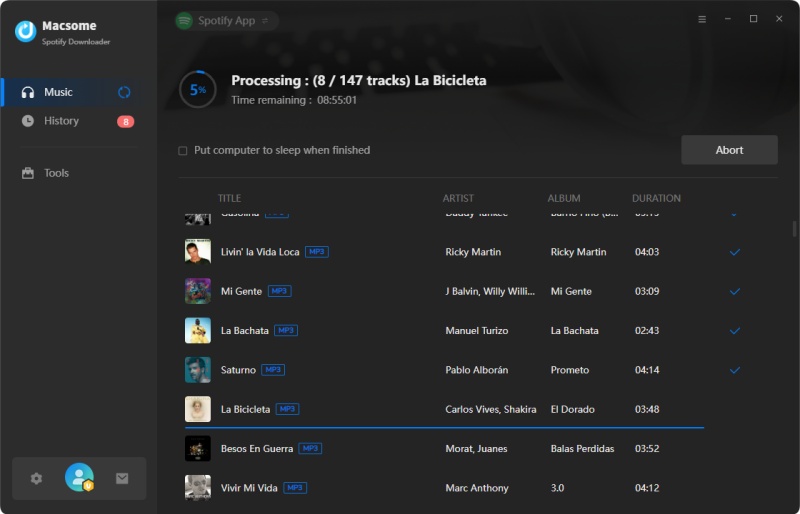
Part 4. FAQs About Changing Your Spotify Name
- Why Can't I Change My Username on Spotify?
- Unfortunately, Spotify does not allow users to change their usernames because they are used as unique identifiers for accounts. It's linked to your account data, so changing it could cause technical issues. However, you can easily change your display name, which is the name that others will see.
- What If My Display Name Doesn't Update Immediately?
- If your display name doesn't update right away, try log out and log back in to refresh your profile. Make sure you have an active internet connection. Restart the Spotify app or your browser.
- Can I Change My Name to Anything I Want?
- Yes, you can change your display name to anything that does not offend and adheres to Spotify’s community guidelines. You may also use special characters, spaces, or numbers, but remember that your display name should be easily recognizable and appropriate.
Conclusion
Changing your Spotify name—whether your display name or your username—is an important step in personalizing your account. While you can change your display name as often as you want, your Spotify username is permanent. Understanding the difference between the two can help you manage your account more effectively.
To change your Spotify username, you'll need to create a new account. Keep in mind that this process may result in losing your playlists, followers, and collections. If you need help with this, you can contact the Spotify support team for assistance.
By following the simple steps above, you can create a clean and professional-looking Spotify profile. If you're looking for more ways to enhance your Spotify experience, consider using tools like the Macsome Spotify Downloader. This tool allows both Spotify Free and Spotify Premium users to download music locally, helping you build your own music library and transfer it to any device.
Note: The free trial version of Macsome Spotify Downloader lets you convert the first 1 minute of each audio. You are able to install it and give it a try. You can buy the full version to unlock this limitation.