



 Wyatt Maxwell
"Is there a way to download the cover art? I want to download the cover art for some songs, so I can potentially use them as wallpapers on my phone. I use Android, so I'd love to have a mobile version, but PC works too." — Asked on Spotify Help Community
Want to download Spotify cover art for a phone wallpaper, poster, video thumbnail, or your local music library? While Spotify doesn't offer a direct option to save album artwork, you can still get high-resolution cover images using a few simple methods. In this guide, we'll explore five ways to download Spotify cover art, from extracting images through the Spotify web player to using online tools and dedicated music downloaders. We'll compare image quality, ease of use, and device compatibility to help you find the best method for saving Spotify album covers on your computer or phone.
- ⚖️ Which Method Should You Use? (Quick Comparison)
- 🔍 What Resolution Is Spotify Cover Art? (We Tested It)
- 🖼️ Method 1: Get the Full-Size Cover from the Spotify Web Player (Best Quality)
- 🔗 Method 2: Use the oEmbed Link (No Code, Works on iPhone & Android)
- 🌐 Method 3: Use an Online Spotify Album Cover Downloader
- ⭐ Method 4: Download Spotify Songs with Cover Art Embedded (For Your Music Library)
- 📸 Method 5: Take a Screenshot (Quickest, Lowest Quality)
- ❓ FAQs about Downloading Spotify Cover Art
Which Method Should You Use? (Quick Comparison)?
We tested five ways to download Spotify cover art, comparing their image resolution, ease of use, device compatibility, and whether Spotify Premium is required. The results below highlight the key differences and help you choose the best method for your needs.
| Method | Max Resolution | Ease | Device | Best For | Premium Needed? |
|---|---|---|---|---|---|
| 1. Spotify Web Player | Up to 2,000 × 2,000 px in our tests | Moderate | Desktop, Mobile | High-resolution album covers | No |
| 2. Spotify oEmbed | 300 × 300 px in our test | Moderate | Desktop, iPhone, Android | Quick thumbnail access | No |
| 3. Online Cover Downloader | Varies by tool | Easy | Desktop, Mobile | Quick, standalone downloads | No |
| 4. Macsome Spotify Downloader | Full embedded artwork; dimensions vary | Easy | Windows, Mac | Music files with embedded cover art | No |
| 5. Screenshot | Limited by screen and display size | Very Easy | Desktop, iPhone, Android | Quick personal reference | No |
What Resolution Is Spotify Cover Art? (We Tested It)
Spotify cover art doesn't have one fixed resolution. The available image size depends on the album, playlist, and image URL you retrieve. To find out how large a cover really is, check the pixel dimensions of the downloaded image instead of relying on its appearance in Spotify.
| Image Resolution | Image Quality | Best Use |
|---|---|---|
| 64 × 64 px | Low | Small thumbnails and icons |
| 300 × 300 px | Standard | Small previews and music players |
| 640 × 640 px | High | Music library artwork and phone screens |
| 1000 × 1000 px or larger | High resolution | Larger displays and detailed viewing |
How to Check Spotify Cover Art Resolution
On Windows: Right-click the downloaded image, select Properties, and open the Details tab. Check the image dimensions.
On Mac: Open the image in Preview, then select Tools > Show Inspector to view its dimensions.
On iPhone or Android: Open the saved image in your Photos or Gallery app and view its information or details.
For example, if your downloaded cover measures 300 × 300 pixels, enlarging it to 1200 × 1200 pixels won't restore the original detail. For the best result, find a larger source image whenever one is available.
Tip: If you want to keep album artwork with your offline music collection, the image embedded in an audio file may have different dimensions from the image displayed in Spotify. Check the extracted artwork separately to confirm its actual size.
Method 1: Get the Full-Size Cover from the Spotify Web Player (Best Quality)
This method lets you access Spotify's album artwork directly and check whether a higher-resolution image is available.
Step 1. Open Spotify Web Player. Visit Spotify Web Player in Chrome, Firefox, Edge, Safari, or another browser. Navigate to the album, track, or playlist whose cover art you want to save. Open its dedicated page so that the artwork is easy to identify.
Step 2. Inspect the cover image. Right-click the artwork and select Inspect, or open Developer Tools using F12 or Ctrl + Shift + I on Windows, or Cmd + Option + I on macOS. Click the element selector and select the cover image.
Step 3. Copy the image URL. In the highlighted HTML, look for a
src or srcset attribute containing a URL that starts with
https://i.scdn.co/image/. Copy the image URL and open it in a new browser tab.
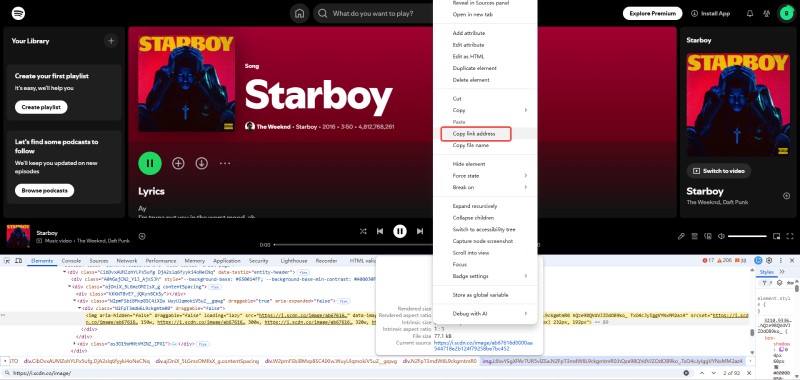
Step 4. Save the image. If the image opens directly, right-click it and select Save image as. Choose a folder and save the file.
Pros:
- Access high-resolution Spotify cover art directly.
- Free to use without installing additional software.
- Save clean artwork without interface elements.
Cons:
- Maximum resolution depends on the available image.
- Finding and saving images may require extra steps.
- Downloading multiple covers individually takes time.
Method 2. Use the oEmbed Link (No Code, Works on iPhone & Android)
Spotify's oEmbed endpoint returns metadata for a supported Spotify link, including a thumbnail_url field that points to the associated cover image. You can use this method in a mobile or desktop browser without installing an app or writing code.
Step 1. Copy the Spotify Link. Open Spotify and find the song, album, or playlist whose cover art you want to download. Click the three-dot menu, select Share, and choose Copy link. On iPhone or Android, tap the three-dot menu, then select Share and Copy link.
Step 2. Open the Spotify oEmbed URL. Open a new browser tab and enter the following URL in the address bar. This is Spotify's oEmbed endpoint, which returns metadata for supported Spotify links.
https://open.spotify.com/oembed?url=
Step 3. Add Your Spotify Link. Paste the copied Spotify link immediately after the equals sign (=) to create a complete URL. For example, if your link is https://open.spotify.com/album/4aawyAB9vmqN3uQ7FjRGTy, the complete URL will look like this:
https://open.spotify.com/oembed?url=https://open.spotify.com/album/4aawyAB9vmqN3uQ7FjRGTy
Step 4. Find the Thumbnail URL. Press Enter to load the complete URL. Your browser should display a JSON response containing metadata about the Spotify item. Find the thumbnail_url field, which contains the URL of the associated cover image. You may also see the image dimensions listed as thumbnail_width and thumbnail_height.

Step 5. Open the Cover Image. Copy the complete URL next to thumbnail_url, excluding the quotation marks. Paste it into a new browser tab and press Enter to open the image directly. Check its dimensions to determine whether the resolution meets your needs.
Step 6. Save the Cover Art. Once the image loads, save it to your device. On a computer, right-click the image and select Save image as. On an iPhone, touch and hold the image and select Save to Photos if available. On Android, touch and hold the image and choose Download image or the equivalent option in your browser.
Pros:
- Works on iPhone, Android, and desktop browsers.
- No coding skills or extra tools required.
- Quickly retrieves artwork from supported Spotify links.
Cons:
- Artwork resolution may be lower than expected.
- Requires manually extracting the image from the preview.
- Not designed for downloading multiple covers at once.
Method 3: Use an Online Spotify Album Cover Downloader
Online Spotify album cover downloaders let you retrieve artwork by pasting a Spotify track, album, or playlist link into a website. This method is convenient if you don't want to inspect JSON responses or manually locate image URLs. However, available resolutions and supported Spotify links vary by tool.
Step 1. Choose an Online Spotify Cover Downloader. Open an online tool such as SpotiSongDownloader Album Cover Downloader in your browser. It allows you to retrieve available Spotify artwork without installing additional software or signing in to Spotify.
Step 2. Copy the Spotify Link. Open Spotify and navigate to the song, album, or playlist whose cover art you want to save. Click or tap the three-dot menu, select Share, and choose Copy link. You can also copy the URL directly from the browser's address bar when using Spotify Web Player.
Step 3. Paste the Link into the Downloader. Return to the online downloader and paste the copied Spotify URL into the input field. Check that the link points to the correct track, album, or playlist before continuing.
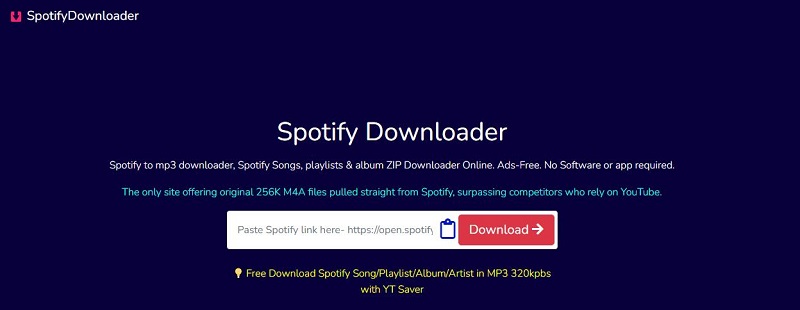
Step 4. Retrieve the Cover Art. Click the Download button or the equivalent option on the website. Wait for the tool to process the link and display the matching artwork. If a preview appears, verify that the cover belongs to the correct song or album.
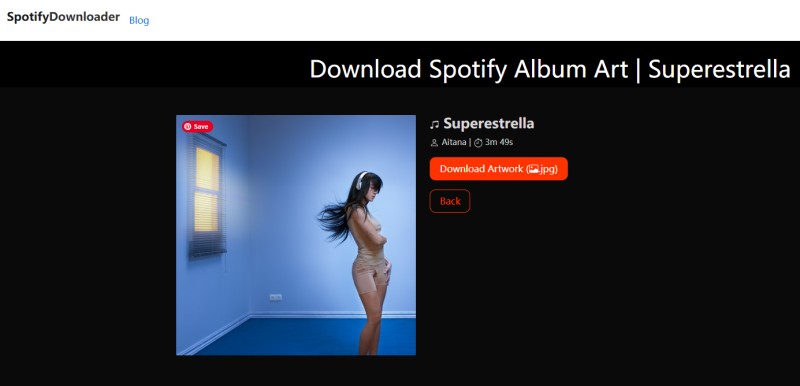
Step 5. Download the Cover Image. Click the Download Artwork button to save the artwork to your device.
Pros:
- Simple process with no technical skills required.
- Works across desktop and mobile web browsers.
- Some tools offer multiple image resolutions.
Cons:
- Available resolutions vary between different online tools.
- Some websites display intrusive ads or pop-ups.
- Privacy and reliability depend on the service.
Method 4: Download Spotify Songs with Cover Art Embedded (For Your Music Library)
If you want to download Spotify cover art for your offline music library, downloading songs with embedded album artwork is a more practical option. Instead of saving each cover image separately, use Macsome Spotify Downloader to download Spotify music to your computer while preserving the associated cover art in the audio file's metadata. It supports tracks, albums, playlists, podcasts, and audiobooks, and works with both Spotify Free and Premium accounts.
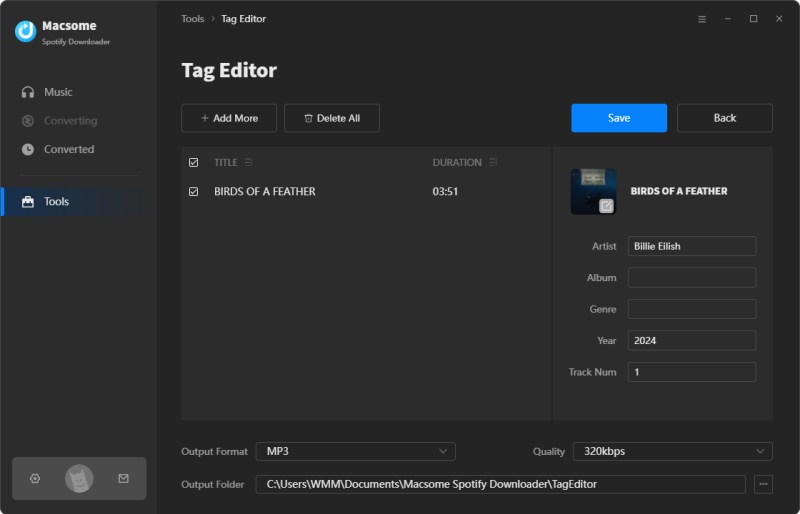
Macsome Spotify Downloader preserves original ID3 tags, including title, artist, album, artwork, track number, disc number, year, and more. You can save music in MP3, AAC, WAV, FLAC, AIFF, or ALAC formats, use high-speed downloads of up to 40× via Web Player mode, and organize files into folders. A built-in ID3 tag editor is also available if you need to adjust the metadata later.

Why Choose Macsome Spotify Downloader to Download Spotify Cover Art?
- Download Spotify tracks, albums, playlists, podcasts, and audiobooks to your computer.
- Preserve album artwork in audio file metadata for music with available cover art.
- Retain original ID3 tags, including titles, artists, album names, track numbers, disc numbers, and release years.
- Save Spotify music in MP3, AAC, WAV, FLAC, AIFF, and ALAC formats.
- Download music in batches and use Web Player mode for speeds of up to 40×.
- Edit ID3 tags and organize downloaded files into folders for easier music library management.
- Works with both Spotify Free and Premium accounts.
How to Download Spotify Cover Art with Macsome Spotify Downloader
Follow these steps to download Spotify music with Macsome Spotify Downloader and check the embedded cover art on your computer.
Step 1. Install and Launch Spotify Downloader. Download, install, and open Macsome Spotify Downloader on your Windows PC or Mac. Choose an available Spotify playback mode to access your music.
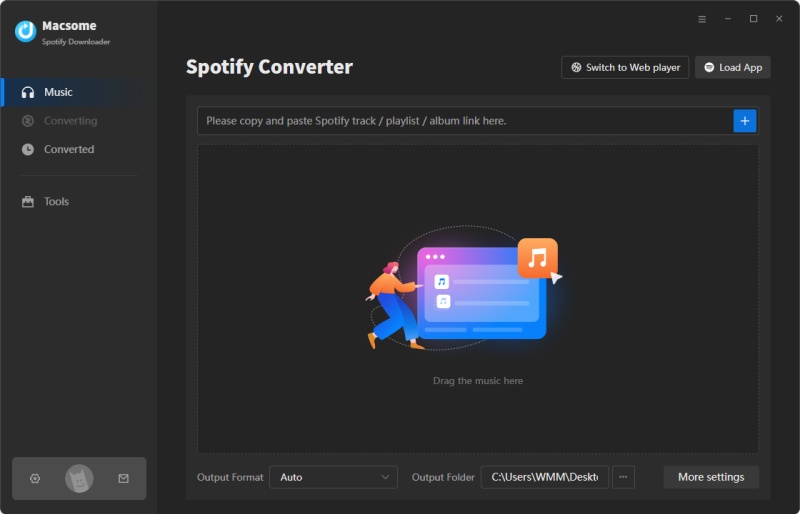
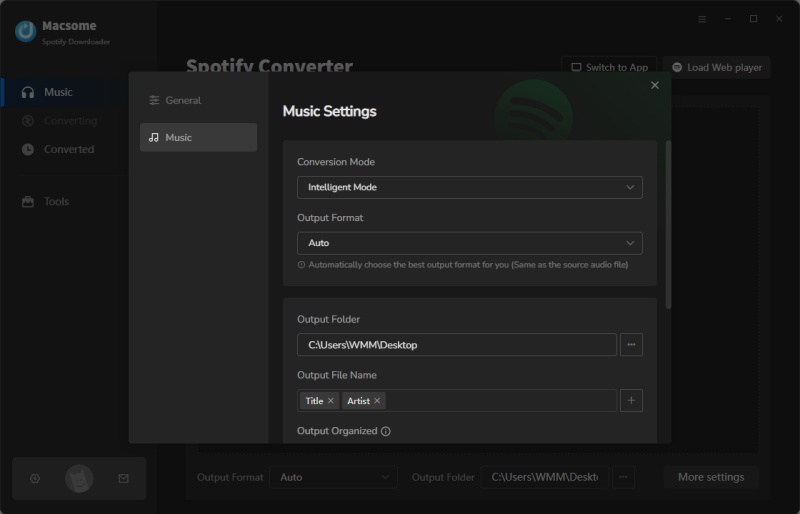
Step 2. Choose an Output Format. Open the output settings and select your preferred audio format, such as MP3, AAC, FLAC, WAV, AIFF, or ALAC. Choose an output folder where you can easily find your downloaded songs. MP3 is a practical option for compatibility with many music players and devices.
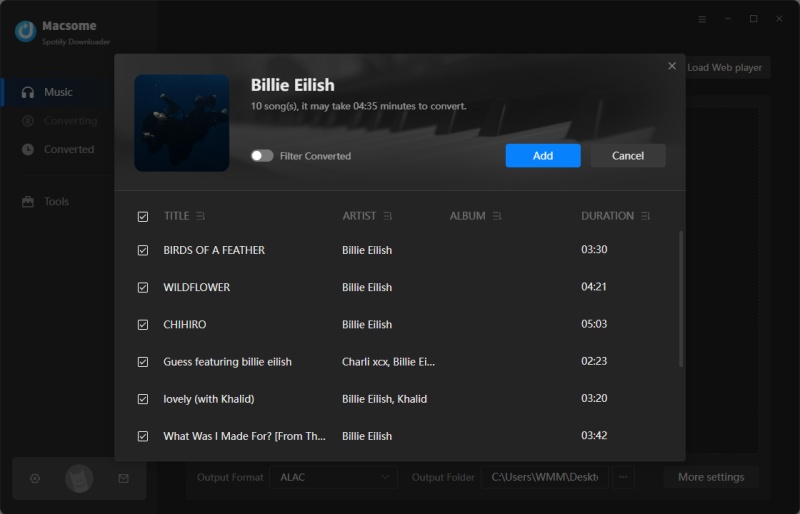
Step 3. Add Spotify Songs or Playlists. Open the built-in Spotify interface and sign in to your Spotify account if prompted. Browse your library and select the songs, albums, or playlists you want to download. You can add multiple tracks at once to save time when building your music library.
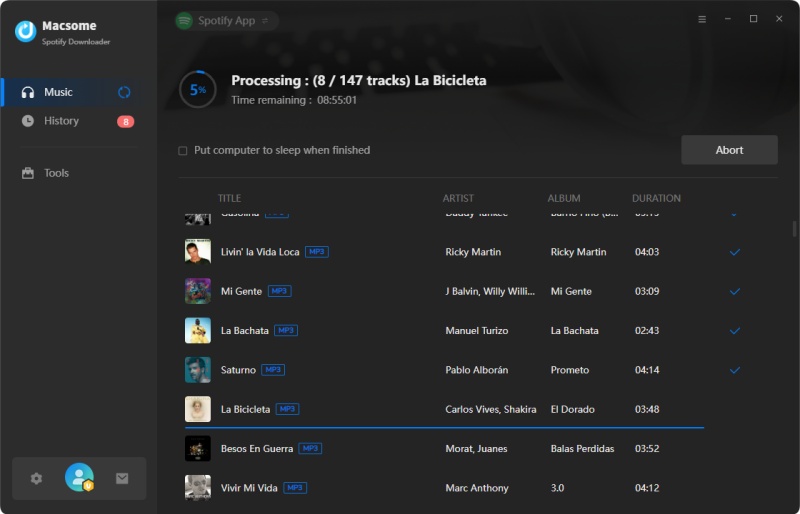
Step 4. Download Spotify Music with Album Artwork. Review your selected tracks and click the Convert button to start downloading. Macsome Spotify Downloader can preserve available ID3 metadata, including song titles, artist names, album information, track numbers, and associated album artwork. This allows compatible music players to display the cover art alongside your downloaded songs.
Step 5. Locate Your Downloaded Music. Once the download is complete, open the output folder you selected earlier. Find your downloaded audio files and check their metadata using a compatible music player or ID3 tag editor. This helps you confirm whether the album artwork has been embedded in the files.
Step 6. View or Edit the Embedded Cover Art. Import your downloaded songs into a compatible music player, such as VLC, and check whether the album artwork appears correctly. If the cover is missing or incorrect, use an ID3 tag editor to add or replace the artwork, if supported by your workflow. Keep in mind that embedded cover art may be smaller than the original high-resolution image available through other methods.
Pros:
- Downloads music and preserves associated album artwork in supported audio files.
- Retains available ID3 tags for a better-organized music library.
- Supports multiple audio formats and batch downloads.
- Useful for viewing album covers in compatible music players.
Cons:
- Requires downloading the audio tracks rather than saving cover images alone.
- Embedded artwork may not retain the original cover's full resolution.
- Artwork availability and display depend on the track metadata and the music player used.
Method 5: Take a Screenshot (Quickest, Lowest Quality)
Taking a screenshot is the fastest way to save Spotify album cover art without using a downloader or visiting another website. It works on Windows, Mac, iPhone, and Android, making it a convenient option when you only need a quick copy. However, the saved image may include interface elements, and its resolution depends on your screen size and display settings.
Step 1. Open Spotify and Find the Cover Art. Launch Spotify on your computer or phone and navigate to the song, album, or playlist whose cover art you want to capture. Open its dedicated page so the artwork is clearly visible.
Step 2. Enlarge the Artwork. Maximize the Spotify window on your computer or open the album page on your phone. Make the cover as large as possible and hide unnecessary interface elements to improve the screenshot.
Step 3. Take a Screenshot. Use the appropriate shortcut for your device. On Windows, press Win + Shift + S to select an area. On Mac, press Shift + Command + 4. On iPhone, press the Side and Volume Up buttons together. On most Android devices, press the Power and Volume Down buttons simultaneously.
Step 4. Crop the Screenshot. Open the screenshot in your Photos app or image editor. Crop out playback controls, navigation bars, and other unwanted elements, keeping only the album cover. Maintain the original proportions to avoid stretching or distorting the artwork.
Step 5. Save the Cover Image. Save the cropped image as a PNG or JPEG file. On a computer, choose a folder such as Pictures. On a phone, save it to Photos or Gallery so you can access it whenever needed.
Pros:
- Quickest method with no extra tools required.
- Works on virtually all computers and smartphones.
- Easy to crop and save locally.
Cons:
- Image quality depends on your screen resolution.
- Cropping may leave unwanted interface elements.
- Cannot recover details missing from the screenshot.
FAQs about Downloading Spotify Cover Art
- Is it legal to download Spotify cover art?
- Spotify album artwork may be protected by copyright, and downloading an image does not automatically grant permission to reuse it. Personal use, such as keeping an image as a private wallpaper, may present fewer practical risks than commercial use or redistribution, but legality depends on applicable law and the circumstances. Obtain permission from the rights holder before using artwork commercially or sharing it publicly. Review Spotify's User Guidelines for additional information.
- Can you download Spotify playlist covers and artist images?
- Yes, some methods can retrieve playlist cover images, artist profile pictures, and podcast artwork. However, the available methods and image resolutions vary by content type and tool. Spotify's oEmbed endpoint returns thumbnail information for supported Spotify links, but it does not guarantee access to every image or its highest-resolution version. Custom playlist covers and automatically generated playlist mosaics may also have different image sources.
- Can I download Spotify cover art on iPhone?
- Yes. You can use Safari to access a compatible online Spotify cover art downloader or try the oEmbed method to retrieve an available thumbnail. Taking a screenshot is another option, although the resulting image quality depends on your screen resolution and the size of the displayed artwork. You generally do not need to install a separate app.
- Do I need Spotify Premium to download Spotify cover art?
- No. Accessing publicly available cover art through a browser or taking a screenshot generally does not require Spotify Premium. Compatible online tools may have their own restrictions. Macsome Spotify Downloader also supports Spotify Free and Premium accounts, although its free trial limits each converted track to the first minute.
- Will downloaded Spotify songs keep the album cover?
- They can. Macsome Spotify Downloader supports preserving ID3 metadata, including album artwork, along with information such as the song title, artist, and album. The embedded artwork can be displayed by compatible music players that read the relevant metadata. If a cover is missing or incorrect, you can check or edit the file's tags using a compatible tag editor.
Conclusion
Downloading Spotify cover art in full resolution depends on the method you choose. The Spotify Web Player and oEmbed link are good starting points, while online downloaders offer a simpler alternative. If you want to keep album artwork with your offline music collection, Macsome Spotify Downloader lets you download Spotify songs with embedded cover art and ID3 tags for easier music organization.
Ready to build your offline music library? Try Macsome Spotify Downloader and keep your favorite tracks and their album artwork together.