



 Wyatt Maxwell
Spotify is one of the world's leading music streaming platforms, offering millions of songs, playlists, and podcasts. While Premium users can enjoy offline listening, many people seek free and convenient ways to download Spotify tracks as MP3 files for offline use without a subscription. This is where tools like SpotiDown come in—a free online Spotify to MP3 downloader that allows users to quickly save their favorite tracks directly from the browser. But with so many options available, users naturally wonder: Is SpotiDown safe, reliable, and capable of delivering high-quality audio?
In this in-depth SpotiDown review, we'll take a close look at what SpotiDown is, how it works, its key features, and its pros and cons. We will also assess its safety and legality, and introduce the best SpotiDown alternative for users seeking a more stable, secure, and high-quality solution for downloading Spotify music in MP3 format. Whether you're curious about SpotiDown's capabilities or looking for a better option, this guide has you covered.
Part 1. What Is SpotiDown?
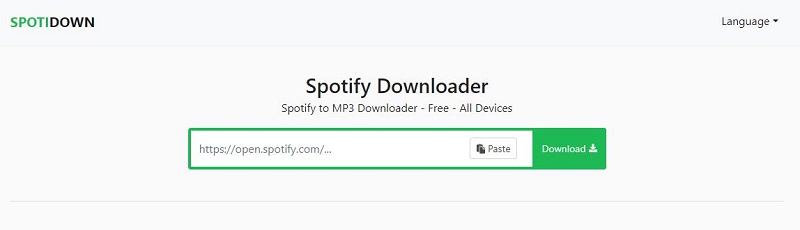
SpotiDown is a free online Spotify to MP3 downloader that allows users to save tracks, albums, playlists, and artists directly from Spotify in high-quality MP3 format (up to 320 kbps). It works entirely in the cloud, so no software installation is required, and it can be accessed from any device with a web browser, including smartphones, PCs, and Macs. No Spotify Premium account, login credentials, or personal information is needed.
SpotiDown preserves metadata such as song titles, album art, and artist details, and it can also download album covers. Free users can download up to 5 tracks per album or playlist, saved as a ZIP file. Full albums or playlists with more than 5 tracks require a premium subscription.
🌐 SpotiDown Official Website: spotidown.app
Recommendation Index: ★★★★☆ (4/5)
🔑 Key Features of SpotiDown Free Spotify to MP3 Downloader:
- ✅ Download Spotify songs, albums, playlists, and artists for free.
- ✅ Support downloading Spotify tracks to high-quality MP3 output (up to 320 kbps).
- ✅ Preserve metadata: song titles, album art, and artist details.
- ✅ Supports album cover downloads.
- ✅ No registration, login, or subscription required.
- ✅ Works on all devices via a web browser.
⚖️ Pros and Cons of SpotiDown:
Pros
- High-Quality Output: Downloads Spotify songs in high-definition MP3 format, often at 320 kbps.
- Main ID3 Tags Kept: Retaining original metadata such as cover images, titles, and albums.
- No Software Required: Fully web-based without extra installations.
- Free and Accessible: Works with both free and Premium Spotify accounts without login.
- Cross-Device Support: Works on computers and mobile devices alike.
Cons
- Limited Output Format: Only MP3 format is supported; no FLAC, WAV, or other formats.
- Inconsistent Playlist Support: Long playlists may not fully download.
- Ads and Pop-Ups in Some Cases: While the site claims to be ad-free, it actually redirects users, and there are risks of malware.
- Metadata Inaccurate: Downloaded tracks include a "SpotiDown.app" suffix in their filenames, requiring manual renaming.
- Legal and Safety Risks: Usage may violate Spotify's Terms of Service and copyright laws.
Part 2. How to Use SpotiDown Spotify to MP3 Downloader
SpotiDown works as a free online Spotify to MP3 downloader that converts Spotify tracks, albums, and playlists into MP3 files directly in your browser. Here's how SpotiDown works step by step:
- Step 1. Go to the official SpotiDown website. The website works in any modern web browser, including Chrome, Firefox, Edge, and Safari.
- Step 2. Open the Spotify app or web player, search for a song, album, playlist, or podcast, and copy its link by clicking the share button.
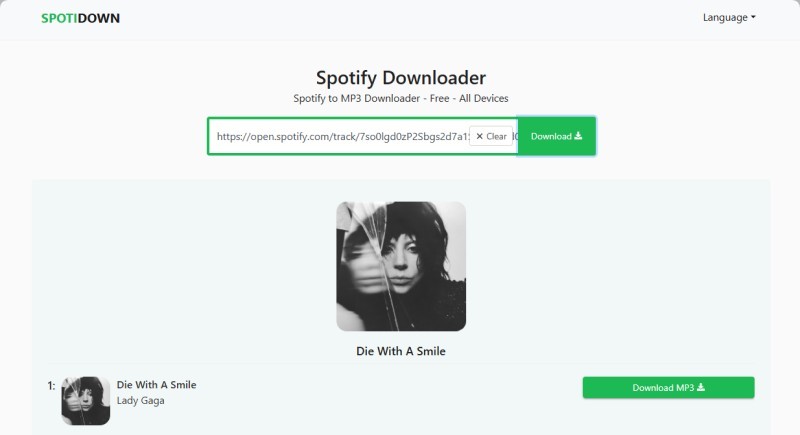
- Step 3. Go back to the SpotiDown website. Paste the copied Spotify link into the input field. Click the "Download" button.
- Step 4. After processing, SpotiDown will display a "Download MP3" button. Click it to save the file to your device.
⚠️ When clicking the Download button, you may be redirected to another page containing ads or potential malware. Do not click anything on that page and simply close it.
Part 3. Is SpotiDown.app Safe and Legit?
Is SpotiDown Safe to Use?
Safety is a major concern with third-party downloaders. While SpotiDown claims to be 100% safe, does not retain user data, and performs conversions in the cloud, the reality is more complicated. It downloads files directly from Spotify to your device without requiring logins, but this does not guarantee security.
Multiple website reputation and security scanners flag SpotiDown as potentially malicious or high-risk. ScamAdviser, for example, assigns it a very low trust score and warns of possible phishing or scam activity, while other scanners indicate potential malware risks. Users may also encounter redirects or pop-ups during downloads, increasing the chance of exposing personal information or downloading harmful files. To minimize risk, ensure the URL matches the official domain and use a reliable ad blocker. For a safer alternative, Macsome Spotify Downloader is recommended, as it avoids web-based ads and security concerns.
Is SpotiDown Legal?
Using SpotiDown is not legally permitted in most jurisdictions. Spotify's terms of service grant users a limited, personal, non-commercial right to stream and download content only through official Spotify apps and features. They do not authorize the use of external tools to download or convert tracks outside the service. Downloading Spotify audio via an external converter usually violates Spotify's terms of service and may be considered unauthorized access to copyrighted content.
SpotiDown's own terms acknowledge that users are responsible for ensuring compliance with local copyright laws, and they prohibit redistribution or commercial use of downloaded material. In practice, this means that while casual personal downloads may seem harmless, they can still be legally problematic under both Spotify’s contractual rules and broader intellectual property law.
Part 4. Best SpotiDown Alternative (Safe & Reliable) - Macsome Spotify Downloader
After evaluating SpotiDown's features, limitations, and safety concerns, it's clear that many users need a more robust solution. Macsome Spotify Downloader is a safer, faster, and more reliable alternative. Unlike SpotiDown, which relies on online downloads and may face interruptions or limited downloads, Macsome allows you to batch download songs, playlists, albums, podcasts, and audiobooks in high-quality MP3, AAC, WAV, AIFF, ALAC, or FLAC formats. It preserves artwork, artist information, and track metadata, keeping your music library perfectly organized. You don't need a Premium account to enjoy your music offline anytime, anywhere.
With speedy downloads, multi-format support, and complete offline management, Macsome puts you in full control of your Spotify collection - fast, secure, and hassle-free.
Key Features of Macsome Spotify Downloader
- Download Spotify songs, playlists, audiobooks, and podcasts with high quality.
- Convert Spotify songs to MP3, AAC, WAV, FLAC, AIFF, or ALAC.
- Download music from both the Spotify app and the Spotify web player.
- Download music from the Spotify web player without logging in.
- Customize the quality of your output of Spotify songs at up to 320 kbps.
- One-click to burn CDs & Import Spotify songs to Apple Music.
- Play Spotify music offline with both Spotify Free and Premium users.
- Support batch downloading Spotify music at up to 40x faster speed.
- Almost all the ID3 tags will be preserved.
How to Download Spotify Music to 320 kbps MP3 with Macsome
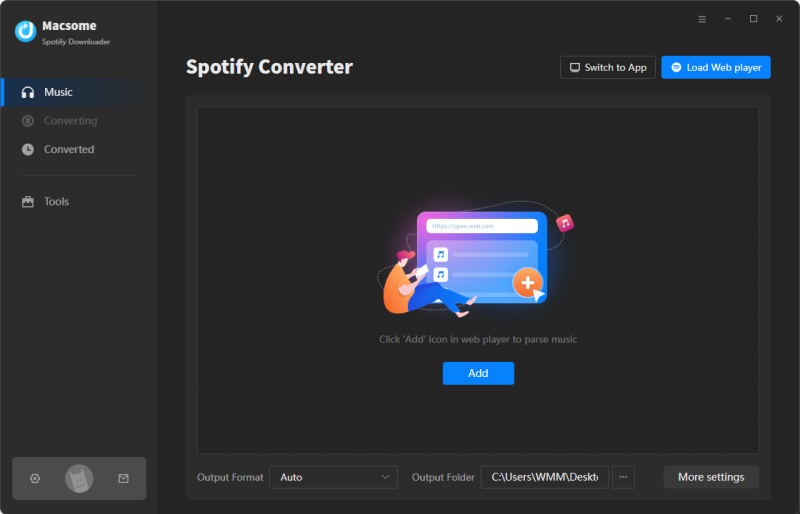
Step 1. Launch Macsome Spotify Downloader.
Download, install, and launch the Macsome Spotify Downloader on your computer. This versatile tool supports both the Spotify desktop application and web player. Here, we'll use the Spotify app mode as an example. Once selected, the Spotify app will open automatically. Simply sign in to access your library.
Step 2. Add Spotify Music to Macsome.
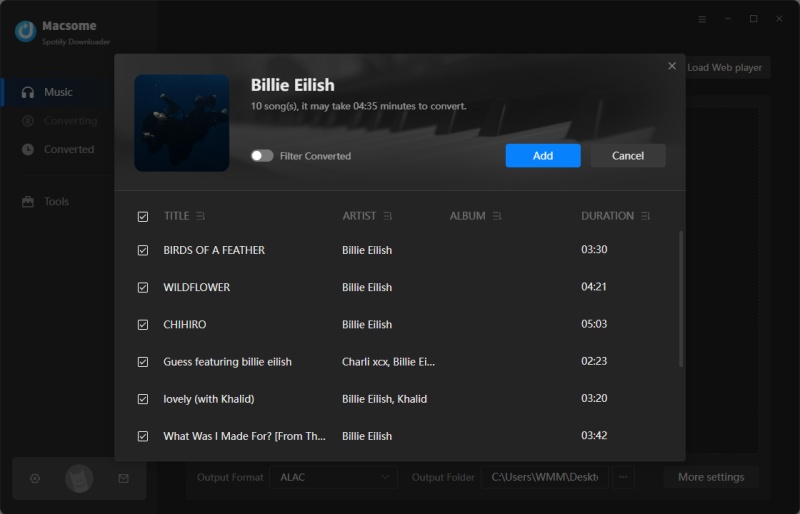
In the Spotify app, open the playlist you want to download. Click the "Click to add" button to load the tracks into Macsome. Then, click "Add" to include them in the conversion list. To download multiple playlists at once, click "Add More" and repeat the process for additional playlists.
Step 3. Set MP3 as Output Format.
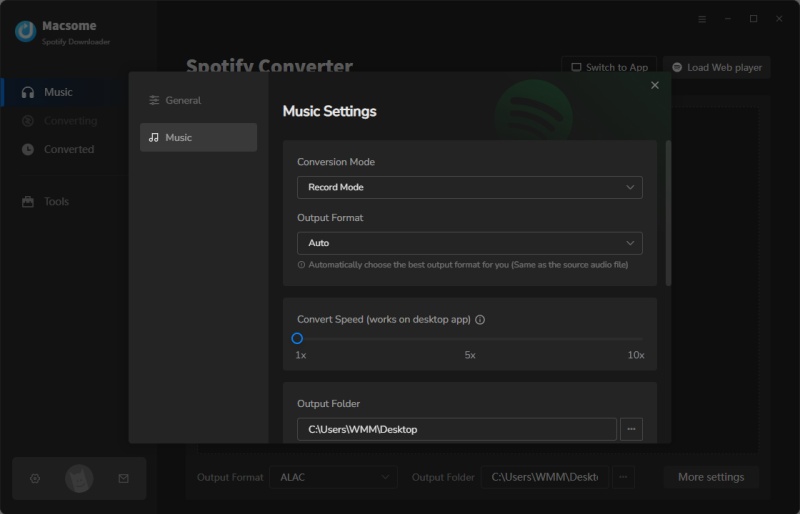
Click "Settings" in the lower left corner, then select MP3 as the output format. You can also choose from other formats, including AAC, WAV, FLAC, AIFF, and ALAC. You can also customize your Spotify files by adjusting audio parameters, such as the bit rate (up to 320 kbps). Macsome also allows you to change the output folder, file names, and file organization for easier management.
Step 4. Start to Download Spotify Music to MP3.
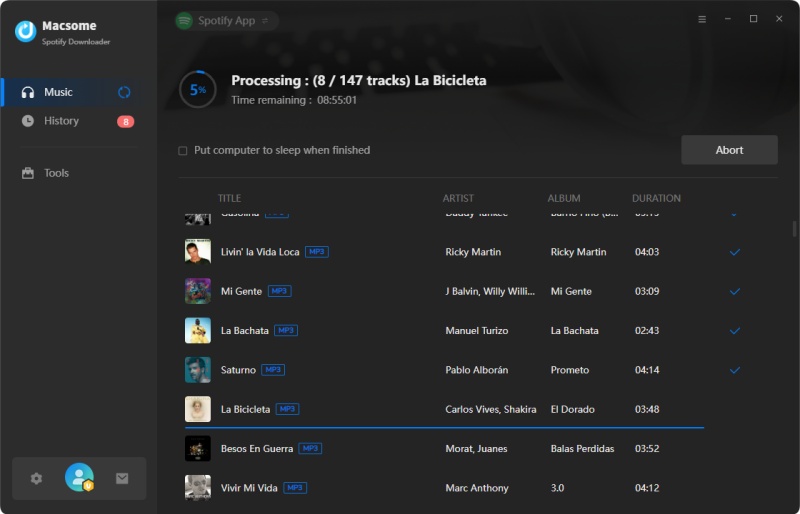
After configuring your settings, click "Convert" to begin downloading your Spotify tracks. After conversion is complete, open the "History" tab to view your downloaded songs. Click the "Folder" icon to locate the files on your computer. Now, you can transfer your Spotify MP3s to any device and enjoy them offline anytime.
Part 5. FAQs About SpotiDown Spotify MP3 Downloader
- Do I need a Spotify Premium account to use SpotiDown?
- No, you do not need a Spotify Premium account to use SpotiDown. The online downloader works with both free and paid Spotify accounts. You do not need to log in to Spotify or have a Premium subscription to convert a Spotify track, playlist, or album link to MP3.
- Can I download full playlists with SpotiDown?
- According to official descriptions from SpotiDown, you can paste a Spotify playlist link and the tool will process it, allowing you to download the entire playlist as a bundled ZIP file of MP3s rather than downloading individual songs. However, free users can only download up to five tracks per album or playlist, which are saved as a ZIP file. Full albums or playlists with more than five tracks require a premium subscription.
- Is there a limit to how many downloads I can make?
- With the SpotiDown online Spotify downloader, there is generally no fixed limit on the total number of downloads. However, free users are restricted to downloading up to five tracks per album or playlist, which are provided as a ZIP file. To download full albums or playlists containing more than five tracks, a premium subscription is required.
- What if SpotiDown stops working?
- SpotiDown usually stops working due to technical outages, backend changes, Spotify platform updates, traffic overload, or temporary restrictions or shutdowns, which are common for unofficial online downloaders. In such cases, users typically have limited support options and no guarantee of service recovery. Practical solutions include waiting and trying again later, switching to a similar online tool, or considering a more stable, desktop-based alternative like Macsome Spotify Downloader that is actively maintained and less dependent on web-based conversion services.
- Does SpotiDown keep my data?
- No, SpotiDown does not keep copies of downloaded files on its servers and does not collect or store your personal data.
Conclusion
This is the complete SpotiDown review. In short, SpotiDown is a convenient online tool that allows you to quickly download Spotify songs, albums, or playlists as MP3s without requiring installation or a Premium account. However, it has notable limitations: free users can only download a few tracks at a time, download speeds may be inconsistent, and reliability is not guaranteed.
For a safer, more stable, and fully featured solution, consider the Macsome Spotify Downloader. It allows you to download entire playlists, albums, podcasts, and audiobooks in high-quality MP3, AAC, WAV, ALAC, or FLAC formats while preserving metadata and album artwork. With Macsome, you can enjoy your favorite Spotify music offline anytime without limits or interruptions.
Enjoy unlimited offline listening and hassle-free downloads! Download the Macsome Spotify Downloader now!