



 Russell Doe
How do I transfer Apple Music to a USB drive? I want to listen to my Apple Music playlists in my car using a USB stick, but dragging the downloaded files doesn't work. Is there a way to save Apple Music songs as MP3 files for offline playback?
If you love your Apple Music playlists but wish you could take them on the road in your car, smart TV, or gaming console, you're not alone. Many subscribers face the same frustration: dragging downloaded songs to a USB drive simply doesn't work. That's because Apple Music is a streaming-based service, so the songs you download are essentially cached for offline playback rather than standalone audio files that can be freely moved or used on a USB drive.
Luckily, there's a simple solution. By converting Apple Music tracks to universal formats like MP3, you can unlock true offline access. Once converted, you can save your favorite playlists to a USB stick and enjoy your music on any device that supports USB playback. In this guide, we'll show you exactly how to convert Apple Music songs and transfer them to a USB drive, step by step, so you never miss a beat, no matter where you are.
Part 1. Why You Can't Transfer Apple Music to a USB Drive
The main reason Apple Music tracks cannot be moved to a USB drive is that they are not stored as independent audio files on your device. Instead, they exist inside a controlled playback system that only works within supported apps and authorized devices.
Because most USB-enabled devices such as car stereos and TVs rely on standard audio formats, they are unable to read or recognize Apple Music content. As a result, these tracks will not appear as playable music files when transferred to external storage.
Is It Possible to Save Apple Music Songs as MP3?
Yes, Apple Music songs can be converted to MP3 format, but not directly within the Apple Music app. Since the tracks are not stored as standard audio files, you need a dedicated audio converter to export them into widely supported formats such as MP3.
Once converted, the songs become regular audio files that can be used on USB drives, car systems, smart TVs, and other devices without restrictions.
Part 2. Best Method to Convert Apple Music for USB Playback
When trying to transfer Apple Music to a USB drive, most users quickly realize that the real challenge is not the USB itself, but finding a reliable way to make Apple Music files usable outside the app. Many tools on the market either fail during large playlist processing, lose music information, or produce unstable results that do not work properly on car systems or other USB-based devices.
This is why many users choose Macsome Apple Music Converter as a practical solution. It allows you to convert Apple Music songs, playlists, and albums into widely supported audio formats such as MP3, AAC, WAV, FLAC, AIFF, and ALAC, ensuring they are fully compatible with USB-supported devices. It is designed to handle the full workflow of transferring Apple Music to USB by maintaining stable and consistent performance even when working with large music libraries. Instead of dealing with playback errors or missing tracks, users can efficiently prepare their Apple Music collection for USB use and enjoy smooth playback across cars, TVs, and other offline playback devices.
Why Use Macsome for Apple Music to USB Transfer
- Convert Apple Music songs, playlists, and albums into USB-compatible formats like MP3 and AAC.
- Ensure smooth playback on car stereos, TVs, gaming consoles, and other USB devices.
- Preserve original audio quality with support up to 320kbps and Hi-Res output.
- Keep full music metadata including artist, album, artwork, and track info.
- Batch convert entire playlists quickly with high stability and efficiency.
- Organize your music library easily for USB storage and offline listening.
- Compatible with both Windows and macOS systems.
How to Download Apple Music to USB-Compatible Formats like MP3
The most efficient way to prepare Apple Music for USB transfer is by using a stable downloader that can export tracks into standard audio formats. With Macsome Apple Music Downloader, you can easily download Apple Music songs as high-quality MP3 files with a much smoother and more reliable process.
Step 1. Download, install, and launch Macsome Apple Music Downloader on your computer.
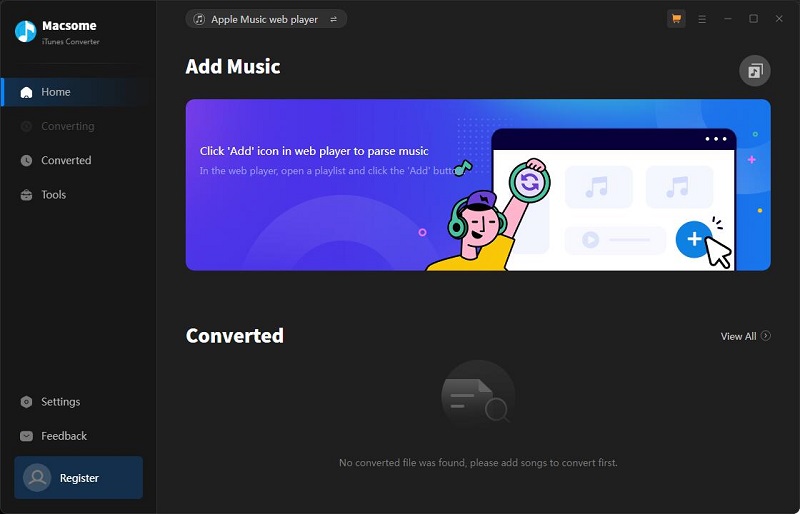
Step 2. Click the "Settings" button in the lower-left corner and select MP3 as the output format. You can also adjust the output quality up to 320kbps and choose your preferred output folder for easy file management.
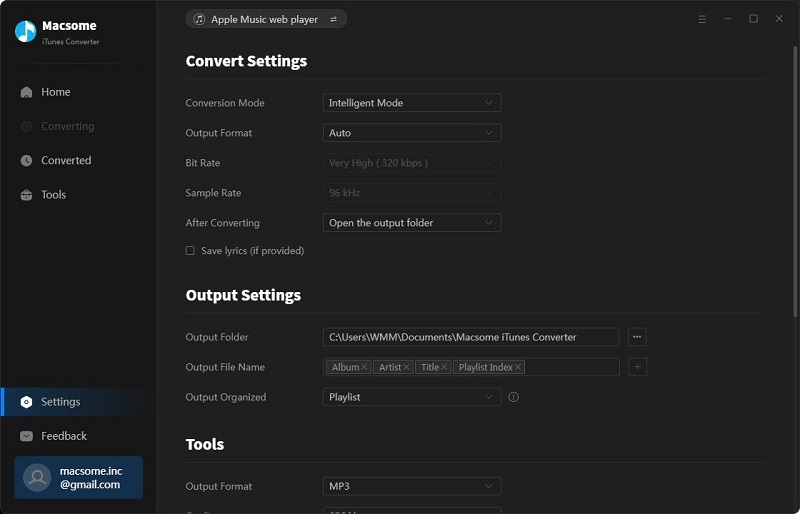
Step 3. Open the built-in Apple Music web player and navigate to the playlist, album, or song you want to prepare for USB transfer. Click the "Click to add" button to automatically load all selected tracks.
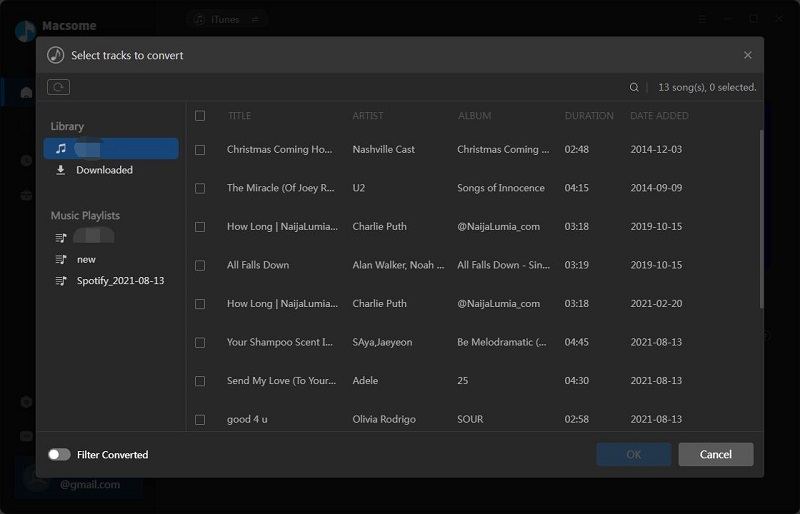
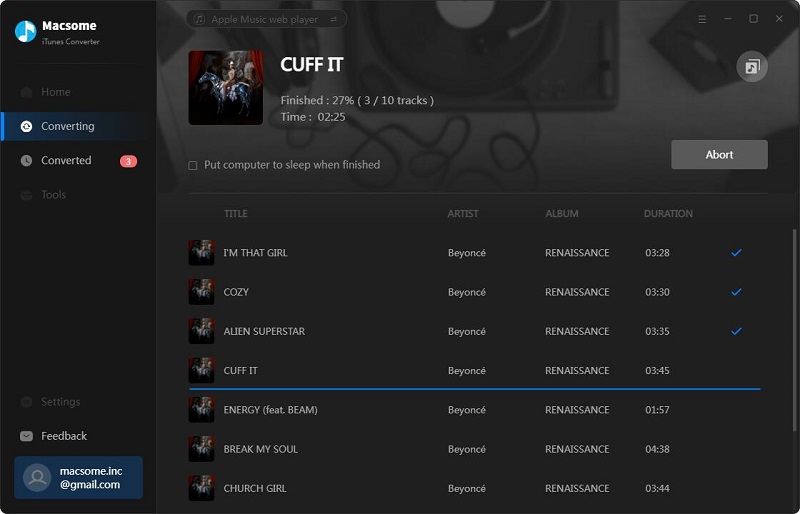
Step 4. Click the "Convert" button to start converting Apple Music to MP3. Once the process is complete, all downloaded songs will be available in the "History" section, ready to be copied to a USB drive for offline playback on any compatible device.
Part 3. Step-by-Step: How to Transfer Apple Music to USB Drive
Once your Apple Music tracks have been prepared in a USB-compatible format, the next step is to transfer them to a USB drive so they can be played on devices such as car stereos, smart TVs, or other USB-supported systems.
Step 1. Insert a USB drive into your computer and make sure it is properly recognized by the system.
Step 2. Open the folder where your converted Apple Music files are stored on your computer.
Step 3. Select the songs, playlists, or albums you want to transfer, then copy and paste them into the USB drive folder. You can also organize them into folders for easier navigation on car or TV systems.
Step 4.Safely eject the USB drive from your computer to ensure all files are properly saved. You can now plug it into your car, TV, or any compatible device and enjoy your Apple Music library offline.
Part 4. FAQs About Using Apple Music with USB
- Can I transfer Apple Music directly to a USB drive?
- No. Apple Music tracks cannot be directly moved to a USB drive. They first need to be prepared in a USB-compatible audio format before they can be used on external devices such as car stereos or TVs.
- Why won’t Apple Music files play on my car USB system?
- Most car USB systems only support standard audio formats like MP3 or AAC. Apple Music content is not stored in these formats by default, which is why the files are not recognized or playable when transferred.
- What is the best format for transferring Apple Music to USB?
- MP3 is the most widely supported format for USB playback, especially in cars and portable devices. It offers a good balance between compatibility and audio quality.
- Can I keep playlists organized after transferring to USB?
- Yes. If you organize your converted Apple Music files into folders before transferring them, most USB-supported devices will retain the structure for easier navigation.
- Do I need special software to transfer Apple Music to USB?
- Yes. Since Apple Music tracks need to be prepared before USB transfer, a dedicated tool like Macsome Apple Music Converter can help you convert and organize your music for smooth playback on USB devices.
Summary
Transferring Apple Music to a USB drive is not as straightforward as it may seem, mainly because Apple Music is designed for in-app playback rather than direct file portability. While quick online tools may appear convenient, they are often limited in stability, consistency, and long-term usability—especially when dealing with large playlists or frequent transfers.
For users who want a reliable and hassle-free way to complete Apple Music to USB transfer, a desktop solution is the most effective option. Macsome Apple Music Converter provides a stable and efficient workflow to prepare your Apple Music library for USB use, helping you manage songs, playlists, and albums with consistent output quality and better organization across different devices.
Whether you want to play music in your car, on a smart TV, or any USB-supported device, having your Apple Music collection properly prepared ensures a smoother and more flexible listening experience anywhere you go.
Start your Apple Music to USB transfer today and unlock true offline freedom. Try Macsome Apple Music Converter to convert your playlists into USB-ready formats and enjoy your music anytime, anywhere—without limitations.