



 Russell Doe
If your Apple Music songs sound a little too flat, bass-heavy, or lacking in clarity, adjusting the equalizer can make a noticeable difference. The Apple Music Equalizer gives you a simple way to change how your music sounds by adjusting the balance of bass, vocals, and treble.
But which EQ setting should you use? In this guide, we'll show you how to find and adjust Apple Music EQ settings on different devices, along with recommended settings for bass, vocals, headphones, and popular music genres.
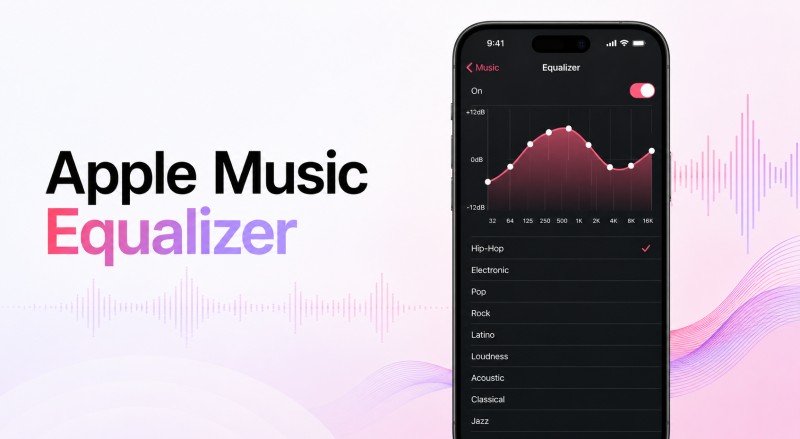
Part 1. What Is the Apple Music Equalizer?
The Apple Music Equalizer (EQ) is a built-in audio feature that lets you customize how your music sounds by adjusting different frequency ranges. It can boost or reduce frequencies such as bass, midrange, and treble, helping you create a listening experience that better matches your preferences, headphones, speakers, or music style.
Apple Music provides a variety of EQ presets for different listening experiences, including Bass Booster, Vocal Booster, Rock, Pop, Classical, Acoustic, and Electronic. These presets make it easy to change the overall sound without manually adjusting individual frequency bands.
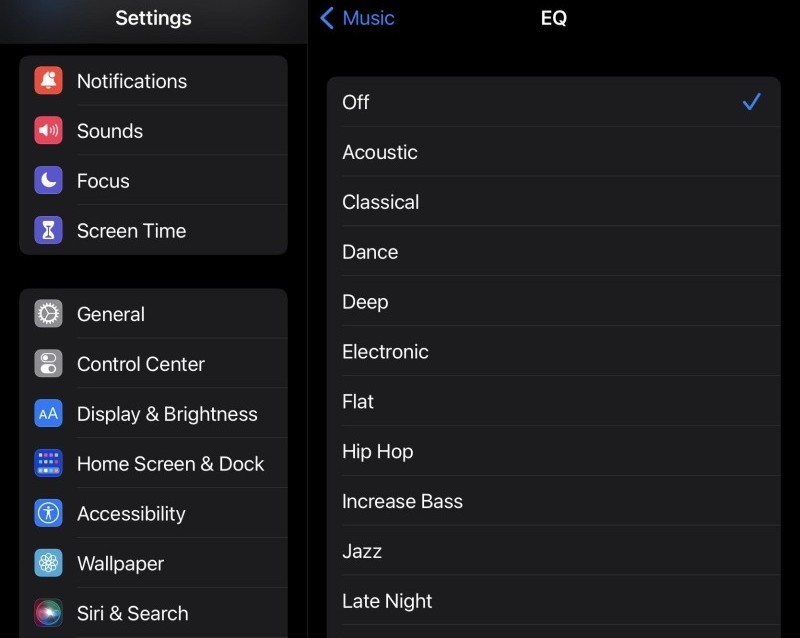
Apple Music Equalizer Presets
Apple Music's built-in equalizer presets are designed to emphasize different parts of the frequency spectrum. For example, Bass Booster increases low-frequency sounds for a stronger low end, while Vocal Booster emphasizes frequencies that can make vocals more prominent. Other presets, such as Rock, Pop, Classical, Acoustic, and Electronic, are tuned for different musical characteristics.
There is no single best Apple Music EQ preset for everyone. The right choice depends on the type of music you listen to, your headphones or speakers, and your personal preferences. Presets are a convenient starting point, especially if you want to improve the sound without manually adjusting each frequency band.
Apple Music EQ Presets for Different Music Genres
Different music genres often benefit from different EQ profiles. While these recommendations are a useful starting point, you may need to experiment with different presets depending on your audio equipment and listening preferences.
| Music Genre | Recommended EQ Preset | Why It Works |
|---|---|---|
| Pop | Pop | Provides a balanced mix of vocals, bass, and instruments. |
| Rock | Rock | Adds punch and energy to guitars and drums. |
| Hip-Hop | Hip-Hop / Bass Booster | Emphasizes basslines, beats, and low-frequency impact. |
| Classical | Classical | Helps preserve instrumental detail and dynamic range. |
| Electronic | Electronic | Enhances bass impact and high-frequency detail. |
| Acoustic | Acoustic | Brings out natural-sounding vocals and acoustic instruments. |
Part 2. How to Find and Use the Apple Music Equalizer
Once you know which EQ preset fits your music, the next step is finding the Apple Music equalizer on your device. The location and available options can vary depending on whether you use an iPhone, iPad, Mac, Windows PC, or Android device.
How to Access Apple Music EQ on iPhone and iPad
On iPhone and iPad, you can access Apple Music EQ settings through the Music settings in iOS or iPadOS. Apple provides a selection of presets that let you quickly change the sound of your music.
Step 1: Open the Settings app on your iPhone or iPad.
Step 2: Tap Apps > Music, then scroll down and select EQ.
Step 3: Choose an EQ preset, such as Bass Booster, Vocal Booster, Rock, or Classical, based on your listening preferences.
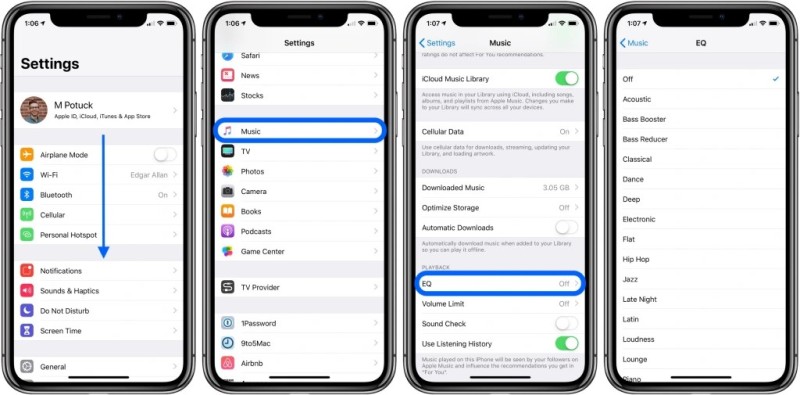
iPhone and iPad primarily provide preset-based EQ options, so you cannot manually adjust individual frequency bands in the same way as on a Mac.
How to Use the Apple Music Equalizer on Mac
Apple Music on Mac provides more detailed EQ controls. In addition to choosing a preset, you can manually adjust individual frequency bands to create a custom sound profile.
Step 1: Open the Apple Music app on your Mac and start playing a song.
Step 2: From the menu bar, choose Window > Equalizer to open the Apple Music EQ panel.
Step 3: Select an EQ preset or move the frequency sliders to adjust the bass, midrange, and treble. You can also save your custom EQ settings for later use.
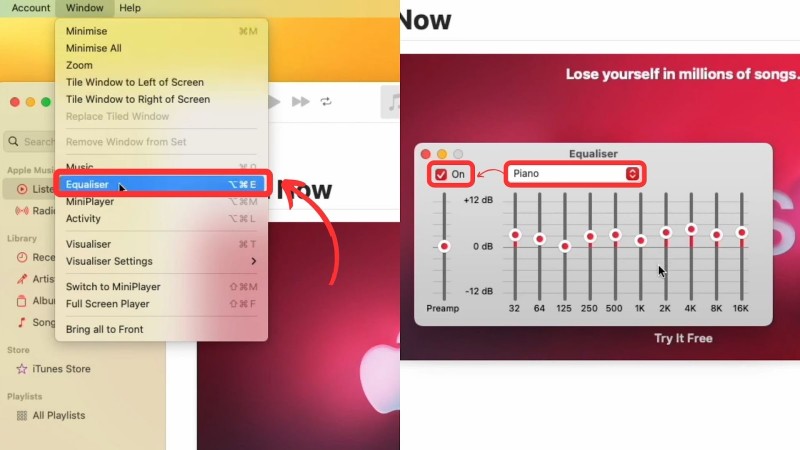
When creating a custom profile, make small adjustments and test them with familiar songs. This makes it easier to find a balance that works well with your headphones or speakers.
How to Adjust Apple Music EQ Settings on Windows
The available Apple Music audio controls on Windows can differ from those on macOS. If the Apple Music app does not provide the EQ controls you need, Windows audio enhancements or compatible third-party equalizer software may offer additional options.
Step 1: Open the Apple Music app on your Windows PC and play a song.
Step 2: Check the app's available audio or playback settings for equalizer options. If an EQ is not available, open your Windows sound settings.
Step 3: Adjust the available sound enhancement or equalizer controls, then play a few familiar tracks to check whether the changes improve the overall sound.
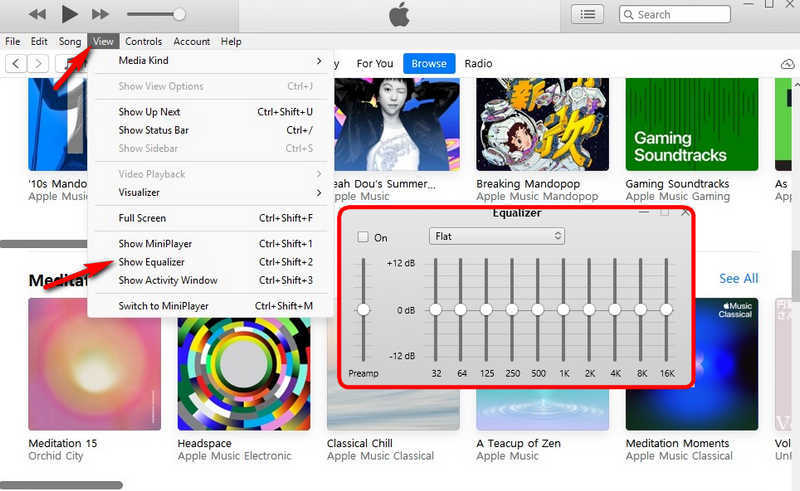
For the best results, avoid making large changes to multiple frequency ranges at once. Small adjustments usually make it easier to identify what is improving or hurting the sound.
How to Adjust Apple Music EQ on Android
On Android, Apple Music's available EQ controls can vary depending on the app version and device. Some Android phones also include their own system-level equalizer or audio enhancement features.
Step 1: Open the Apple Music app on your Android phone and start playing a song.
Step 2: Open the Apple Music Settings and check for available audio or equalizer options.
Step 3: If your device provides a system-level equalizer, open your phone's Sound or Audio settings and adjust the available bass, midrange, and treble controls.
Because Android manufacturers use different audio systems, the exact location and controls may vary between devices. If you cannot find an EQ option in Apple Music, check your phone's built-in audio settings.
Part 3. Best Apple Music Equalizer Settings for Bass, Vocals, and More
There is no single best Apple Music equalizer setting that works for everyone. The right EQ depends on your headphones or speakers, the type of music you listen to, and how you want your music to sound. Instead of boosting every frequency, it is better to make small adjustments based on what you want to improve.
Whether you want deeper bass, clearer vocals, brighter details, or a more balanced sound, the following Apple Music EQ settings can give you a useful starting point.
Best Apple Music EQ Setting for Bass
If your music sounds thin or lacks impact, a bass-focused EQ can add more depth and punch. Apple Music's Bass Booster preset is a simple option for increasing low-frequency sounds.
For a more balanced result, avoid excessive bass. Too much low-end can make vocals and instruments sound muddy, especially when using headphones or speakers that already have a strong bass response.
Recommended for: Hip-hop, EDM, electronic music, pop, and other bass-heavy tracks.
Best Apple Music EQ Setting for Clear Vocals
If vocals sound buried behind the instruments, try an EQ setting that emphasizes the vocal range. Apple Music's Vocal Booster preset can help make singers and spoken content more prominent.
Avoid boosting the entire frequency range at once. Excessive high-frequency enhancement can make vocals sound harsh, while too much bass can reduce vocal clarity.
Recommended for: Pop, acoustic music, singer-songwriter tracks, podcasts, and audiobooks.
Best Apple Music EQ Setting for Treble and Clarity
If your music sounds dull or lacks high-frequency detail, a treble-focused EQ can make cymbals, percussion, and other high-frequency elements more noticeable. Apple Music's Treble Booster preset can be a useful starting point when you want a brighter sound.
However, too much treble can make music sound sharp or fatiguing. If the sound becomes harsh, reduce the amount of high-frequency enhancement or switch to a more balanced preset.
Recommended for: Detailed instrumental tracks, recordings that sound too dark, and listeners who prefer a brighter presentation.
Best Apple Music EQ Setting for Headphones
The best Apple Music EQ for headphones depends heavily on the headphones' built-in sound signature. Headphones that already have strong bass may sound more balanced with a neutral or less bass-heavy preset. If your headphones sound bright or lack low-end impact, a different EQ preset may work better.
Start with a balanced preset and compare it with your headphones' default sound. Then choose the EQ that makes vocals, instruments, and bass sound natural without allowing any frequency range to overpower the others.
Tip: Test EQ settings with several familiar songs rather than judging them from a single track.
Best Apple Music EQ Settings for Different Listening Goals
Instead of choosing an EQ preset only by music genre, you can also select one based on the listening experience you want. The table below provides a quick starting point for common listening goals.
| Listening Goal | Recommended Apple Music EQ | Expected Result |
|---|---|---|
| More bass | Bass Booster | Stronger low-end impact and deeper bass |
| Clearer vocals | Vocal Booster | More prominent vocals and spoken content |
| Brighter sound | Treble Booster | More noticeable high-frequency detail |
| Balanced sound | Flat / Off | More natural sound without additional EQ emphasis |
| More instrumental detail | Acoustic | Greater clarity for vocals and acoustic instruments |
| More overall energy | Rock / Electronic | More impact and energy across the mix |
How to Find Your Best Apple Music EQ Setting
The easiest way to find the right Apple Music equalizer setting is to compare a few presets with songs you know well. Listen for changes in bass depth, vocal clarity, instrument separation, treble detail, and overall balance.
If a preset makes one part of the music noticeably louder but causes other sounds to become harsh, muddy, or unnatural, try a different setting. Your goal is not necessarily the most powerful sound, but the sound that feels balanced and enjoyable to you.
Keep in mind that EQ preferences are highly personal. The same preset can sound very different depending on your headphones, speakers, listening environment, and the original recording. Small changes can often produce a better result than aggressive EQ adjustments.
Part 4. How to Use Apple Music with a Third-Party Equalizer
Apple Music's built-in Equalizer is convenient for adjusting the overall sound of your music, but it may not provide enough flexibility for listeners who want more advanced audio control. If you prefer to use a third-party equalizer, audio player, or other audio software, you can first save your Apple Music tracks as compatible audio files and then adjust their sound using your preferred tool.
Macsome iTunes Converter provides a convenient way to convert Apple Music songs, albums, and playlists to popular audio formats, including MP3, AAC, WAV, FLAC, AIFF, and ALAC. Once converted, you can import the audio files into compatible music players or audio software and use their built-in equalizer or other audio controls to fine-tune bass, vocals, treble, and other aspects of the sound.
Why Choose Macsome iTunes Converter?
- Play converted Apple Music files in compatible audio players or software with customizable EQ and audio controls.
- Convert Apple Music to MP3, AAC, WAV, FLAC, AIFF, or ALAC for different playback and audio-editing needs.
- Keep song titles, artists, album information, and album artwork after conversion.
- Convert multiple Apple Music songs, albums, or entire playlists at once.
- Convert Apple Music playlists at up to 10X faster speed.
- Transfer converted audio files to compatible music players, computers, USB drives, and other supported devices.
How to Use Apple Music Songs with a Third-Party Equalizer
If you want more control over the sound of your Apple Music songs, you can use Macsome iTunes Converter to convert them to compatible audio files first. You can then import the converted songs into a music player or audio software with a built-in or third-party equalizer and customize the bass, vocals, treble, and other frequency ranges.
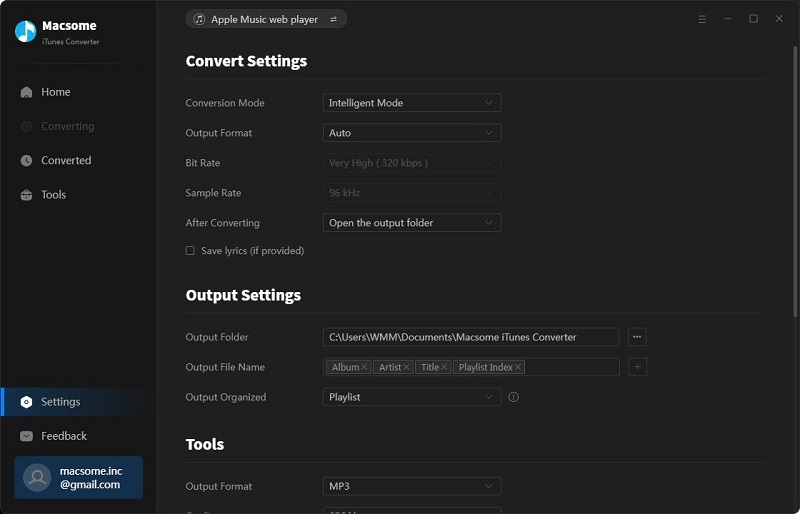
Step 1.Download, install, and launch Macsome iTunes Converter on your computer. The program offers Apple Music App and Web Player modes. Select a mode and log in with your Apple ID.
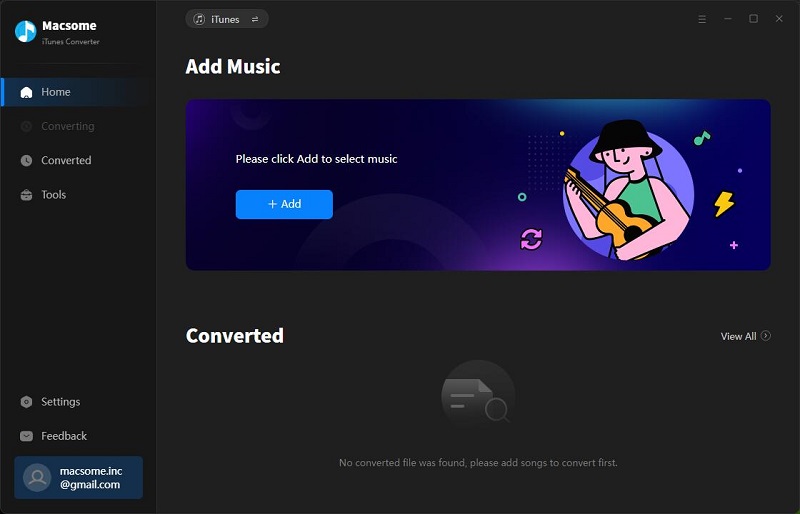
Step 2. Click the "Settings" button in the lower-left corner. Select MP3 as the output format, then choose your preferred audio quality, up to 320 kbps. You can also select a folder where the converted Apple Music songs will be saved.
Step 3. Open the built-in Apple Music web player and find the song, album, or playlist you want to use with your equalizer. Click the "Click to add" button to load the selected tracks into Macsome iTunes Converter.
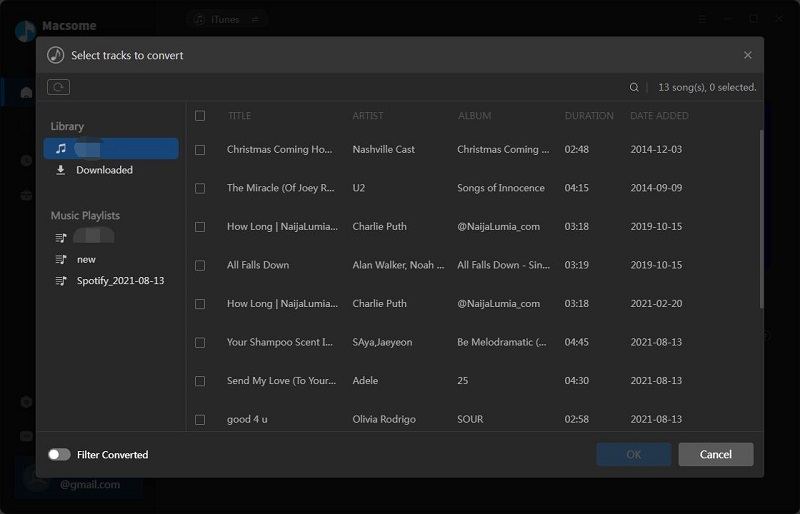
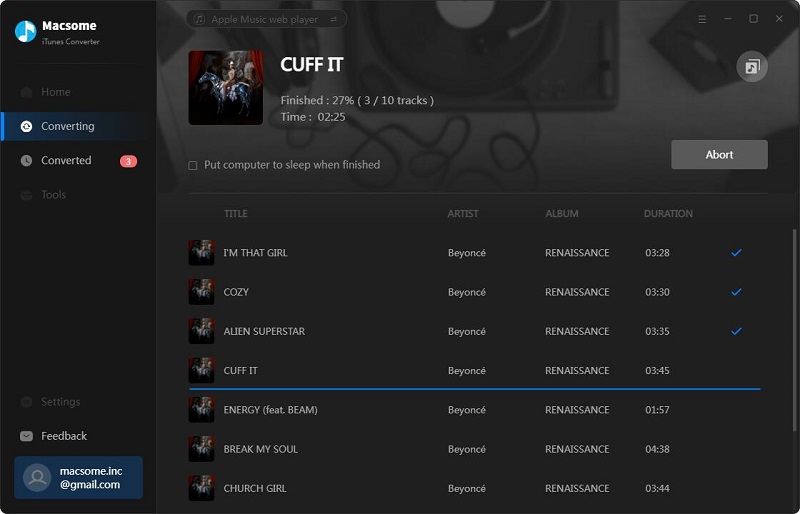
Step 4. Click the "Convert" button to start converting the selected Apple Music songs. When the conversion is complete, go the "History" tab, open the output folder and import the audio files into your preferred music player or audio software. You can then use its third-party equalizer or advanced EQ controls to adjust the sound to your preference.
Part 5. Frequently Asked Questions About Apple Music Equalizer
- What is the best Apple Music EQ setting?
- There is no single best Apple Music EQ setting for everyone. It depends on your headphones, speakers, music genre, and personal preference. Bass Booster can add more low-end impact, while Vocal Booster can make vocals more prominent. For a natural sound, start with a balanced or neutral setting and make small adjustments.
- Does Apple Music have an equalizer?
- Yes. Apple Music provides built-in equalizer options on supported devices, including EQ presets and, on Mac and Windows, manual frequency adjustments. The available controls can vary depending on the device and app version.
- What is the best Apple Music EQ for bass?
- Bass Booster is a good starting point if you want deeper and more powerful bass. However, too much bass can make vocals and instruments sound muddy. If your headphones already have strong bass, a balanced or less bass-focused setting may work better.
- What is the best Apple Music EQ for headphones?
- The best EQ depends on the sound signature of your headphones. Bass-heavy headphones may sound better with a balanced setting, while headphones with a bright sound may benefit from a more moderate treble response. Try several presets with familiar songs to find the setting that sounds most natural to you.
- Can I create a custom EQ setting in Apple Music?
- Yes. Apple Music on Mac and Windows allows you to manually adjust frequency bands and save custom EQ presets. This can be useful when you use different headphones, speakers, or listening setups.
Conclusion
Choosing the right Apple Music Equalizer setting can significantly improve your listening experience. Whether you prefer deeper bass, clearer vocals, more pronounced instruments, or a more balanced sound, Apple Music EQ presets offer an easy way to fine-tune your music without complicated adjustments.
However, there is no single best Apple Music EQ setting for everyone. The ideal setting depends on your headphones or speakers, listening device, music genre, and personal preferences. Try different EQ presets and make small adjustments to find the sound that works best for you.
If you also want to keep your favorite Apple Music tracks for offline listening or enjoy more flexibility with audio formats, Macsome iTunes Converter provides a convenient way to download and organize Apple Music tracks. After downloading, you can import the audio files into your preferred music player or audio software and use its built-in or third-party equalizer and advanced EQ controls to fine-tune the sound to your preference.