



 Russell Doe
Apple Music can use up a significant amount of storage on your device due to downloaded songs, cached data, and temporary app files. Over time, these files can accumulate and leave less space for photos, videos, and other apps. Managing offline downloads and temporary data can help reduce Apple Music's storage usage without removing your entire music library.
In this guide, you'll learn how to clear Apple Music cache on iPhone, iPad, Android, Mac, and Windows. We'll walk you through the available cache-clearing options for each device, explain how to free up storage by managing downloaded songs, and answer common questions about cached data, playlists, and playback issues.
- 🎵 Part 1. Why Does Apple Music Take Up So Much Storage?
- 📱 Part 2. How to Clear Apple Music Cache on iPhone and iPad
- 🤖 Part 3. How to Clear Apple Music Cache on Android
- 💻 Part 4. How to Clear Apple Music Cache on Mac
- 🖥️ Part 5. How to Clear Apple Music Cache on Windows
- 📺 Part 6. How to Clear Apple Music Cache on Apple TV
- 🛡️ Part 7. How to Stop Apple Music from Filling Up Your Storage Again
- 🎧 Part 8. Keep a Copy of Your Apple Music Songs Before Deleting the App ✨
- ❓ Part 9. Frequently Asked Questions About Clearing Apple Music Cache
Part 1. Why Does Apple Music Take Up So Much Storage?
Apple Music can take up a large amount of storage for several common reasons. Here’s a clear breakdown of why this happens and what contributes the most.
1. Cached Data and Temporary Files
When you stream music, apps may store temporary data to help content load more efficiently. Album artwork and other supporting files may also contribute to storage usage.
These files are not the same as your downloaded songs. Clearing cached data, where your device allows it, may recover some space, although the amount varies.
2. Downloaded Music for Offline Listening
When you download songs, albums, or playlists for offline listening, Apple Music stores the full audio files on your device. This is usually the single biggest reason the app takes up large amounts of storage.
- High Quality (AAC 256 kbps) — Apple's standard setting uses approximately 2 MB per minute (about 6 MB for a typical 3-minute song, or ~120 MB per hour).
- Lossless (ALAC up to 24-bit/48 kHz) — Roughly 12 MB per minute (≈36 MB for a 3-minute track, or ~720 MB per hour). About 6× larger than High Quality.
- Hi-Res Lossless (ALAC up to 24-bit/192 kHz) — Approximately 48 MB per minute (≈145 MB for a 3-minute song, or up to 2.9 GB per hour). Roughly 24× larger than High Quality.
- Spatial Audio / Dolby Atmos — Adds extra data on top of the chosen quality level and can noticeably increase file size, especially when combined with Lossless.
According to Apple, 10 GB of storage can hold roughly:
- ~3,000 songs in High Quality AAC
- ~1,000 songs in Lossless
- ~200 songs in Hi-Res Lossless
Downloading hundreds of tracks or entire playlists—especially at Lossless or Hi-Res settings—can quickly consume several gigabytes. Reviewing your downloaded music and removing songs or playlists you no longer need offline is one of the most effective ways to free up space.
3. Other App Data and Storage Overhead
Apple Music's reported storage usage may include downloaded content, temporary files, and other app-related data. The exact categories depend on the operating system and how it reports storage.
Part 2. How to Clear Apple Music Cache on iPhone and iPad
On iPhone and iPad, Apple Music does not offer a universal, dedicated Clear Cache button. However, you can free up storage by removing downloaded music or reinstalling the Music app. The following methods explain how to manage Apple Music storage on your device.
Method 1. Offload the Music App (Recommended)
Offloading the Music app removes the app itself while keeping its documents and data. This is a less destructive option than deleting the app, although it may not remove all cached data.
Step 1: Open Settings on your iPhone or iPad, then go to General > iPhone Storage or iPad Storage.
Step 2: Scroll down and tap Music to check how much storage the app is using.
Step 3: Tap Offload App and confirm your choice.
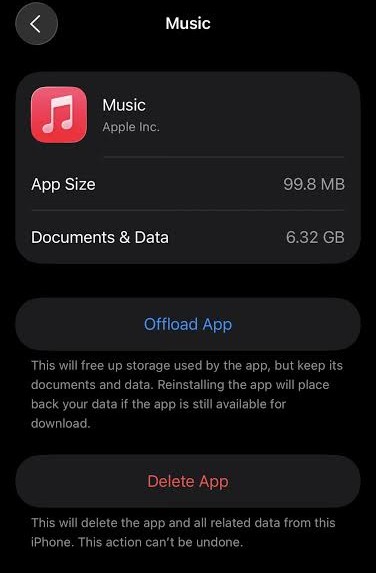
Step 4: Once the app has been offloaded, tap Reinstall App. If that option is unavailable, reinstall Music from the App Store.
Step 5: Open Music and follow any prompts to access your Apple Music account. Cached data may be rebuilt as you use the app.
Method 2. Delete and Reinstall the Music App
If offloading the app does not free up enough space, deleting and reinstalling Music may help remove additional app data and cached files. Note that deleting the app can remove downloaded music, so you may need to download your favorite songs again for offline listening.
Step 1: Touch and hold the Music app icon on your Home Screen.
Step 2: Tap Remove App > Delete App, then confirm the deletion. If you see only the option to remove the app from the Home Screen, open Settings or the App Library to manage it.
Step 3: Open the App Store, search for Apple Music or Music, and reinstall the app.
Step 4: Open Music and sign in with the Apple Account associated with your Apple Music subscription, if prompted. Your synced library should become available again, but you may need to redownload offline music.
Method 3. Remove Downloaded Music
Downloaded songs and albums can take up much more space than temporary cache files. Removing music you no longer need offline is one of the most direct ways to free up storage without deleting the Music app.
Step 1: Open Settings and tap Apps > Music. On some iOS or iPadOS versions, Music may appear directly in Settings.
Step 2: Tap Downloaded Music to view music stored on your device.
Step 3: Swipe left on an artist, album, or song you no longer need and tap Delete. Available controls may vary by iOS or iPadOS version.
Step 4: Alternatively, go to Settings > General > iPhone Storage or iPad Storage > Music to review and remove downloaded content, if the option is available.
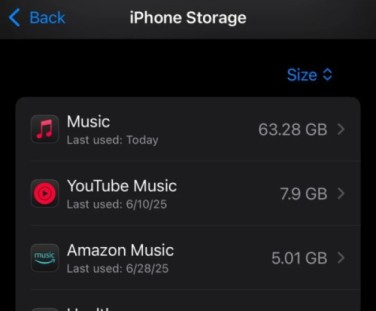
These methods can help reduce Apple Music's storage usage on iPhone and iPad. Offloading or reinstalling the app may remove some cached data, while deleting downloaded music primarily frees space used by offline audio files. The amount of cache removed can vary by device and system version.
Part 3. How to Clear Apple Music Cache on Android
Unlike iPhone and iPad, Android devices let you clear an app's temporary cache directly through system settings. You can remove cached files without clearing all app data, which makes this the best option to try first.
Method 1. Clear Apple Music Cache
Follow these steps to clear temporary files stored by Apple Music on your Android phone or tablet.
Step 1: Open Settings on your Android device. Tap Apps or Apps & notifications, depending on your device.
Step 2: Find and select Apple Music from the list of installed apps. You may need to tap See all apps first.
Step 3: Tap Storage & cache or the equivalent storage option.
Step 4: Tap Clear cache to remove temporary files. Avoid selecting Clear storage or Clear data unless you intend to reset the app.
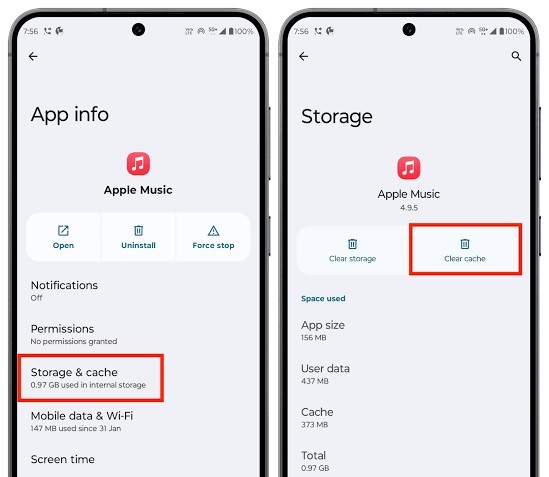
Step 6: Reopen Apple Music and check whether the issue has been resolved or its storage usage has decreased.
The exact menu names may vary depending on your Android version and device manufacturer. Clearing the cache removes temporary files, while clearing storage or app data is more extensive and may reset app settings, remove downloaded music, or require you to sign in again.
Method 2. Clear Apple Music App Data If Necessary
If clearing the cache does not resolve persistent issues, clearing Apple Music's app data may help. However, this resets more of the app's local data and may remove offline downloads, so use this method only when necessary.
Step 1: Make sure you can access your Apple Account and sign in to Apple Music again if prompted.
Step 2: Check that your music library is synced with your account and identify any downloaded songs or albums you may need to download again.
Step 3: Open Settings > Apps > Apple Music > Storage & cache. The menu path may differ on your device.
Step 4: Tap Clear storage or Clear data, then confirm if prompted. Keep in mind that this may reset app settings and remove locally stored content.
Step 5: Open Apple Music again and sign in if necessary. Check your library and redownload any songs or albums you want to keep available offline.
For most Android users, clearing the cache is the preferred first step because it removes temporary files without deliberately resetting the app. Clearing app data is a more drastic option and should be reserved for problems that persist after basic troubleshooting.
Part 4. How to Clear Apple Music Cache on Mac
On Mac, Apple Music storage includes downloaded songs and other app-related data. Since macOS does not provide a universal option to clear the Apple Music cache, you can start by removing offline downloads, checking storage usage, and carefully reviewing relevant cache files if necessary.
Method 1. Remove Downloaded Songs and Albums
Downloaded music can take up a significant amount of disk space. Removing downloads you no longer need is a straightforward way to free up storage while generally keeping the songs in your Apple Music library.
Step 1: Open the Music app on your Mac.
Step 2: Select Downloaded in the sidebar, if available, to view music stored locally.
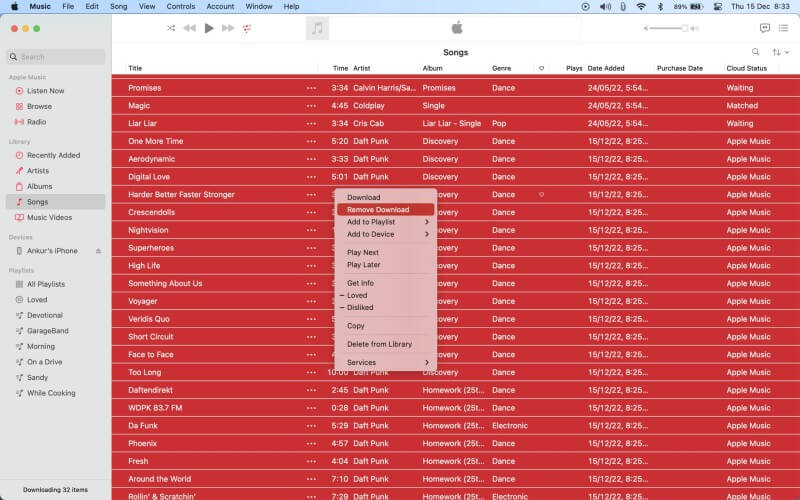
Step 3: Control-click a song, album, or playlist you no longer need offline.
Step 4: Select Remove Download from the menu, if available. Avoid choosing Delete from Library if you want to keep the item in your library.
Method 2. Check Apple Music Storage Usage
Before deleting files, check your Mac's storage to determine whether downloaded music or other content is using the most space.
Step 1: Click the Apple menu in the top-left corner of your screen.
Step 2: Open System Settings > General > Storage.
Step 3: Review the storage categories and recommendations to identify large files or apps taking up space.
Step 4: If music downloads are the main concern, return to the Music app and remove unnecessary offline content. Storage categories may vary by macOS version.
Method 3. Review Apple Music Cache Files
If you suspect that temporary files are contributing to the problem, you can inspect your user cache folder. However, cache locations vary across macOS versions, and deleting the wrong files may cause unexpected issues.
Step 1: Quit the Music app.
Step 2: Open Finder and select Go > Go to Folder from the menu bar.
Step 3: Enter ~/Library/Caches/ and press Return.
Step 4: Look for a folder you can confidently identify as belonging to Music or a related media app. Do not delete folders simply because their names contain Apple-related terms.
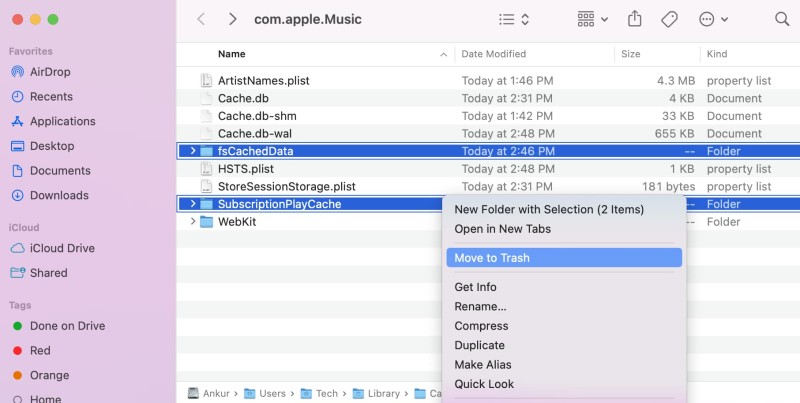
Step 5: If you cannot confirm which files are safe to remove, leave them untouched. Avoid deleting files from your Music media library or macOS system folders.
After cleaning up, reopen Music and check whether the issue has improved. For most users, removing unneeded downloads is the safest starting point; manually deleting cache files is optional and may not free up much space if offline music is the main cause.
Part 5. How to Clear Apple Music Cache on Windows
On Windows, the available options depend on whether you use the Apple Music app or an older version of iTunes. You can start by removing downloaded music and then use Windows' built-in repair options if the app continues to experience problems.
Method 1. Remove Downloaded Music
Downloaded songs and albums can take up substantial disk space. Removing content you no longer need offline is a practical first step before trying more advanced troubleshooting methods.
Step 1: Open the Apple Music app on your Windows PC.
Step 2: Find downloaded songs, albums, or playlists that you no longer need for offline listening.
Step 3: Open the item's More menu (usually represented by three dots) and select Remove Download, if available. Avoid choosing an option that deletes the item from your library if you want to keep it.
If you use an older version of iTunes, review your downloaded media and remove local content you no longer need. Removing downloads frees up space used by audio files, rather than specifically clearing the app cache.
Method 2. Repair the Apple Music App
If Apple Music continues to crash, freeze, or behave unexpectedly, try Windows' app repair option. Availability depends on your Windows version and how the app was installed.
Step 1: Open Settings in Windows. Go to Apps > Installed apps (called Apps & features on some versions of Windows).
Step 2: Find Apple Music, open its More options menu, and select Advanced options, if available.
Step 3: If the option appears, click Repair and follow the on-screen instructions. This attempts to fix app problems without the more extensive effects of a reset.
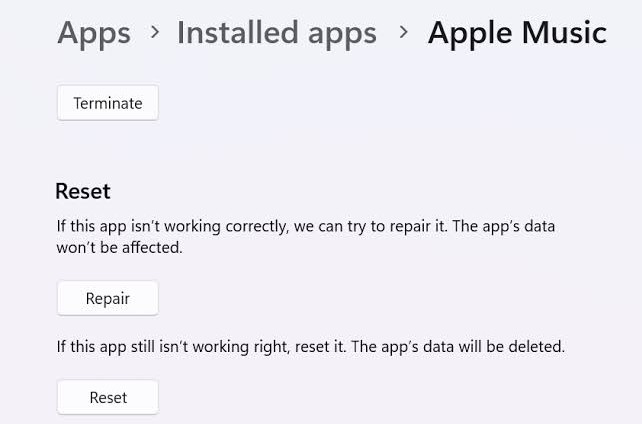
Step 4: If repairing does not help, consider Reset only as a last resort. Resetting may remove local app data or downloaded content, so make sure you can sign in again and redownload offline music if necessary.
Method 3. Restart Apple Music and Check Storage
After removing downloads or repairing the app, restart Apple Music and check whether the problem has improved.
Step 1: Close Apple Music completely.
Step 2: Restart your Windows PC if the app was unresponsive or Windows requests it.
Step 3: Reopen Apple Music and test playback.
Step 4: Open Settings > System > Storage in Windows to review your available disk space and identify other large files if needed.
These steps can help reduce storage usage and troubleshoot common app issues. Windows does not provide a dedicated cache-clearing option for every Apple Music installation, so start with downloaded music and use Repair only when necessary. If you use an older iTunes installation or cannot find the Advanced options menu, the available steps may differ.
Part 6. How to Clear Apple Music Cache on Apple TV
Apple TV does not offer a universal option to clear the Apple Music cache. The available troubleshooting steps depend on your tvOS version and device model. If Apple Music is not working properly, try restarting your Apple TV or resetting the app's music-related data if the option is available.
Step 1: Open Settings on your Apple TV. Look for Apps or the relevant Music settings. Menu names and available options vary by tvOS version.
Step 2: If you see Reset Music Data, review the on-screen description before confirming. Do not assume this option clears only temporary cache files, as it may affect locally stored music-related data or settings.
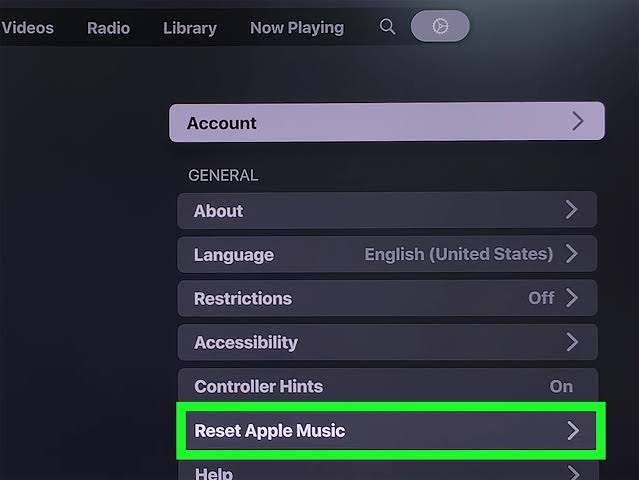
Step 3: If the problem persists, restart your Apple TV and reopen the Music app. If your tvOS version allows you to delete and reinstall the app, you can consider that option as a further troubleshooting step.
Note: Apple TV models and tvOS versions differ in how they manage built-in apps, so deleting or reinstalling Music may not be available. If you cannot find the options above, restarting the device and checking for a tvOS update are safer alternatives.
Part 7. How to Stop Apple Music from Filling Up Your Storage Again
After clearing Apple Music cache and freeing up space, a few simple changes can help prevent storage usage from growing too quickly again. By managing automatic downloads, keeping only the music you need offline, and monitoring your device's storage, you can enjoy Apple Music without letting downloaded content take up unnecessary space.
1. Remove Downloads You No Longer Need
Downloaded songs, albums, and playlists can take up more space than temporary cache files. Review your offline music regularly and remove downloads you rarely listen to or no longer need. On supported devices, choose Remove Download to delete the local copy without removing the song from your Apple Music library.
2. Turn Off Automatic Downloads
Automatic Downloads can save music to your device whenever you add it to your library, causing storage usage to increase over time. If you prefer to choose which songs stay available offline, turn off this feature where the option is available.
- iPhone and iPad: Open Settings > Apps > Music (or Settings > Music on older iOS versions), then turn off Automatic Downloads.
- Mac: Open the Music app and go to Music > Settings (or Preferences on older versions). Review the available download-related settings.
- Windows: Check the Apple Music app's settings for download-related options. Available controls may vary by app version.
With automatic downloads disabled, you can still download individual songs, albums, or playlists manually whenever you need offline access.
3. Stream Music Instead of Downloading Your Entire Library
If you usually have a reliable internet connection, consider streaming songs instead of downloading your entire music library. Keep offline downloads for flights, commutes, or other situations where internet access may be limited. Remember that streaming uses mobile data when you're not connected to Wi-Fi and may still generate temporary cached files.
4. Use Optimize Storage on iPhone or iPad
On supported iOS and iPadOS versions, the Optimize Storage feature can automatically remove downloaded music you haven't played recently when your device needs more space.
To check whether it's available, open Settings > Apps > Music (or Settings > Music on older versions) and look for Optimize Storage. Enable it and configure the available options if needed. This feature manages downloaded music rather than directly clearing the Apple Music cache.
5. Monitor Apple Music Storage Usage
Check your device's storage settings periodically to see whether Apple Music downloads or other apps are using too much space. If you're running low on storage, review your offline music first. Removing unnecessary downloads is often more effective than repeatedly clearing temporary files or reinstalling the app.
By limiting automatic downloads, keeping only essential music offline, and reviewing storage usage regularly, you can reduce Apple Music storage consumption and avoid repeating the same cleanup process.
Part 8. Keep a Copy of Your Apple Music Songs Before Deleting the App
Thinking about deleting Apple Music to free up storage? Before removing the app, consider whether you want to keep your offline music. Depending on your device and how the app is removed, local downloads and related app data may be deleted. Apple Music subscription tracks may also require an active subscription for playback.
To keep separate copies of supported tracks, you can use Macsome iTunes Converter to convert Apple Music songs into common audio formats, including MP3, AAC, WAV, FLAC, AIFF, and ALAC, depending on the available output settings. You can also follow this guide to download all your Apple Music songs for a more detailed walkthrough. Once saved to your computer, the converted audio files can be managed separately from Apple Music's offline downloads. This gives you another way to organize your music collection before removing the app or clearing space on your device.

Clear Apple Music Cache Without Losing Your Music Collection
- Convert supported Apple Music tracks to MP3, AAC, WAV, FLAC, AIFF, or ALAC.
- Preserve song titles, artist names, album information, and album artwork in converted files.
- Batch-convert multiple songs, albums, and playlists.
- Convert playlists at up to 10X faster speed, depending on system performance and other conditions.
- Play compatible converted files in supported audio players and transfer them to your computer, USB drive, or other compatible devices.
Save your converted files before removing offline downloads. Macsome iTunes Converter is a music conversion tool, not an Apple Music cache cleaner.
Download for Mac Download for WindowsSave Apple Music Songs Before Removing Downloads to Free Up Storage
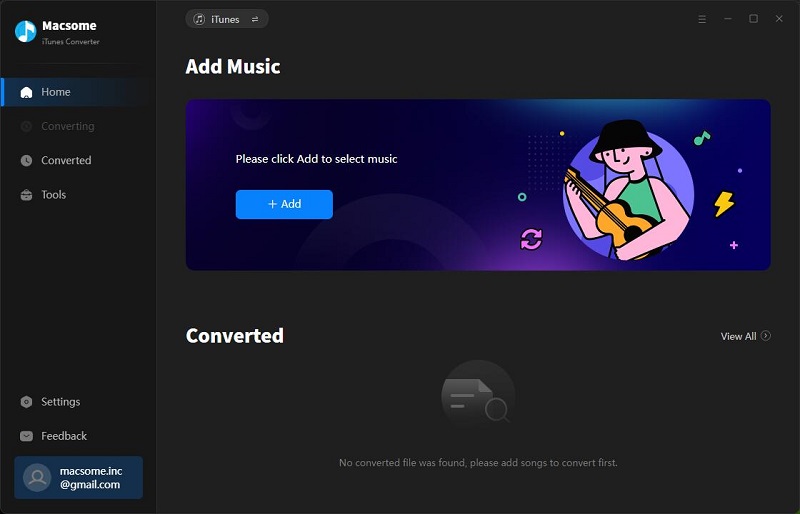
Step 1. Download, install, and launch Macsome iTunes Converter on your computer. Choose the available Apple Music App or Web Player mode and follow the on-screen instructions to access your music.
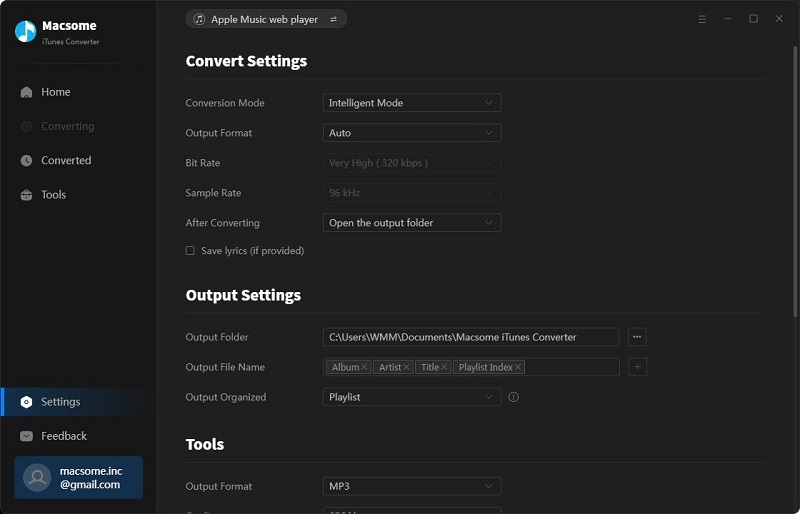
Step 2. Click "Settings" in the lower-left corner. Choose an output format, such as MP3, and select your preferred audio quality, up to 320 kbps for MP3. Choose an output folder on your computer so you can easily find the converted files later.
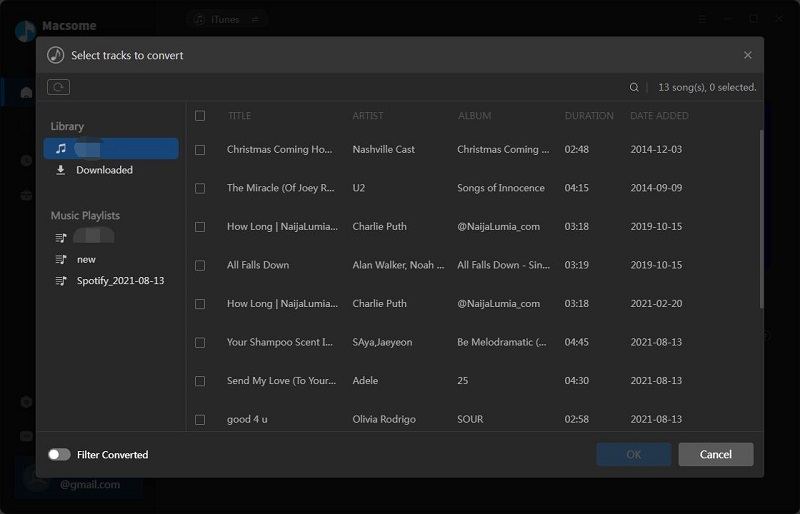
Step 3. Find the Apple Music songs, albums, or playlists you want to keep. Click "Click to add" to load the selected tracks into Macsome iTunes Converter. Select only the music you need to save rather than converting your entire library unnecessarily.
Step 4. Click "Convert" to convert the selected tracks. When the process finishes, open the "History" tab and locate the output folder. Check that your converted files are available before removing any offline downloads from your device.

Once you've confirmed that the files you need are saved, review your Apple Music downloads and remove local copies you no longer need for offline listening. This can free up device storage without relying on repeated cache-clearing attempts. Keep in mind that Macsome iTunes Converter converts supported tracks; it does not directly clear Apple Music cache or guarantee that every song or playlist can be converted.
Part 9. Frequently Asked Questions About Clearing Apple Music Cache
- Does clearing Apple Music cache delete my playlists or purchased songs?
- Clearing temporary cache files generally does not delete your Apple Music library, playlists, or purchased music. However, the effect depends on your device and the action you take. Avoid selecting options such as Clear Storage or Clear Data unless you understand their impact, as they may remove app data or settings. Removing downloaded songs deletes their local offline copies, which is different from deleting them from your library.
- How often should I clear the Apple Music cache?
- There is no fixed schedule for clearing the Apple Music cache. Most users only need to troubleshoot storage issues when they arise. If Apple Music is taking up too much space, check how much storage is used by downloaded songs and app data before clearing temporary files.
- Will clearing Apple Music cache use more mobile data?
- It may. After cached content is removed, Apple Music may need to load album artwork or other data again. Streaming songs also uses data, so connect to Wi-Fi when possible if you want to minimize mobile data usage.
- Is there an automatic way to clear Apple Music cache?
- Apple does not provide a universal setting to automatically clear Apple Music cache across all devices. Some platforms offer storage-management features, such as Optimize Storage on supported iPhone and iPad versions, which can remove downloaded music when space is needed. This manages offline downloads rather than directly clearing cache.
Conclusion
Knowing how to clear Apple Music cache can help you manage storage space and troubleshoot certain app issues. The steps vary by device: Android users can clear temporary files through app settings, while iPhone, iPad, Mac, and Windows users may need to manage downloaded music or use the storage tools available on their devices.
If downloaded songs are taking up too much space, consider using Macsome iTunes Converter to download supported Apple Music tracks into common audio formats and save them as local files on your computer before removing offline downloads. This gives you another way to manage your music collection separately from Apple Music downloads.
By clearing temporary files where possible and reviewing offline downloads regularly, you can manage Apple Music storage more effectively without deleting music you still want to keep.