



 Wyatt Maxwell
Spotify is one of the world's most popular music streaming platforms, giving you instant access to millions of songs, podcasts, and curated playlists. But over time, your queue can quickly become cluttered with tracks you no longer want to hear - disrupting your listening experience and making playback feel messy. If you've ever skipped through unwanted songs or felt stuck with a chaotic queue, you're not alone.
The good news? You can clear your Spotify queue in just a few taps - whether you're using an iPhone, Android device, or desktop. In this step-by-step guide, you'll learn exactly how to clear the Spotify queue on every platform, so you can start fresh and enjoy a smoother, distraction-free listening experience. Let's get started.
- Part 1. What Is the Spotify Queue? (How It Works & Why It Gets Messy)
- Part 2. How to Clear Queue on Spotify (iPhone, Android & Desktop Guide)
- Part 3. Spotify Queue Not Clearing? Fix It Fast (2026 Updated Solutions)
- 🔥 Part 4. Stop Spotify Queue from Coming Back - Take Full Control of Your Music (Best Method) [BONUS TIP - MUST READ]
- Part 5. FAQs About Clearing Spotify Queue
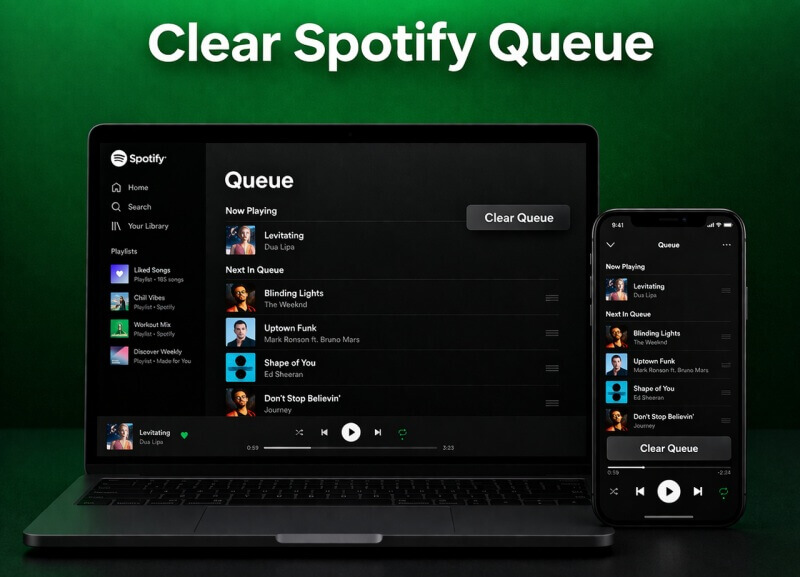
Part 1. What Is the Spotify Queue?
The Spotify Queue, also known as the Play Queue, is a temporary list that shows and controls the next songs, albums, playlists, or podcast episodes to be played in your listening session. It is separate from your saved playlists and disappears once your listening session is finished or you start something new.
How Does Spotify Queue Work?
When you play a song, album, or playlist directly (by tapping/clicking Play), Spotify automatically uses that content as the base for playback.
"Add to queue" lets you manually insert specific tracks (or entire albums/playlists) that you want to hear soon. These manually added items get priority and play first, before returning to the original album/playlist or autoplay recommendations.
Spotify's queue has a smart behavior: Adding multiple items often creates a kind of "sub-queue" (or "Next in queue" section) that plays before the rest of your original content. Once the queue empties, Spotify can continue with Autoplay (similar recommended tracks) unless you turn it off.
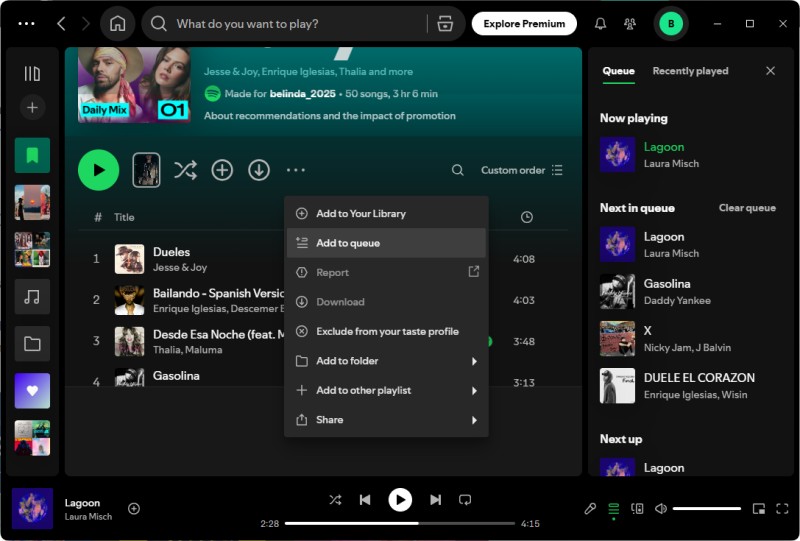
What Adds to the Queue?
Your queue can be built from multiple sources:
- Manual additions: Songs you explicitly add using "Add to queue."
- Playlists / Albums: When you hit play on a playlist, all tracks are queued automatically.
- Autoplay (if enabled) Spotify Autoplay adds recommended songs when your queue runs out.
Unlike playlists, the queue is not permanent. That's why many users frequently search for ways to clear the queue on Spotify.
Part 2. How to Clear Queue on Spotify for Mobile and Desktop
Below are detailed, step-by-step instructions on how to clear the Spotify Queue on iPhone, Android and desktop/web. The process is very similar on iPhones and Android devices.
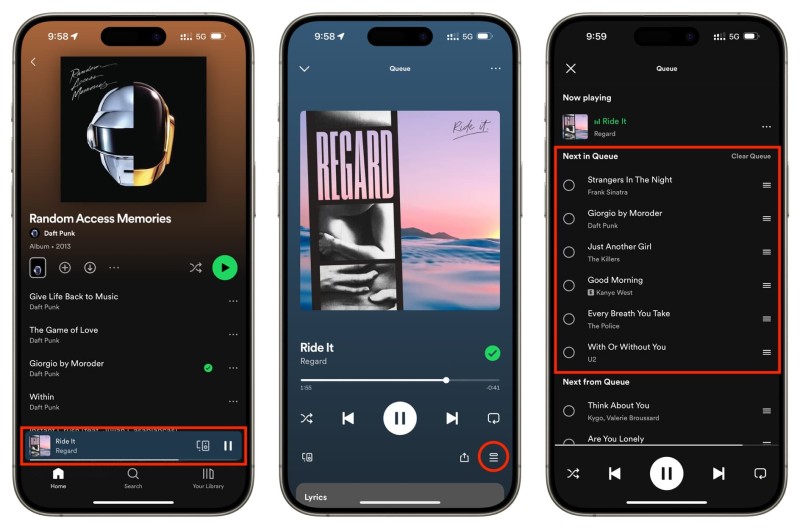
2.1 How to Clear the Queue on Spotify for iPhone and Android
Step 1. Open the Spotify app on your iPhone or Android device. Play any song (or make sure something is currently playing).
Step 2. Tap the Now Playing bar at the very bottom of the screen. This opens the full-screen player view. In the bottom-right corner of the player screen, tap the Queue icon.
Step 3. You will now see your queue divided into sections: Next in Queue (manually added songs). Next from Queue or Up next (the rest of the playlist/album).
Step 4. Tap the "Clear Queue" button to clear manually added songs. Confirm if prompted. Swipe left on any track, tap Remove to remove individual songs.
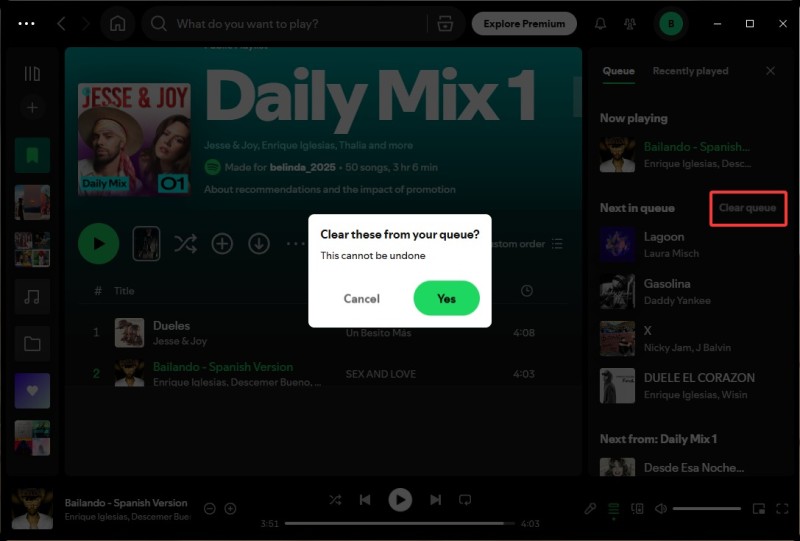
2.2 How to Clear the Queue on Spotify Desktop or Web Player
Step 1. Open the Spotify desktop app or go to open.spotify.com in your browser.
Step 2. Make sure a song is playing. Look at the bottom-right corner of the Spotify window. Click the Queue icon (three horizontal lines, sometimes labeled "Queue"). The Play Queue panel or sidebar will open on the right side.
Step 3. Click the "Clear queue" button (usually at the top of the "Next in queue" section) to clear manually added songs. Confirm if asked. Right-click on a track, select "Remove from queue" to remove individual songs. Hold Shift or Ctrl (Windows) / Cmd (Mac) to select several tracks, then right-click to select the "Remove from queue" to remove multiple songs simultaneously.
- 💡 If you don't see the Clear button, it means you haven't manually added anything to the queue yet.
- 💡 Starting a new playlist or album usually replaces the previous queue automatically.
- 💡 To avoid recommendations playing after your queue ends, disable Autoplay in the app settings.
Part 3. Why Can't I Clear My Spotify Queue? (Simple Fixes for 2026)
Here are the most common reasons why your Spotify Queue won't clear (or seems stuck), along with step-by-step fixes that work on iPhone, Android, and Desktop.
1. The "Clear Queue" Button Only Clears Manually Added Songs
Spotify separates the queue into two parts:
- "Next in queue": Songs you manually added.
- "Next from / Up next": Songs from the playlist, album, or Autoplay.
The Clear (or Clear queue) button only removes the manually added section. It does not delete the original playlist/album content or Autoplay suggestions. This confuses many users. Here are quick fixes:
- Open the Queue (tap the three horizontal lines icon in the Now Playing screen).
- If you see a Clear button next to "Next in queue", tap it - this clears only manual additions.
To remove everything else:
- On mobile: Swipe left on individual tracks to remove them one by one.
- On desktop: Right-click tracks > Remove from queue, or select multiple with Ctrl/Cmd + click and press Delete.
2. You Haven't Manually Added Anything
If you're playing a playlist or album normally, there are no "manual" items, so no Clear button appears.
- Play a completely new song directly from Search (not from your current playlist). This usually replaces the old queue.
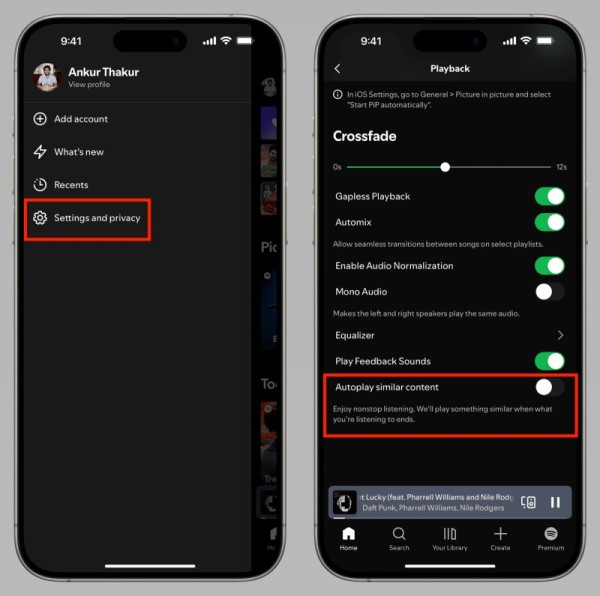
- Turn Autoplay off first (Settings > Playback > Autoplay > toggle off) so nothing auto-fills afterward.
3. Autoplay Keeps Adding New Songs
Even after clearing, Spotify may continue recommending tracks. To fix this, go to Settings (gear icon), then navigate to Playback and turn Autoplay completely off. Optionally, you can also turn off Smart Shuffle if it's enabled.
4. Other Quick Workarounds to Fully Reset the Queue
- Create a new empty playlist, add a random song, then play it to clear the queue.
- Play a single song from Search with Autoplay off to replace the current queue.
- Refresh by logging out and back in twice, or by force-closing and reopening Spotify.
- Switch devices using Spotify Connect, then switch back to reset the queue.
Part 4. Say Goodbye to Spotify Queue Hassles - Take Full Control of Your Spotify Music
Tired of constantly having to clear your Spotify queue every time unwanted tracks appear? Whether you're browsing playlists, using Autoplay, or adding songs on the go, an endless queue can interrupt your listening flow and take control away from you. With the right solution, you can enjoy your music uninterrupted—no manual queue clearing, no unexpected tracks, and full control over playback.
That's where Macsome Spotify Downloader comes in. Instead of struggling with a growing queue in Spotify, you can download your favorite songs, playlists, albums, podcasts, and audiobooks in high-quality formats such as MP3, FLAC, WAV, AAC, AIFF, or ALAC—all while preserving original audio quality and complete ID3 tags.
With your downloads, you gain full control over your music library. Organize and enjoy your collection your way, anytime and anywhere. The files are yours forever, playable offline on any device, with no Spotify Premium required and no more queue interruptions or internet dependency.

Key Features of Macsome Spotify Downloader
- Download Spotify songs, albums, playlists, audiobooks, and podcasts locally.
- Convert Spotify music to MP3, AAC, WAV, FLAC, AIFF, or ALAC with original quality.
- Download lyrics from Spotify for offline use.
- One-click to burn CDs and Import Spotify songs to Apple Music.
- Play Spotify music offline with both Spotify Free and Premium users.
- Sort the downloaded Spotify tracks by album, artist, and playlist.
- Support batch downloading at up to 40x faster speed.
- Almost all the ID3 tags will be preserved.
Step-by-Step Guide: How to Download & Own Your Spotify Music Forever with Macsome
Step 1. Add Spotify Music to Macsome Spotify Downloader.
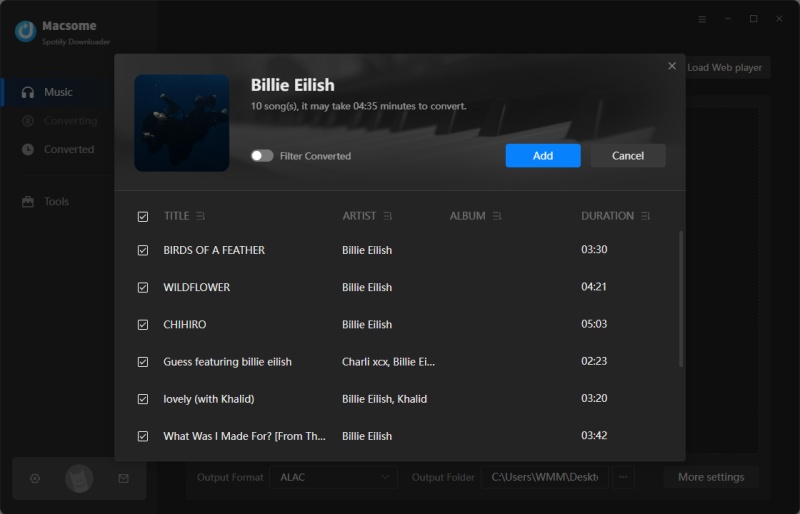
Download, install, and launch the Macsome Spotify Downloader on your computer. It supports two download modes, we'll select the Spotify app mode, and the Spotify app will launch at the same time. Search for a track or playlist you'd like to download. Then hit the "Click to add" button to add music to Macsome.
Step 2. Set Output Format.
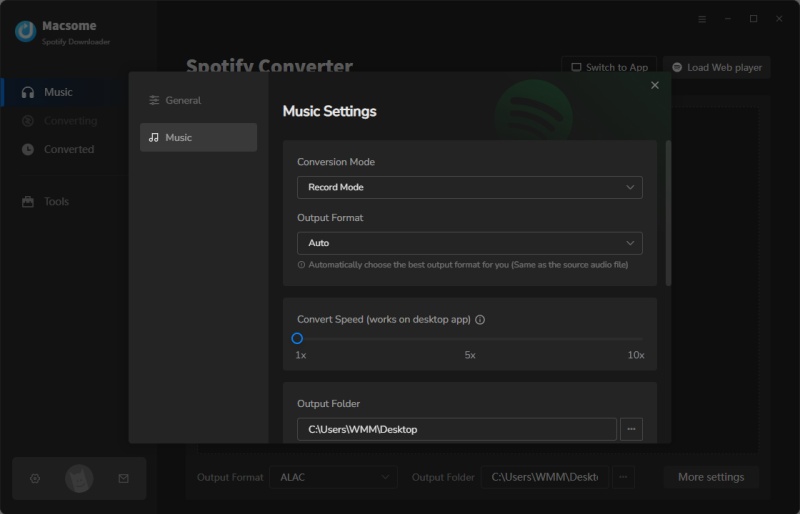
Go to the "Settings" tab, and you can choose from a variety of audio formats including, MP3, FLAC, WAV, AAC, ALAC, or AIFF. You can also select the output folder where your music will be saved, making it easy to organize your collection. Plus, you can customize naming preferences to automatically format your files as "Artist-Song Title" or use other naming conventions for a clean and consistent library.
Step 3. Download Spotify Music.
Click the "Convert" button to start downloading Spotify music.
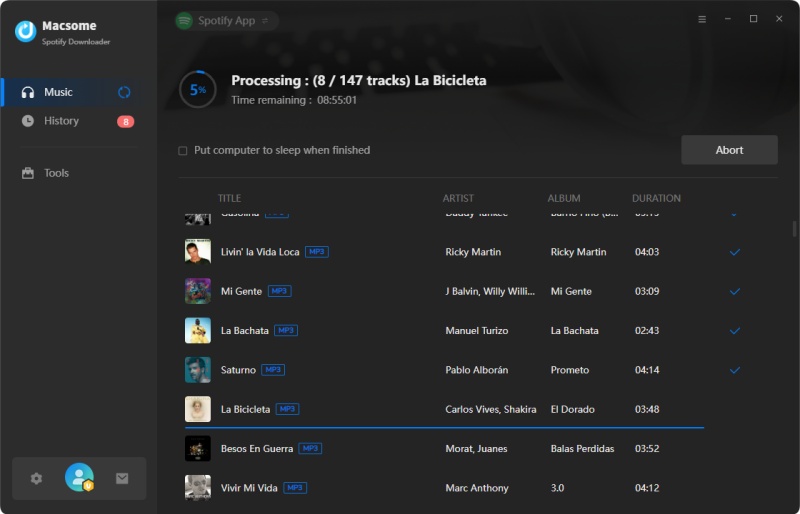
Once the conversion is finished, tap the "History" section, and you will find all the downloaded Spotify songs. You can locate the downloaded Spotify files on your local computer by clicking the "Folder" icon. Now, your music is saved as high-quality audio files on your computer. You can transfer downloaded Spotify music to any device for offline playback, no more queue interruptions or ads.
Part 5. FAQs About Clearing Spotify Queue
- Does clearing the Spotify queue affect my playlists or liked songs?
- No, clearing your Spotify queue only removes the temporary “Up Next” list. Your playlists, liked songs, and saved library remain completely intact. This means you can safely clear the queue to control immediate playback without worrying about losing any saved music.
- Why does my Spotify queue keep refilling, and how can I prevent it?
- Spotify queues may refill automatically due to the Autoplay feature, which adds recommended songs once your queue ends. Playing a playlist or album also queues all tracks by default. To prevent this, you can turn off Autoplay in settings, avoid repeatedly hitting "Add to Queue," or use a downloader like Macsome Spotify Downloader to play songs offline without automatic queue refills.
- How do I clear or manage the Spotify queue on mobile and desktop?
-
On iPhone and Android: Open the Now Playing screen, tap the Queue icon (three lines) at the bottom right, then tap “Clear Queue” to remove all upcoming tracks. You can also remove individual songs by swiping left and tapping "Remove."
On desktop (Windows & Mac): Click the Queue icon in the bottom-right corner, view "Next in Queue," and click "Clear Queue." To remove specific tracks, right-click a song and select "Remove from Queue." Note that the "Clear Queue" option only appears if there are manually added songs; playlist tracks may need to be removed individually. - Will clearing the queue stop the current song, and can I disable the queue entirely?
- No, clearing the queue does not stop the current song—it only removes upcoming tracks. The queue cannot be completely disabled, but you can minimize its impact by avoiding adding songs to it, turning off Autoplay, or playing single tracks instead of full playlists.
Final Thoughts: Clear Your Spotify Queue and Take Full Control of Your Music
Clearing your Spotify queue is one of the easiest ways to take full control of your listening experience. Whether you are on an iPhone, Android device, or desktop, removing unwanted tracks from your queue ensures that only the songs you actually want to hear play next—no interruptions, no distractions. If you want to avoid repeatedly having to clear your Spotify queue, Macsome Spotify Downloader is the perfect solution. It allows you to download Spotify music locally, so your queue won’t refill automatically and you can enjoy uninterrupted music playback anytime, anywhere.
No more endless auto-playlists or unwanted tracks-listen your way, on your terms!