



 Wyatt Maxwell
Have you ever wondered how many times you've played a song on Spotify? Whether it's your favorite track, a song you've had on repeat, or a recent discovery, you may want to know exactly how often you've listened to it.
Unfortunately, Spotify doesn't show the exact number of times you've played an individual song in the app. While Spotify records your listening activity, there is no built-in feature that lets you check the total play count for a specific track directly from your account.
So, how can you see how many times you've played a song on Spotify? In this guide, we'll introduce several practical ways to check your Spotify song play counts and listening history using third-party tools and your Spotify data. Let's get started.
- 📊 Part 1: Why You Might Want to Know Your Spotify Play Count
- 🔢 Part 2: How to See How Many Times You Played a Song on Spotify: Top Third-Party Tools
- 🔄 Part 3: Official Workarounds to See Your Play Counts on Spotify
- 🏆 Part 4: Download Your Most-played Spotify Songs to MP3 Without Premium 🎶🎧
- ❓ Part 5: FAQs About How Many Times Have I Played a Song on Spotify
Part 1: Why You Might Want to Know Your Spotify Play Count
Knowing how many times you've played a song is more than just a fun fact. Here are some reasons why it's useful to track your Spotify play count:
- ✅ Personalization: It helps you understand your musical preferences and how your taste has evolved over time.
- ✅ Music Discovery: Knowing which songs you play the most can inspire you to discover new artists or albums in similar genres.
- ✅ Spotify Wrapped Insights: For a deeper dive into your Spotify Wrapped, understanding your play count adds another layer of personalization to your music summary.
- ✅ Musician Interaction: If you're a musician, seeing play counts on your tracks can give you valuable insight into how your music is resonating with listeners.
While Spotify doesn't provide this data by default, third-party services can fill the void and offer detailed statistics on your listening habits.
Part 2: How to See How Many Times You Played a Song on Spotify: Top Third-Party Tools
Many users are curious about having the ability to see how many times they've played a particular song. Unfortunately, Spotify doesn't offer specific play counts for individual songs. Thankfully, third-party tools can help you track your play count. In this part, we'll explore the best options for seeing how many times you’ve played a song on Spotify.
1. Last.fm: Track Every Song You Listen To on Spotify (The Most Accurate Method)
If you want to track a song's exact play count, Last.fm is one of the best tools available. When you link your Spotify account with Last.fm, it monitors your listening activity across all your devices. This means that every song you play on Spotify gets logged and tracked by Last.fm, regardless of where you listen. Last.fm provides comprehensive reports showing not only how many times you've played a song but also offering insights into your listening habits over time, such as your top tracks, albums, and artists. The play count for each song updates in real time, providing an accurate view of your listening history.
🎶Features of Last.fm:
- Play Counts: Tracks how many times you've played each song.
- Listening History: Shows a detailed history of your listening habits, including your most played songs and artists.
- Yearly Reports: Like Spotify Wrapped, Last.fm provides yearly reports summarizing your music preferences and play counts.
- Global Trends: Compares your listening habits with others globally, offering an interesting social aspect to your music tracking.
How to Use Last.fm to See How Many Times You've Played Spotify Songs
- Step 1. Go to Last.fm, create or log into your Last.fm account.
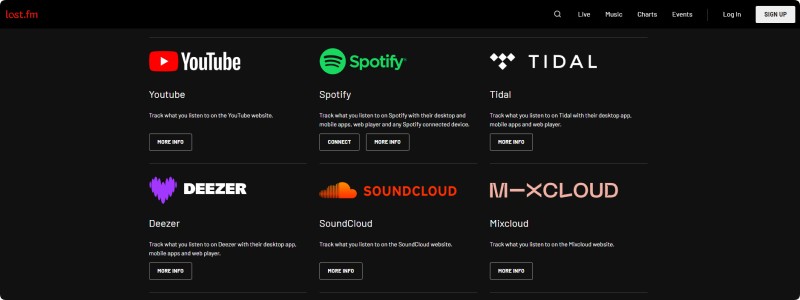
- Step 2. Open the Track My Music page and scroll down until you see the Spotify link. Click "CONNECT" under the Spotify heading. A new page will pop up asking you to log in to your Spotify account. Follow the instructions to authorize Last.fm.
- Step 3. Once synced, Last.fm will automatically track your Spotify listening activity. You can view detailed stats through their website or mobile app.
🎯Pros and Cons of Last.fm:
Pros
- Detailed and accurate play count tracking.
- Free to use with optional Premium features.
- Provides a full history of your music listening.
Cons
- Syncing can take some time.
- The interface can be overwhelming for new users.
2. Obscurify: See Your Most-Played Songs and Track Your Spotify Habits
Obscurify is a fun, straightforward tool that provides insights into your listening habits. It tracks how many times you've played songs on Spotify. It provides detailed information about your listening habits, including your most-played songs, genres, and artists. Essentially, the tool connects with your Spotify account and provides a more in-depth analysis of your music consumption than Spotify's native features. It also offers stats about your play counts.
🎶Features of Obscurify:
- Most-Played Songs and Artists: See detailed stats of your top songs and artists.
- Obscurity Rating: Obscurify gives you a score for how obscure or mainstream your music taste is.
- Genre Breakdown: Understand the distribution of different genres in your Spotify library.
- Listening Habits: Get an overview of how many hours you've spent listening to music and your most frequent listening times.
- Spotify Wrapped Comparison: It also lets you compare your listening habits with those of other users.
How to Use Obscurify to See Your Most-Played Songs on Spotify?
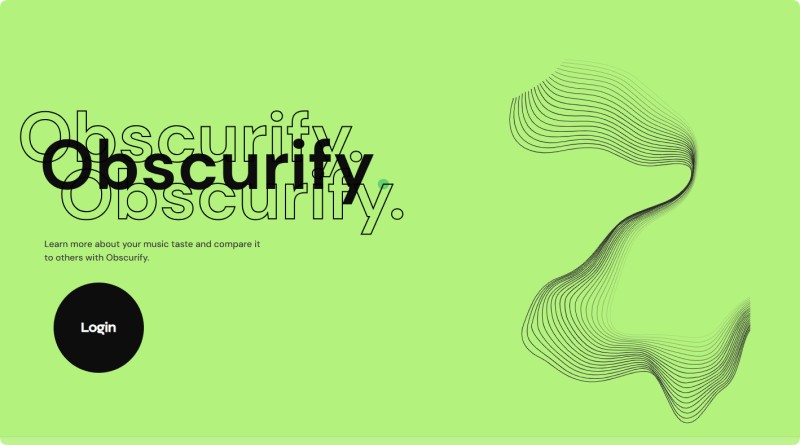
- Step 1. Visit Obscurify on your browser. Click on the "Login" button. You'll need to authenticate the app with your Spotify account by logging in.
- Step 2. Obscurify will request access to your Spotify account to view your listening history. Grant the necessary permissions.
- Step 3. Once connected, Obscurify will analyze your listening history. It will show your most-played songs, artists, and genres. You can also get a breakdown of how "mainstream" or "obscure" your music taste is based on your listening habits.
🎯Pros and Cons of Obscurify:
Pros
- The interface is clean and user-friendly, making it easy for anyone to access their music data.
- Offers a deep dive into your listening history, including stats you might not find on Spotify.
- The obscurity rating adds a fun and unique twist to your music preferences, making it an interesting way to explore your taste.
- It's completely free to use with no hidden costs.
Cons
- It doesn't offer features like playlist creation or music discovery.
- It's only available via the web.
- This site has a lot of ads.
3. Stats.fm: See Play Counts for Your Favorite Spotify Tracks on Mobile
Stats.fm (formerly Spotistats for Spotify) is an excellent tool for tracking your Spotify play counts and gaining valuable insights into your listening habits. It offers a fun way to discover your most-played tracks and explore your music preferences, while also allowing you to compare them with other users. Available for both Android and iOS, you can easily download Stats.fm from the Google Play Store or App Store.
🎶Features of Stats.fm:
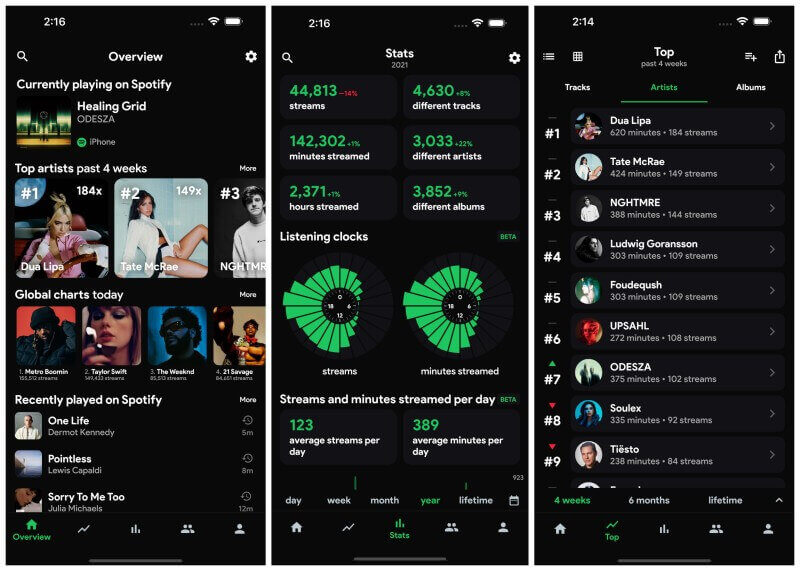
- Personalized Listening Stats: Tracks your most-played songs, artists, albums, and genres over various timeframes (weekly, monthly, yearly).
- Unique Visualizations: Provides a graphical representation of your listening data, making it easy to see trends and preferences.
- Compare with Friends: Allows users to compare their music taste with their friends and see who has the most similar listening habits.
- Discover New Music: Recommends new artists and albums based on your listening history and preferences.
- Spotify Integration: Syncs seamlessly with your Spotify account, providing real-time data updates.
How to Use Stats.fm on Mobile to See Play Counts for Your Favorite Tracks?
- Step 1. Search for Stats.fm in your app store. Install the app on your phone.
- Step 2. Open the app and sign in using your Spotify account. You'll need to grant the app permission to access your listening data.
- Step 3. After logging in, the app will begin collecting your listening data. Go to the "Tracks" section to see your most-played songs and how many times each has been played. You can filter by time period (e.g., "Last 7 Days," "Last 30 Days," or "All Time") to see how often you've played your favorite songs over different time spans.
🎯Pros and Cons of Stats.fm:
Pros
- Provides a detailed breakdown of your listening habits, allowing you to see which artists, genres, and songs you listen to the most.
- Fun feature for discovering how similar or different your music tastes are from your friends.
- Simple interface, making it easy to navigate and get your stats quickly.
- Automatically updates your stats as you listen to music on Spotify, keeping the information fresh and relevant.
- Offers personalized reports, showcasing your top tracks and listening trends over time.
Cons
- Some features, like advanced analytics, are locked behind a Premium plan.
- It doesn't always sync perfectly with Spotify, leading to occasional discrepancies in the data.
Part 3: Official Workarounds to See Your Play Counts on Spotify
Ask Spotify for Your Play History Data
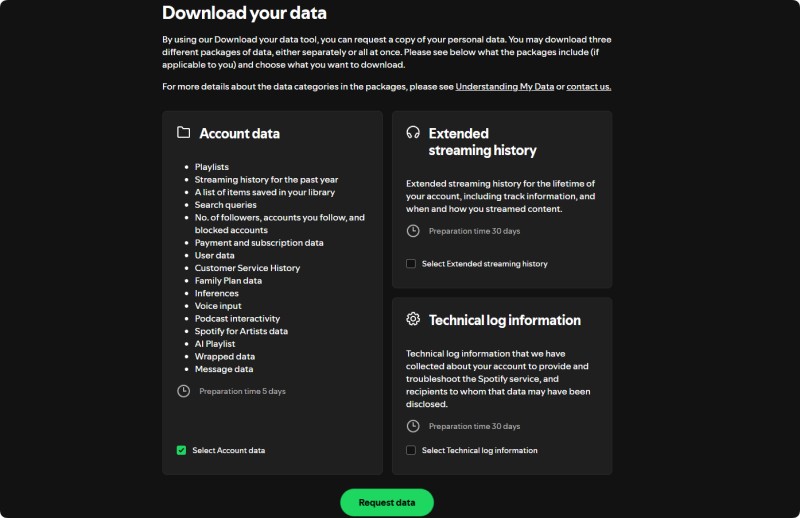
Spotify lets you export your complete listening data as JSON files, which include every track you've streamed, the timestamp, and the platform used. You can then analyze this to count plays per song. This is free, official, and covers your entire history (potentially years of data).
- Step 1. Log into your Spotify account through a web browser and navigate to your Account privacy page.
- Step 2. Slide to the bottom, and click the "Request data." Once the request is processed, Spotify will send you a ZIP file containing your listening history, including timestamps for every song you've played.
- Step 3. However, the file will not include exact play counts. You would need to manually count the occurrences of each song based on the timestamps. You can also use a third-party tool like stats.fm or Trackify, can upload this file for you and generate easy-to-read charts with exact counts.
Spotify Wrapped: Your Most-Played Tracks on Spotify of the Year
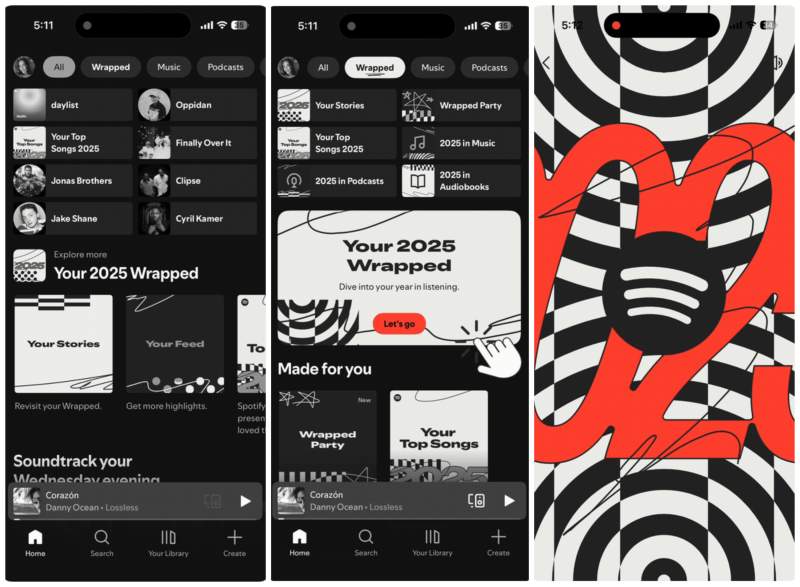
Spotify Wrapped is a highly anticipated, fun feature that showcases your most-played songs from previous years. Unfortunately, it does not provide the exact play count for individual songs. Instead, it creates a personalized playlist called "Your Top Songs" featuring your 100 most-listened-to songs of the year (or whichever year you're viewing). Spotify automatically curates this playlist based on the songs you played the most during the year, and it's available to both Free and Premium users. Spotify Wrapped is only available at the end of the year, usually in December.
🌟 What's Included in the Wrapped Playlist?
- ✅ Top 100 Songs: This playlist consists of your top 100 tracks, curated from your listening history throughout the year. It's a fun way to relive your musical journey over the past months.
- ✅ Personalized: The playlist is tailored to you, so you'll only see the songs that you listened to the most.
- ✅ Easy Access: Once you're in your Wrapped summary, Spotify provides a link to this playlist, making it easy for you to listen to your year's top tracks all in one place.
How to Access Your Top Songs Playlist of Spotify Wrapped?
- Step 1. Open the App Store (iOS) or Google Play Store (Android) and update Spotify to the latest version. Tap the search button.
- Step 2. On the Home tab, you'll usually see a big colorful "Your Wrapped" banner at the top. If you don't see it immediately, try scrolling down a bit or pulling down to refresh the Home screen.
- Step 3. You'll find a "Your Top Songs" playlist as part of your Wrapped experience. The playlist is available for you to stream and enjoy. You can also save it to your library for future access.
Part 4: Download Your Most-played Spotify Songs to MP3 Without Premium
Now that you know how to track how many times you've played a song on Spotify using third-party tools and official workarounds, you might be wondering how to enjoy your most-played tracks offline without Spotify Premium. If you want to listen to your favorite songs on repeat or save your top tracks for easy access, the Macsome Spotify Downloader is a simple solution. It lets you download your most-played Spotify songs or Wrapped playlists in MP3 format at up to 320 kbps to your computer. This way, you can listen to them anytime, anywhere—even without an internet connection.
Unlike many other tools, Macsome Spotify Downloader allows you to download Spotify songs, albums, playlists, podcasts, and audiobooks offline without needing a Premium subscription. Whether you're a free-tier or Premium user, you can easily save your most-played tracks. Macsome retains original audio quality and offers fast, batch downloads for a quick offline library. It also keeps metadata like song titles, artists, and album artwork, ensuring your files stay organized. Macsome Spotify Downloader is the most efficient and reliable solution to save your Spotify tracks offline.
Key Features of Macsome Spotify Downloader
- Download Spotify songs, playlists, audiobooks, and podcasts with high quality.
- Convert Spotify songs to MP3, AAC, WAV, FLAC, AIFF, or ALAC.
- Download music from both the Spotify app and the Spotify web player.
- Download music from the Spotify web player without logging in.
- Customize the quality of your output of Spotify songs at up to 320 kbps.
- One-click to burn CDs & Import Spotify songs to Apple Music.
- Play Spotify music offline with both Spotify Free and Premium users.
- Support batch downloading Spotify music at up to 40x faster speed.
- Almost all the ID3 tags will be preserved.
How to Download Your Most Played Tracks from Spotify Without Premium Using Macsome
In this section, we'll walk you through how to use Macsome Spotify Downloader to download your top tracks, even with a free Spotify account.
Step 1. Launch Macsome Spotify Downloader.
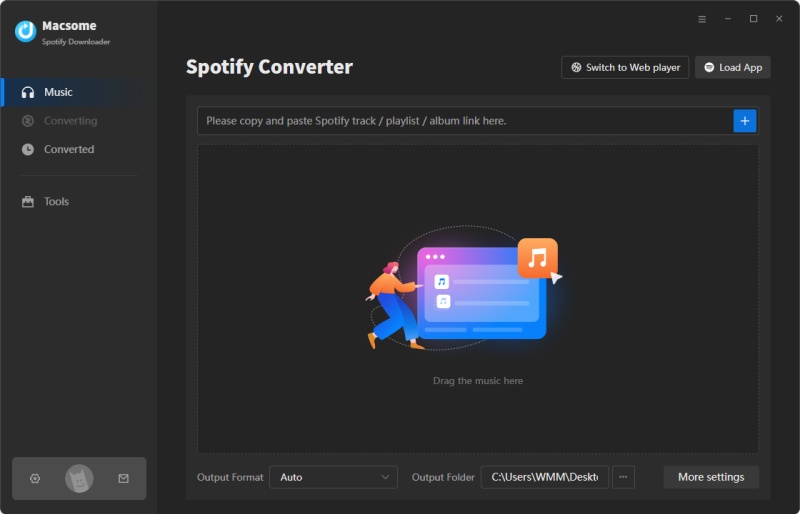
Download, install, and launch the Macsome Spotify Downloader on your computer. This tool supports both the Spotify application and the web player. We'll use the Spotify app mode here.
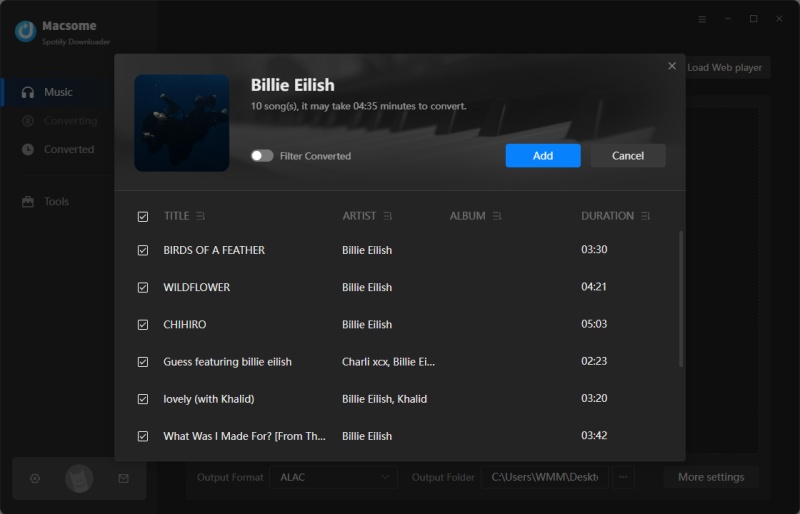
Step 2. Add Spotify Music to Macsome.
In the Spotify app, find the song, album, or playlist you want to download. Click the "Click to add" button to load the tracks into Macsome. Then, click "Add" to include them in the conversion list. Macsome supports downloading Spotify songs in batches. Click the "Add More" button to import other playlists.
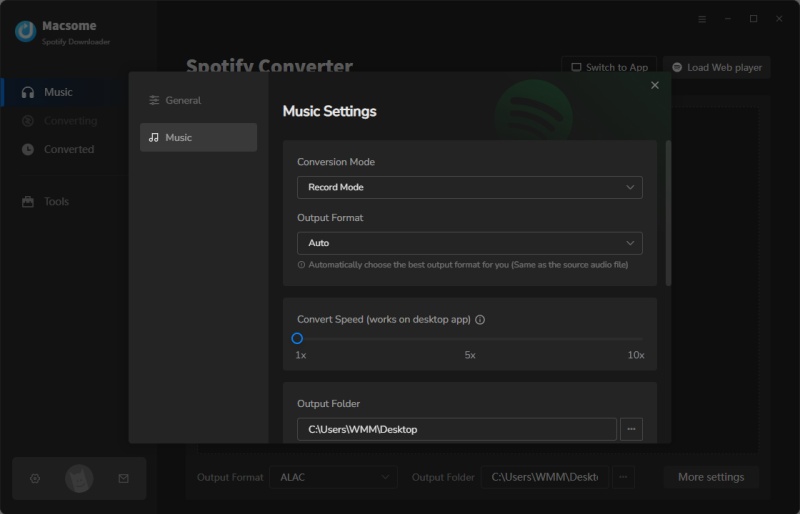
Step 3. Set Output Format.
Click "Settings" on the left, then select an output format: MP3, AAC, WAV, FLAC, AIFF, or ALAC. You can also customize your Spotify files by adjusting audio parameters, such as the bit rate (up to 320 kbps). Macsome also allows you to change the output folder, file names, and file organization for easier management.
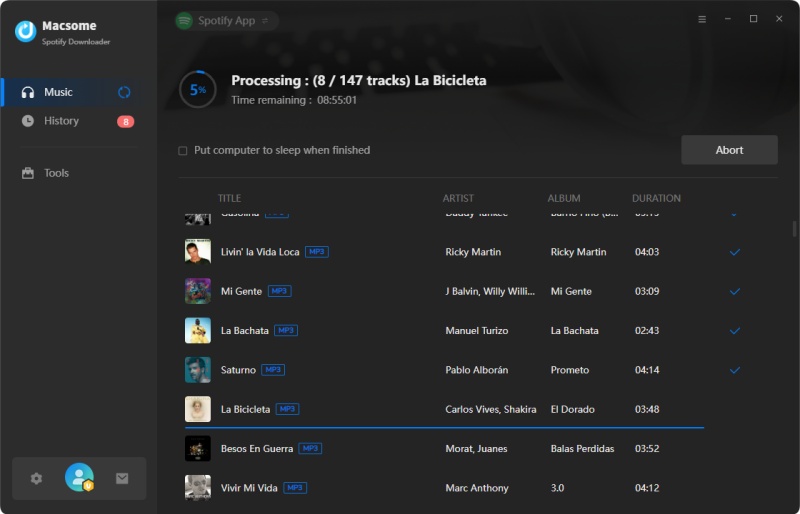
Step 4. Start to Download Spotify Music.
Click "Convert" to start downloading your Spotify tracks. Once the download is complete, tap the "History" tab to view downloading history. Click the "Folder" icon, you'll find your most-played songs saved in the designated output folder on your device. Now, you can listen to your downloaded songs offline anytime, anywhere.
Part 5: FAQs About How Many Times Have I Played a Song on Spotify
- Can I see exactly how many times I played a song on Spotify?
- No. The official Spotify app (mobile, desktop, or web) never displays your personal play count for any individual song.
- What exactly counts as a "stream" on Spotify?
- A stream is counted when a listener plays a song for at least 30 seconds. Anything under 30 seconds does not count toward the public play count or royalties, even if the listener hears the entire song.
- Do offline downloads count as streams?
- Yes. Each time a downloaded song is played for at least 30 seconds while offline, it is queued and counted the next time the device connects to the internet.
- Does Spotify Wrapped include total plays?
- Spotify Wrapped shows your top tracks but does not include the exact number of plays for each.
- How do artists see play counts on Spotify?
- Artists can view detailed play counts through Spotify for Artists, which gives them data about how often their songs are played.
Conclusion
Knowing how many times you've played a song on Spotify can provide insight into your music preferences and listening habits. While Spotify doesn't natively provide a play count feature, third-party tools such as Last.fm, Obscurify, and Stats.fm are reliable options for tracking song counts. There are also workarounds within Spotify to access this information. If you want to download your favorite tracks without a Premium subscription, Macsome Spotify Downloader is an excellent tool for keeping your music offline.
Explore these tools to dive into your listening history and discover your Spotify play counts. Find the best method for you! If you want to save your most-played songs from Spotify as MP3s for offline listening without a Premium subscription, Macsome Spotify Downloader is the perfect tool.
🔗 Take control of your music library today! Try Macsome Spotify Downloader to keep your most-played tracks at your fingertips.