



 Wyatt Maxwell
Spotify is one of the world's most popular music streaming platforms. With millions of songs at your fingertips, it's no wonder that many users are curious about their listening habits. Have you ever wondered how much time you've spent listening to your favorite songs on Spotify? Or how many times you've hit replay on that one song you just can't get enough of? Spotify Stats unlock a treasure trove of insights about your music tastes and listening habits. Whether you're a casual listener or a dedicated music enthusiast, understanding your Spotify stats can help you identify your most-played songs, favorite artists, and overall listening trends. In this article, we'll show you how to see your Spotify stats and explore the details that make your musical journey unique. Ready to explore your Spotify history? Let's dive in!
Part 1: Official Ways to See Your Spotify Stats
Spotify offers a few official ways to track and view your listening stats without needing external tools. Here's how you can access your Spotify stats directly:
1.1 Weekly Listening Stats
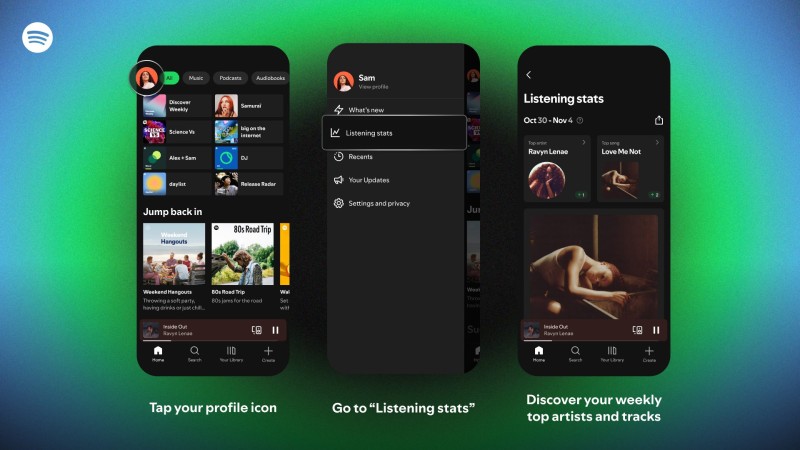
Spotify has introduced a new "Listening stats" feature that provides a weekly summary of your recent music streaming habits. The stats show your top artists and songs for a given week and let you share those numbers on Instagram, WhatsApp, or directly with friends on Spotify through the app's new messaging feature. The feature is currently rolling out to free and premium users in over 60 countries.
How it works:
- Step 1. Open the Spotify app on mobile or desktop. Tap your profile picture in the top corner.
- Step 2. Select "Listening stats" from the menu.
- Step 3. This shows your top artists and songs from the past four weeks, plus personalized playlists and unique highlights. It's shareable and available to both Free and Premium users.
1.2 Recently Played and Monthly Tops
You can view your listening stats through the Recently Played feature on your Spotify profile directly within the Spotify app. Below, we will discuss how to view your Spotify stats on mobile and desktop.
How to Check Your Spotify Stats on Mobile:
- Step 1. Launch the Spotify app on your mobile device. At the bottom of the screen, tap on the "Your Library" icon.
- Step 2. In the "Your Library" section, tap on your profile picture (or the default avatar if you haven't set one) in the top-right corner of the screen. This will take you to your Spotify profile.
- Step 3. On your profile page, you'll see your playlists, saved albums, and artists. Your recently played songs and top tracks (depending on your listening activity).
How to See Your Spotify Stats on Desktop:
- Step 1. Open the Spotify desktop app or go to the Spotify website in your browser.
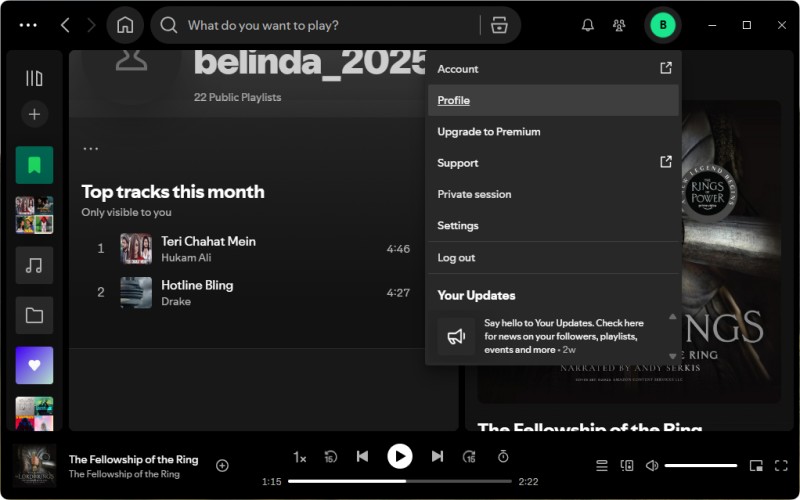
- Step 2. In the Spotify app (desktop version), click on your profile name at the top-right corner of the screen. From the drop-down menu, select "Profile".
- Step 3. Your profile page will show your recently played tracks, saved music, and playlists. You can also view your most recent activity and likes on your profile.
1.3 Spotify Wrapped (Annual Recap)
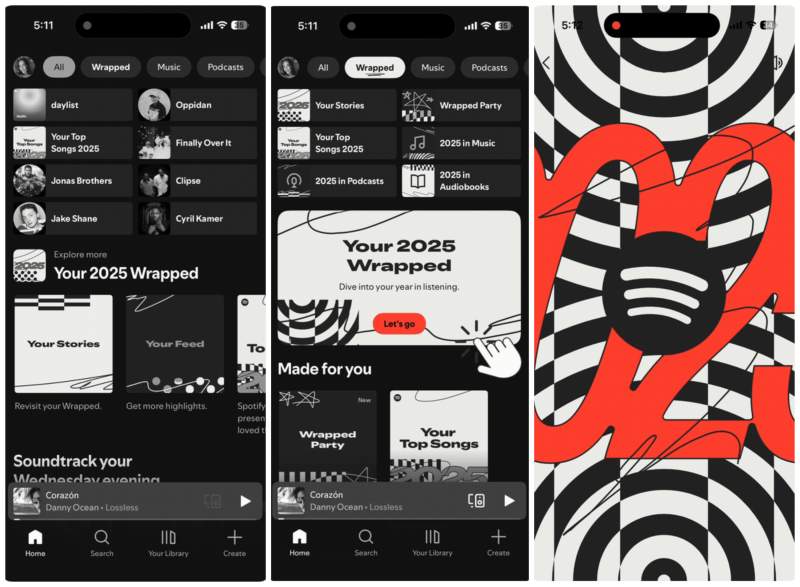
Spotify Wrapped is an annual tradition that provides a personalized year-in-review of your listening habits. Released at the end of the year, typically in December, Wrapped summarizes your year with your top five artists, songs, albums, genres, and total listening time. It's easy to find Spotify Wrapped. Follow the steps below to find your Wrapped story and associated music mixes.
- Step 1. Open the App Store (iOS) or Google Play Store (Android) and update Spotify to the latest version. Tap the search button.
- Step 2. On the Home tab, you'll usually see a big colorful "Your Wrapped" banner at the top. If you don't see it immediately, try scrolling down a bit or pulling down to refresh the Home screen.
- Step 3. This launches your personalized Wrapped story (the slideshow with your top songs, artists, genres, listening time, etc.).
These official ways are simple and private, but they are limited in terms of depth and historical data. Third-party sites and apps use Spotify's API to offer more robust stats and tracking options by analyzing your data.
Part 2: Best Third-Party Tools to See Your Spotify Stats
Here are the top-recommended tools to help you track your Spotify stats:
2.1 Stats for Spotify
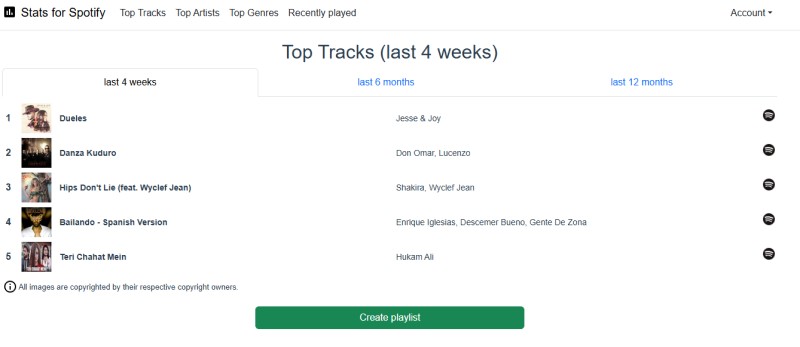
Stats for Spotify is a popular, free, third-party website that allows you to view your personal Spotify listening stats that go beyond what the official Spotify app provides. It shows your top tracks, artists, and genres for different time periods: the last four weeks, the last six months, or all time (since you started using Spotify). This simple, no-frills tool has been around for years and is great for quickly gaining insight into your music habits. It offers personalized charts and graphs to help you track your musical journey.
How to Use Stats for Spotify
- Step 1. Open your browser and visit the Stats for Spotify site.
- Step 2. Click the "Login with Spotify" button. You'll be redirected to Spotify's secure login page.
- Step 3. Once logged in, you'll land on the homepage showing your current Top tracks, Top artists and albums, etc.
- Step 4. You can explore changes in your listening activity over weeks, months, or even years, and see how your music preferences have evolved.
2.2 Last.fm
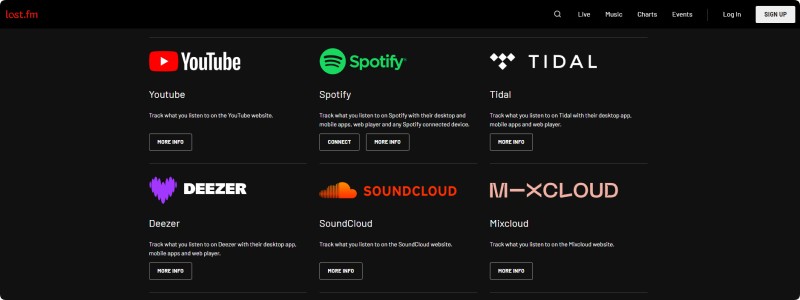
Last.fm is one of the oldest and largest online music tracking and discovery platforms. It automatically tracks the music you listen to across various devices and services, including Spotify, Apple Music, YouTube, Tidal, and others, building a detailed profile of your listening habits over time. Unlike Spotify Wrapped, Last.fm provides lifetime stats, weekly reports, all-time charts, and personalized recommendations based on your actual plays.
How to Use Last.fm to Track Your Spotify Stats
- Step 1. Sign up for Last.fm. You can sign up with your email address or link your Spotify account directly.
- Step 2. Once you've created your account, connect it to your Spotify account. This is essential for Last.fm to scrobble the tracks you listen to. On Spotify, the scrobbling feature is built into the app. It works seamlessly across mobile, desktop, web, and connected devices.
- Step 3. After scrobbling a few tracks, head over to your profile to see your stats. Last.fm provides a personalized recommendation system. Based on your listening activity, the platform suggests new songs, albums, or artists that you might enjoy.
2.3 Obscurify
Obscurify is another third-party service that offers a fun and insightful way to explore your Spotify listening habits. By analyzing your listening history, it provides detailed statistics and analytics, revealing how unique or mainstream your music tastes are compared to other Spotify users. One of Obscurify's standout features is its "obscurity rating", a percentage score ranging from 0% to 100%, which reflects how unconventional or mainstream your musical preferences are. Higher scores suggest you prefer more obscure artists and tracks, while lower scores indicate a taste aligned with mainstream music.
In addition to the obscurity rating, Obscurify offers a variety of insights into your listening habits, including your top artists and tracks, the most obscure music in your library, a breakdown of your favorite genres and music decades, and a mood analysis of your music choices. It also provides personalized recommendations based on your listening history. With Obscurify, you can not only gain a deeper understanding of your music preferences but also discover new artists and genres that perfectly match your unique taste.
How to Use Obscurify to See Your Spotify Stats
- Step 1. Visit the Obscurify website in your browser. Click on the "Login" button, which will redirect you to Spotify's login page where you'll grant Obscurify access to your Spotify data.
- Step 2. When prompted, allow Obscurify to access your Spotify account. This will enable the tool to gather your listening data.
- Step 3. Once logged in, Obscurify will analyze your listening habits and display a range of stats, including Your top artists, albums, and tracks. Your obscurity rating. Decade distribution of your music, and more.
2.4 Stats.fm
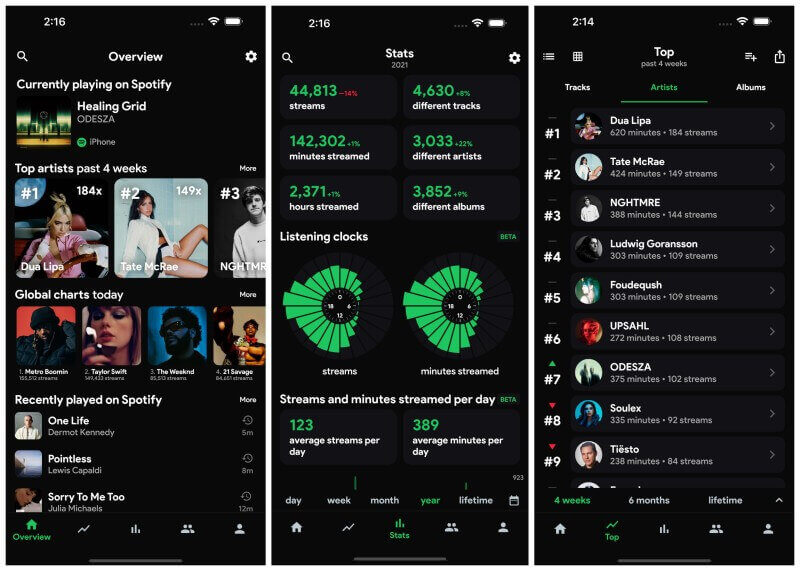
Stats.fm (formerly Spotistats) is a third-party app and website offering detailed analytics of your Spotify listening habits. Serving as an alternative to Spotify Wrapped, Stats.fm provides stats such as top tracks, artists, albums, genres, play counts, total listening time, mood metrics, popularity scores, and lifetime streaming history. The app also includes social features such as sharing profiles, viewing friends' stats, and creating customizable "Wrapped-style" recap cards. With millions of users, Stats.fm is praised for its comprehensive, personalized data, which is much more detailed than Spotify's built-in stats.
The free version provides basic statistics for the previous four weeks, limited to the top 50 items. To access advanced features, such as lifetime play counts, historical data, custom time ranges, and an ad-free experience, upgrade to Stats.fm Plus. Stats.fm Plus offers affordable one-time or subscription payment options.
How to Use Stats.fm to Track Your Spotify Stats
- Step 1. You can get the app from the App Store (iOS) or Google Play (Android). You can also go to the Stats.fm site through the desktop or mobile browser).
- Step 2. Open the app/site and select "Log in with Spotify". Sign in to your Spotify account and grant permissions.
- Step 3. Once logged in, Stats.fm will analyze your listening history and display your stats, including Your most-played songs and top artists; Your top albums, favorite genres, and more; A breakdown of how much time you've spent listening to your favorite tracks and artists, etc. To unlock the lifetime/full history, you need to get the stats.fm Plus.
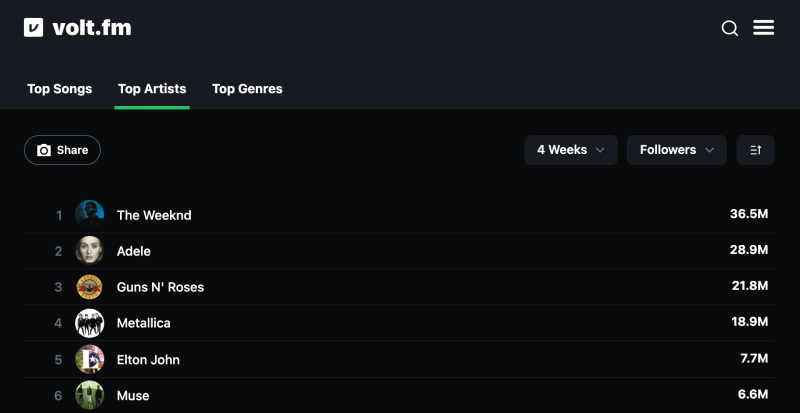
2.5 Volt.fm
Volt.fm is a third-party platform that helps Spotify users track their listening habits and provides detailed insights into their musical preferences. Often described as "your Spotify profile on steroids," Volt.fm offers year-round access to stats similar to those on Spotify Wrapped. These include top artists, songs, albums, genres, play counts, minutes listened, and music mood analysis. Users can also share their profiles, compare stats with friends, discover new music, and receive monthly stats reports via email.
How to Track Your Spotify Stats Using Volt.fm
- Step 1. First, you'll need to visit the Volt.fm website and sign up with your Spotify account.
- Step 2. After signing up, you'll be prompted to log into your Spotify account. This connection allows Volt.fm to access your listening data securely.
- Step 3. Once connected, Volt.fm will begin pulling data from your Spotify account. You can then view your top tracks, artists, genres, and more through a personalized dashboard.
- Step 4. The platform lets you explore trends in your listening habits, like which songs have been in your rotation the longest or which genres you listen to the most.
2.6 Trackify
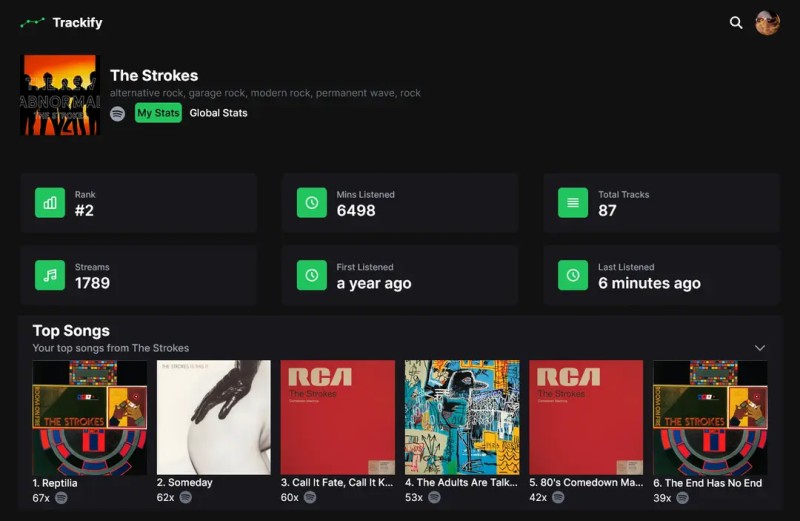
Trackify is a popular third-party tool that provides detailed Spotify listening statistics. It serves as an alternative to Spotify Wrapped year-round. Trackify tracks exact play counts, total listening time in minutes and hours, and your top artists, songs, and albums. It often goes beyond Spotify's limits, such as showing your top 999+ items instead of just 50. Trackify uses Spotify's API for real-time syncing and allows you to import extended history for complete accuracy.
How to Use Trackify to See Your Spotify Stats
- Step 1. Visit Trackify's official website. Sign in with your Spotify account. Trackify will request permission to access your Spotify data.
- Step 2. Grant Trackify access to your Spotify account by clicking the "Connect" button. It may ask for permissions such as viewing your listening history and playlist details.
- Step 3. Once connected, you can explore various sections of your Spotify stats, including Top Tracks, Top Artists, Top Albums, Genres & Mood, etc. You can share your statistics on social media or compare your stats with friends.
Part 3: How to Download Your Spotify Stats Data Without Premium
Spotify offers various features, and there are also third-party tools available to help you track your stats. While some features, like offline access to your most-played songs and artists, are reserved for Premium users, Macsome Spotify Downloader provides a solution for free account holders as well. This professional tool lets you download your Spotify stats, top tracks, playlists, and more directly to your computer, all while maintaining high audio quality. It's perfect for both Spotify Free and Premium users.
With Macsome Spotify Downloader, you can easily download and convert your Spotify stats to MP3, AAC, WAV, FLAC, AIFF, and ALAC formats, making it simple to transfer your data to any device. You can track and download your Spotify stats as often as you like, whenever you need. Featuring a user-friendly interface and fast processing speeds, Macsome Spotify Downloader is the ideal solution for backing up your Spotify data or enjoying your favorite music offline without any limitations.
Key Features of Macsome Spotify Downloader
- Download Spotify songs, playlists, audiobooks, and podcasts with high quality.
- Convert Spotify songs to MP3, AAC, WAV, FLAC, AIFF, or ALAC.
- Download music from both the Spotify app and the Spotify web player.
- Download music from the Spotify web player without logging in.
- Customize the quality of your output of Spotify songs at up to 320 kbps.
- One-click to burn CDs & Import Spotify songs to Apple Music.
- Play Spotify music offline with both Spotify Free and Premium users.
- Support batch downloading Spotify music at up to 40x faster speed.
- Almost all the ID3 tags will be preserved.
Step-by-Step Guide to Download Your Spotify Stats Data
Step 1. Launch Macsome Spotify Downloader.
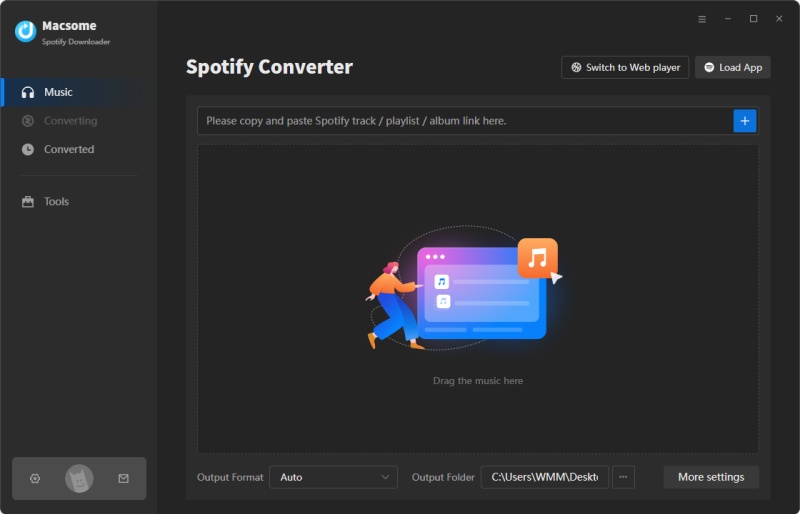
Download, install, and launch the Macsome Spotify Downloader on your computer. This tool supports both the Spotify application and the web player. We'll use the Spotify app mode here.
Step 2. Add Spotify Music to Macsome.
In the Spotify app, select and open your top songs, albums, artists, or playlists you'd like to download. Click the "Click to add" button to load the tracks into Macsome. Then, click "Add" to include them in the conversion list. You can download multiple playlists at once, so feel free to create a playlist or select an entire album for bulk downloads.
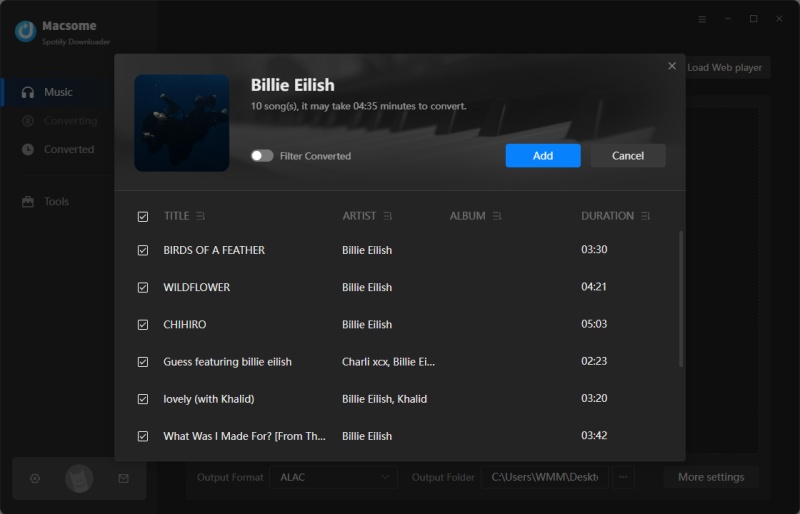
Step 3. Set Output Format.
Click "Settings" in the lower left, and then select your preferred output format: MP3, AAC, WAV, FLAC, AIFF, or ALAC. You can also customize your Spotify files by adjusting the audio parameters, such as the bit rate (up to 320 kbps). Macsome also allows you to change the output folder, file names, and file organization for easier management.
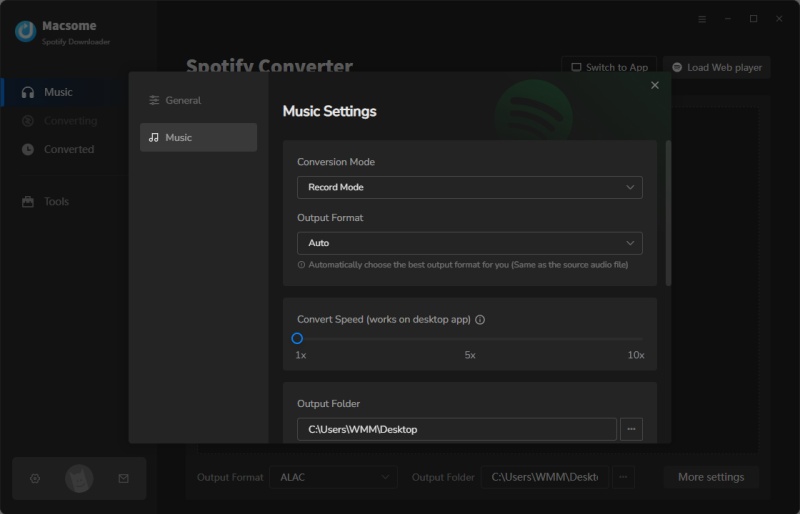
Step 4. Start to Download Your Spotify Stats Data.
Click the "Convert" button, and Macsome will begin downloading your Spotify music in the format you selected. Once the download is complete, you can find the music in the designated folder on your computer. Then, you can transfer the downloaded tracks to any device.
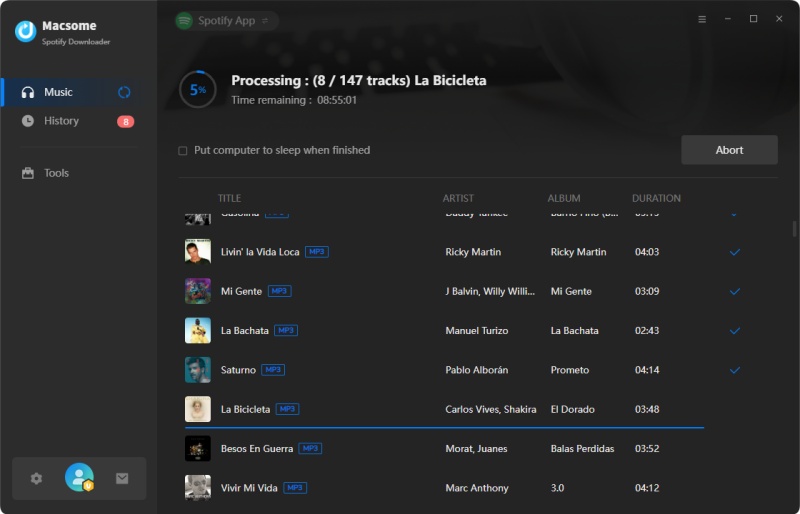
Part 4: Frequently Asked Questions About Seeing Your Spotify Stats
- Can I check my Spotify stats without a Premium account?
- Yes, Spotify allows free users to view basic listening data, such as recently played tracks, limited profile insights, and Wrapped. Additionally, there are many third-party tools that can help you analyze your Spotify stats in more detail without requiring a Premium subscription. However, some advanced Spotify features (like certain playlists) are Premium-only.
- Why are my Spotify stats inaccurate or missing songs?
- There could be several reasons why your Spotify stats are inaccurate or missing songs:
- Data Syncing Issues: Sometimes, Spotify’s tracking may not update in real-time due to sync delays, especially if you’re using multiple devices or accounts.
- Private Listening Mode: If you've been listening in Private Session mode, Spotify won't track or record those plays in your stats.
- Playlist vs. Library Plays: If you've been listening to tracks from playlists rather than directly from your library, some tools may not accurately track these plays, especially with third-party apps or web-based services.
- Skipped Songs: If you frequently skip songs before they are fully played, they may not be counted toward your total plays, affecting your stats.
- Account Issues: If you've switched between multiple accounts (e.g., Free and Premium), your stats might not be consistent, especially if there's been a gap in activity or syncing.
- Can I see my total Spotify stats or lifetime listening history?
- Unfortunately, Spotify doesn’t offer a native feature to view your total or lifetime listening history in its app. However, there are a few ways you can get a glimpse of your overall listening activity:
- Spotify Wrapped: Each year, Spotify provides an annual recap of your most-streamed songs, artists, and genres through Spotify Wrapped, but this only shows data from the past year, not your entire listening history.
- Third-Party Tools: Some third-party services like Stats.fm or Obscurify allow you to track and view your historical Spotify data over time. These services may offer a more detailed view of your listening habits, but they might have limitations regarding lifetime stats.
- How do I share my Spotify stats?
- Sharing your Spotify stats is easy, and there are a few different ways to do it depending on the platform and the type of stats you're looking to share
- Spotify Wrapped: To share your Wrapped stats, simply visit the Spotify Wrapped website or app, and you'll find a shareable link that you can post to social media platforms like Instagram, Twitter, and Facebook.
- Spotify's "Share" Feature: For individual songs, playlists, or albums, Spotify allows you to share them directly. Just click the three dots next to a song, album, or playlist, select "Share," and choose the platform.
- Third-Party Tools: Apps like Stats.fm and Obscurify allow you to share detailed stats, including your top tracks, artists, and listening trends. You can usually generate a shareable link or an image of your stats to post on social media.
- What should I do if I can't see my stats on Spotify?
- If you can't see your stats on Spotify, first ensure that your app is updated to the latest version, as outdated apps can sometimes cause issues with displaying stats. If you're looking for your Spotify Wrapped, it's typically available in December, so check that it's the right time of year. Make sure you're logged into the correct account, as some stats may be tied to specific account types. If you're using third-party tools like Stats.fm or Obscurify, ensure that your Spotify account is properly linked. If the issue persists, try logging out and back in or clearing the cache on your mobile app. In case the stats still don't show up, it may be due to a sync delay, and waiting a bit or reaching out to Spotify support can help resolve the problem.
Conclusion
Seeing your Spotify stats is a great way to gain insight into your music-listening habits and preferences. You have a variety of options at your disposal, whether you use official features like Weekly Listening Stats, Recently Played, or Spotify Wrapped, or opt for third-party tools like Stats.fm and Last.fm for more detailed analytics. Additionally, Macsome Spotify Downloader also offers a convenient way to download and save your Spotify stats, making your music journey easily accessible and shareable. With these tools, you can unlock a personalized music experience and stay connected to your favorite artists, tracks, and genres.
Are you ready to take control of your Spotify stats? Download the Macsome Spotify Downloader today and start saving your favorite musical moments!