



 Belinda Raman
Music streaming services like Qobuz, Tidal, and Deezer make it easy to access millions of songs without maintaining a large local music library. However, some users may still want to download and manage their music files more flexibly. Streamrip is an open-source music downloader available on GitHub that uses a command-line interface to download music from supported streaming services.
So, what exactly is Streamrip, how does it work, and is it worth trying? In this Streamrip review, we'll take a closer look at its features, explain how to install and use Streamrip with practical examples, discuss whether it is safe to use, and explore a practical alternative to Streamrip for easier music downloading.
- Part 1. Introduction: What Is Streamrip?
- Part 2. Is Streamrip Safe to Use?
- Part 3. How to Install Streamrip
- Part 4. How to Use Streamrip to Download Music
- Part 5. Why Can Streamrip Be Troublesome?
- ⭐ Part 6. Best Streamrip Alternative: Macsome Music One
- Part 7. Frequently Asked Questions About Streamrip
- Part 8. Streamrip Review: Final Verdict
Part 1. Introduction: What Is Streamrip?
Streamrip is a popular open-source, Python-based music downloader available on GitHub. It primarily supports Qobuz, Tidal, Deezer, and SoundCloud, allowing users to download tracks, albums, playlists, and other music collections through a command-line interface.
Streamrip is designed for users who want more control over their downloads. It supports high-quality audio from supported services, preserves available metadata and album artwork, and includes features such as batch downloads, format conversion, and a local database to help avoid duplicate downloads.
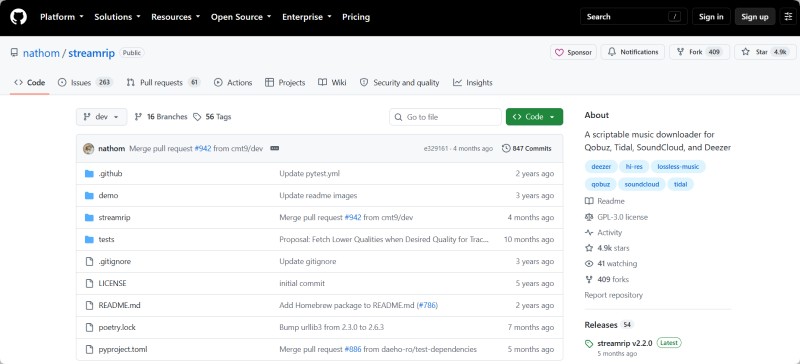
However, Streamrip is not a typical desktop downloader with a graphical interface. Users need to install and configure the required environment and use terminal commands to operate it. This makes Streamrip flexible and powerful, but potentially more difficult for beginners.
Key Features of Streamrip
- Multi-service support for Qobuz, Tidal, Deezer, and SoundCloud, including tracks, albums, playlists, and other collections
- High-quality audio downloads with lossless and Hi-Res options when supported by the source service
- Fast concurrent downloads with configurable rate limiting
- Automatic format conversion using FFmpeg, with support for formats such as FLAC, MP3, AAC, ALAC, and OGG
- Metadata and artwork preservation to keep downloaded music organized
- Local download database to help prevent duplicate downloads
- Customizable configuration for download paths, file naming, audio quality, and other settings
Pros and Cons of Streamrip
Pros
- Free and open-source with publicly available source code
- Supports lossless and Hi-Res audio when available from the source
- Fast batch and concurrent downloads
- Good metadata, artwork, and file organization options
- Highly customizable for advanced users
Cons
- Command-line interface can be difficult for beginners
- Requires technical setup, including Python and other dependencies
- No traditional graphical user interface
- Some features and audio quality depend on the supported streaming service
- May require troubleshooting when streaming services change their systems
Part 2. Is Streamrip Safe to Use?
Streamrip is generally safe to use when downloaded from its official GitHub repository or trusted package sources. However, being open source does not automatically guarantee that the software is completely risk-free. Users should download Streamrip from trusted sources and keep its dependencies updated.
⚠️ Is Streamrip Safe Because It Is Open Source?
Streamrip is open source, meaning its code is publicly available for inspection and review. This provides greater transparency than closed-source software, but it does not guarantee 100% security. For safer use, download Streamrip only from its official GitHub repository or trusted package sources such as PyPI.
🛡️ Can Streamrip Give You Malware?
The official Streamrip project is not known to contain malware, but unofficial or modified copies may introduce security risks. Avoid downloading cracked, repackaged, or suspicious versions from third-party websites. Using the genuine Streamrip package and keeping your system and dependencies updated can help reduce potential risks.
🔒 How to Use Streamrip More Safely
To use Streamrip more safely, download it from an official source, avoid unofficial versions, and keep Python and related dependencies updated. You should also protect your streaming-service credentials, authentication tokens, and configuration files. Finally, use Streamrip responsibly and follow the terms and applicable rules of the music services you access.
Part 3. How to Install Streamrip on Your Computer
Before installing Streamrip, make sure you have Python 3.10 or newer and pip installed. FFmpeg is also recommended for audio processing and format conversion. The installation process is slightly different on Windows and macOS.
Install Streamrip on Windows
Step 1. Install Python: Download and install Python 3.10 or newer from the official Python website. During installation, make sure to check "Add Python to PATH".
Step 2. Install FFmpeg: FFmpeg is recommended for audio processing and format conversion. If you are using Chocolatey, open Command Prompt as an administrator and run the following command:
choco install ffmpegStep 3. Install Streamrip: Open Command Prompt and run:
pip install streamrip --upgrade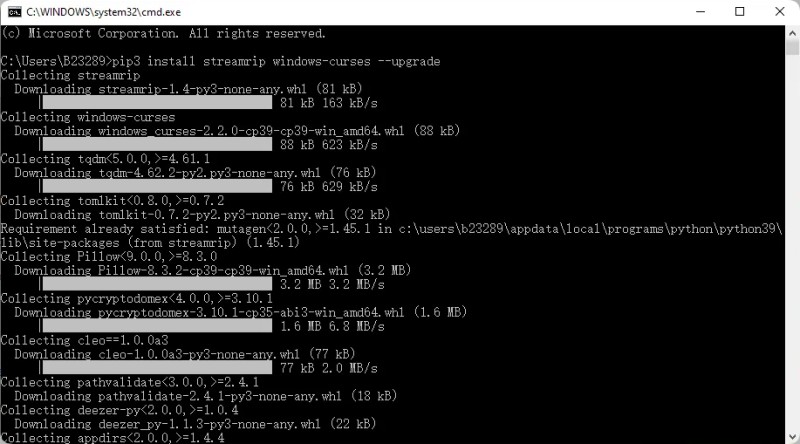
Wait for the installation to complete. Streamrip and its required Python dependencies will be installed automatically.
Step 4. Verify the installation: Check whether Streamrip was installed successfully by running:
rip --versionIf a Streamrip version number is displayed, the installation was successful.
Optional: Install the development version
If you want to test the latest development code, you can install the development version directly from GitHub:
pip install git+https://github.com/nathom/streamrip.git@devHowever, the development version may be less stable than the latest official release, so most users should install the regular version instead.
Install Streamrip on macOS
Step 1. Install Homebrew: If Homebrew is not already installed, open Terminal and run:
/bin/bash -c "$(curl -fsSL https://raw.githubusercontent.com/Homebrew/install/HEAD/install.sh)"Step 2. Install Streamrip: Once Homebrew is ready, install Streamrip with:
brew install streamripHomebrew will handle the required dependencies for the installation.
Alternative: Install Streamrip with pip
If you prefer to use Python's package manager, first make sure Python 3 is installed:
brew install pythonThen install or upgrade Streamrip with:
python3 -m pip install streamrip --upgrade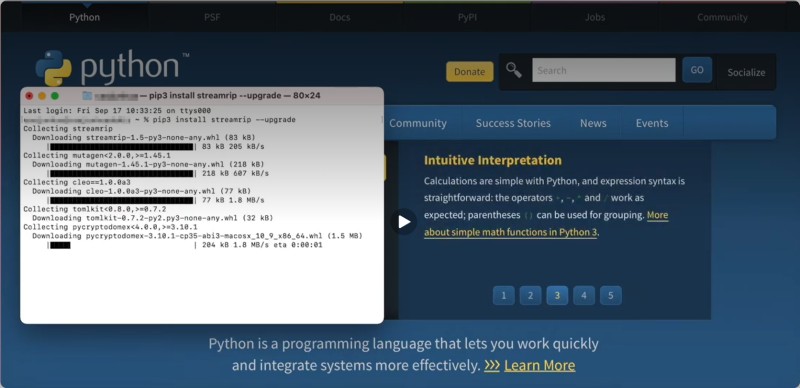
Step 3. Verify the installation: Run the following command in Terminal:
rip --versionIf the version number appears, Streamrip is ready to use.
Optional: Install the development version
python3 -m pip install git+https://github.com/nathom/streamrip.git@devAfter installation, you can run rip config open to open Streamrip's configuration file and set up the supported streaming services.
Part 4. How to Use Streamrip to Download Music
After installing Streamrip, you can download music from Qobuz, Tidal, Deezer, and SoundCloud using simple commands. Follow the steps below to get started.
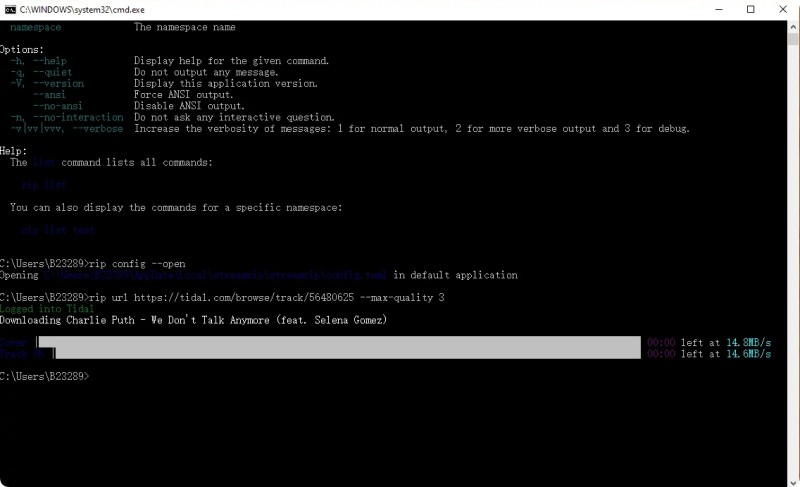
Step 1. Configure Streamrip
Open Command Prompt on Windows or Terminal on macOS and run:
rip config openEnter your account information and choose your preferred download settings. For Tidal and Qobuz, a valid paid subscription is required.
Step 2. Download a Track or Album
Copy the URL of the track or album you want to download, then run:
rip url "YOUR-MUSIC-URL"For example:
rip url "https://tidal.com/browse/album/147569387"Streamrip will download the available tracks according to your configured settings.
Step 3. Choose the Audio Quality
Use the --quality option to select the maximum available audio quality. The value can be set from 0 to 4.
For example, use quality level 3:
rip --quality 3 url "https://tidal.com/browse/album/147569387"The available quality depends on your music service, subscription, and the source audio.
Step 4. Download Music as MP3
To save the downloaded music as MP3, add the --codec mp3 option:
rip --codec mp3 url "YOUR-ALBUM-URL"You can also combine the quality and MP3 options:
rip --quality 3 --codec mp3 url "YOUR-ALBUM-URL"Step 5. Download a Playlist
Copy the URL of a supported playlist and run:
rip url "YOUR-PLAYLIST-URL"Streamrip will download the available tracks using your selected settings.
Step 6. Check Your Downloaded Music
When the download is complete, open Streamrip's configured output folder to find your music files.
Tip: Before downloading a large album or playlist, make sure you have enough storage space and that your download settings are correct.
💡Bonus Tip. Download Apple Music and Spotify Playlists Through Last.fm
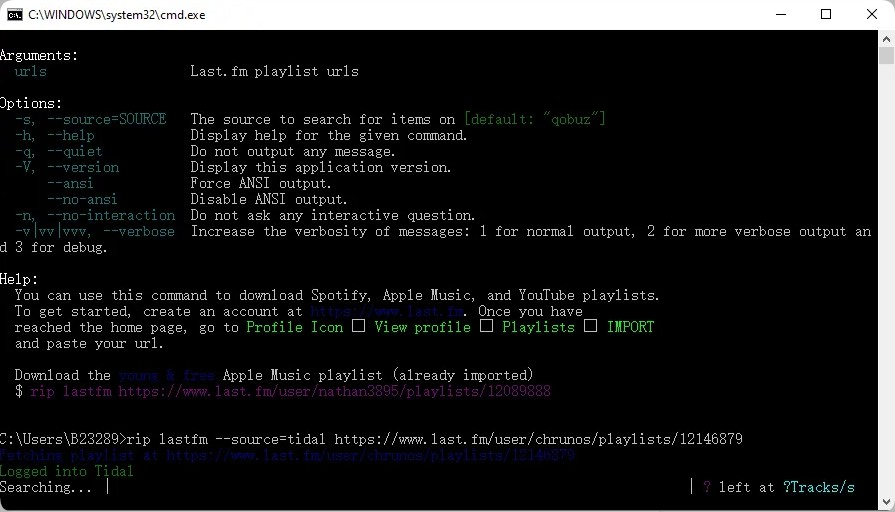
Streamrip does not directly support Apple Music or Spotify. However, you can use a Last.fm playlist with Streamrip to find and download matching tracks from supported music services.
Step 1. Add Your Playlist to Last.fm
Import or recreate your Apple Music or Spotify playlist on Last.fm so that the playlist tracks are available there.
Step 2. Copy the Last.fm Playlist URL
Open the playlist on Last.fm and copy its URL. For example:
https://www.last.fm/user/chrunos/playlists/12146879Step 3. Download the Playlist with Streamrip
Use the rip lastfm command followed by the Last.fm playlist URL:
rip lastfm https://www.last.fm/user/chrunos/playlists/12146879Streamrip will read the playlist and search for matching tracks on its supported music services.
Note: Some tracks may be skipped if Streamrip cannot find a suitable match.
Part 5. Why Can Streamrip Feel Troublesome?
Streamrip is powerful, but it may feel complicated if you are new to command-line tools. Here are some common issues you may encounter and simple ways to deal with them.
1. The Command-Line Interface Can Be Difficult
Problem: Streamrip requires Command Prompt or Terminal commands instead of a traditional graphical interface.
Solution: Follow the correct command syntax and start with simple commands such as rip url before using advanced options.
2. Account Configuration Takes Extra Steps
Problem: You need to configure your music service before downloading.
Solution: Run rip config open and carefully check your account and download settings.
3. Some Tracks May Not Be Found
Problem: Streamrip may not find a matching version of every track, especially when processing playlists.
Solution: Check whether the track is available on a supported music service and try another version or source when necessary.
4. Troubleshooting Can Be Time-Consuming
Problem: Download errors may require you to check commands, account settings, or service availability.
Solution: Check your command and configuration first, then try the download again after correcting the settings.
Part 6. Best Streamrip Alternative: Macsome Music One
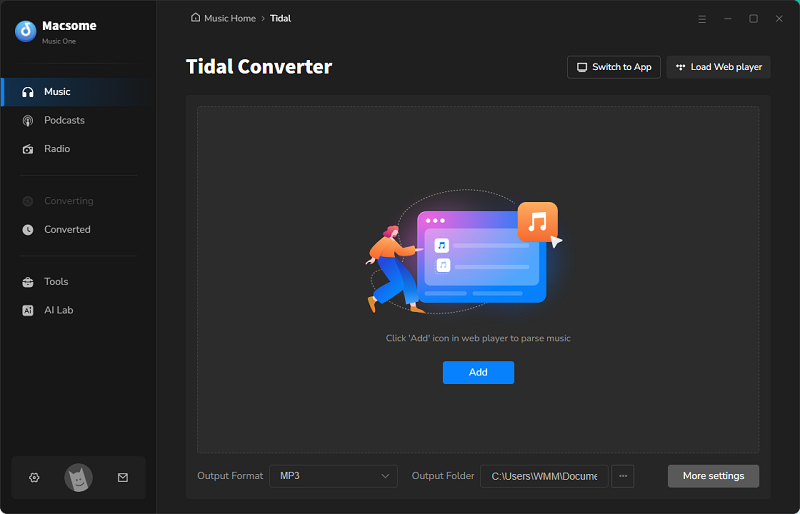
If you find Streamrip's command-line workflow complicated, Macsome Music One provides a much simpler way to download music. With its user-friendly desktop interface, you can search for music, select songs, albums, or playlists, and start downloading without entering commands or manually editing configuration files. It also supports batch downloads, making it easier to download large music collections at once.
Macsome Music One also supports a wide range of music platforms, including Spotify, Apple Music, Amazon Music, Tidal, Deezer, SoundCloud, Qobuz, and YouTube Music. You can save music in MP3, AAC, WAV, FLAC, AIFF, or ALAC formats while preserving ID3 tags and album artwork. It can also record audio from platforms such as Dailymotion, Vimeo, BBC Sounds, Beatport, and Bandcamp, making it a more convenient all-in-one alternative for users who want to manage music downloads from different sources in one place.

Why Choose Macsome Music One?
- Download music from Spotify, Apple Music, Tidal, YouTube Music, SoundCloud, Qobuz, and more.
- Convert music to MP3, AAC, WAV, FLAC, AIFF, or ALAC.
- Record audio from Apple Podcasts, Dailymotion, Vimeo, BBC Sounds, Beatport, Bandcamp, and other sites.
- Support fast batch downloading of songs, albums, and playlists.
- Preserve ID3 tags, lyrics, and album artwork.
- Remove vocals and instruments from music.
- Export music to iTunes or Apple Music with one click.
How to Use Macsome Music One to Download Streaming Music
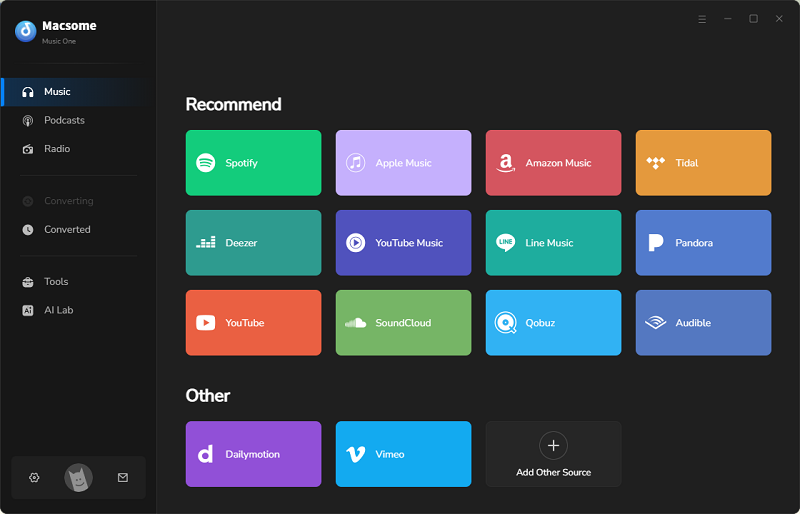
Step 1. Select a Music Platform
Download, install, and launch Macsome Music One. Select the streaming platform you want to use, such as Spotify, Apple Music, Tidal, SoundCloud, Qobuz, Deezer, YouTube, and more. Here, we select Spotify. You can choose between Spotify App Mode and Web Player Mode.
Step 2. Choose the Output Format
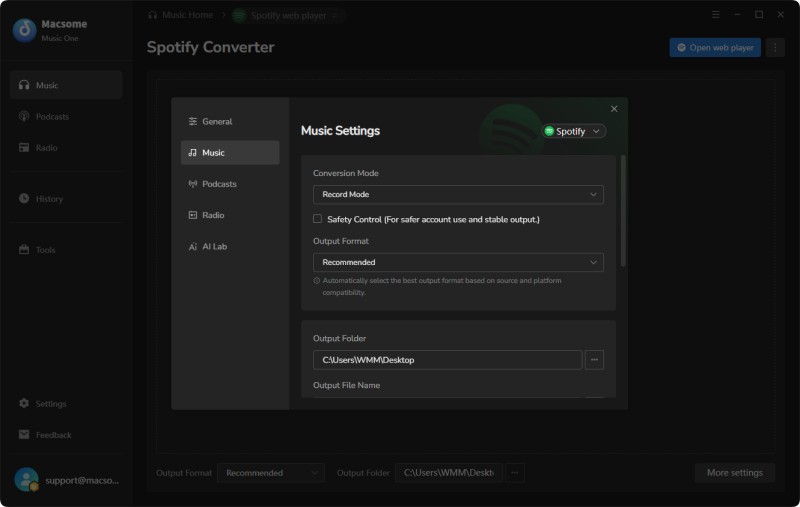
Select your preferred output format, such as MP3, FLAC, WAV, AIFF, or ALAC. You can also choose the output folder and adjust settings such as bitrate and audio quality. Select Recommended to keep the same audio quality as the original source file.
Step 3. Add Music
Find the songs, albums, or playlists you want to download in the selected music service. Click Click to add, select the content, and then click Add. Use Add More if you want to add additional songs, albums, or playlists.
Step 4. Start Downloading
Click Convert to start downloading. When the process is complete, go to History > Folder to locate your downloaded music files.
Part 7. Frequently Asked Questions About Streamrip
- Is Streamrip legal?
- Streamrip is an open-source software tool, but whether downloading music with it is legal depends on how you use it, the content you download, and the laws that apply in your country. Downloading copyrighted music without permission may violate copyright law or a music service's terms of service. Always make sure you have the necessary rights or permission before downloading music.
- SteamRIP vs. Streamrip: What's the Difference?
- SteamRIP and Streamrip are two completely different projects. SteamRIP is a website that offers pre-installed PC game downloads. Streamrip, on the other hand, is an open-source, command-line music downloader for supported services such as Qobuz, Tidal, Deezer, and SoundCloud. Despite their similar names, the two are not related.
- How to Fix Streamrip If It Is Not Working?
- If Streamrip is not working, first check your command syntax, account configuration, and the URL you are trying to download. Make sure the music service is supported and that your account has the required access. You can also update Streamrip to the latest version and check the error message for more specific information.
Part 8. Streamrip Review: Final Verdict
Streamrip is a capable open-source music downloader with plenty of flexibility. It supports several popular music streaming services and lets you download tracks, albums, and playlists from the command line. The downside is that getting everything set up can take some time, especially if you're not familiar with command-line tools or configuration files.
For users who are comfortable with the terminal and want more control over how downloads are handled, Streamrip is worth trying. If you prefer a more straightforward way to download music, Macsome Music One offers a graphical interface and supports Spotify, Apple Music, Tidal, Qobuz, Amazon Music, and other popular platforms.
💡 Our verdict: Streamrip is a good option if you don't mind using command-line tools and doing some setup yourself. For a simpler, more visual experience, Macsome Music One is the easier choice.