

Some of your Questions:
- How to Register Macsome iTunes Converter for Windows?
- Why am I getting "Invalid Code"?
- Why the output file is only 1 minute long?
- How to fix the problem that I can only see a fraction of my iTunes library in Macsome?
- Does it work with the iTunes downloaded from Microsoft Store?
- How to fix the problem that there are short breaks of silence with the converted audios?
- I'm getting "Conversion Failed". What should I do?
- How to fix the problem that the output MP3 files are silent?
- For Failed 10**, Failed 110*, Failed 120*, Failed 170*, Failed 4***, Failed 6208, Failed 1802, Failed 1106, or Failed 6024. How can I fix it?
- What should I do if I encounter the "Login required" issue?
- I encounter some problems that I can't find in FAQ. How can I get technical support?
Q.How to Register Macsome iTunes Converter for Windows?
Step 1: At first, download, install and open Macsome iTunes Converter on your computer. You can directly click the "Settings" icon to open the registration window and complete the registration process.
Besides, you can also click the button on the top-right user interface, and choose the "Register" option in the drop-down list.
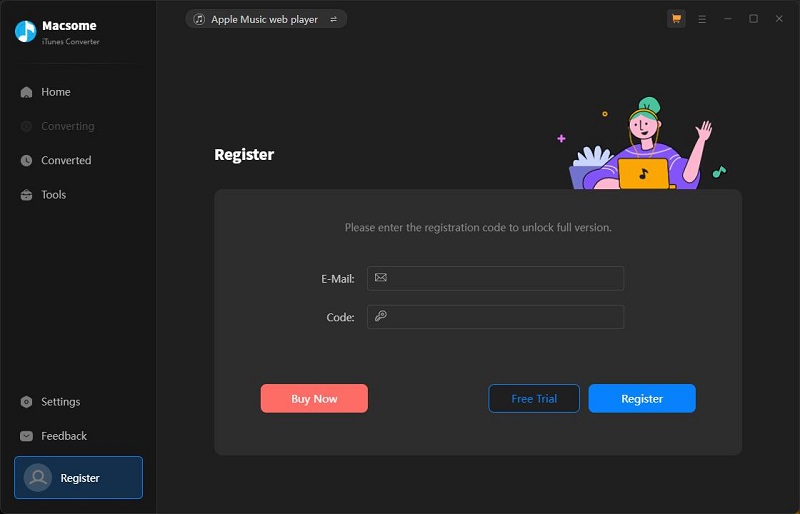
Step 2: Copy and paste the registration Email and Code into the registration popup dialog, then click "Register".
Q.Why am I getting "Invalid Code"?
There are two possible causes for invalid code.
[1]The registration code doesn't match the program. Please make sure you are running the right program.
[2]Extra spaces are accidentally added while filling in your e-mail and code. Please check whether there are spaces before or after the registration info.
If you still get the Error Message, please contact our support team via [email protected] for help.
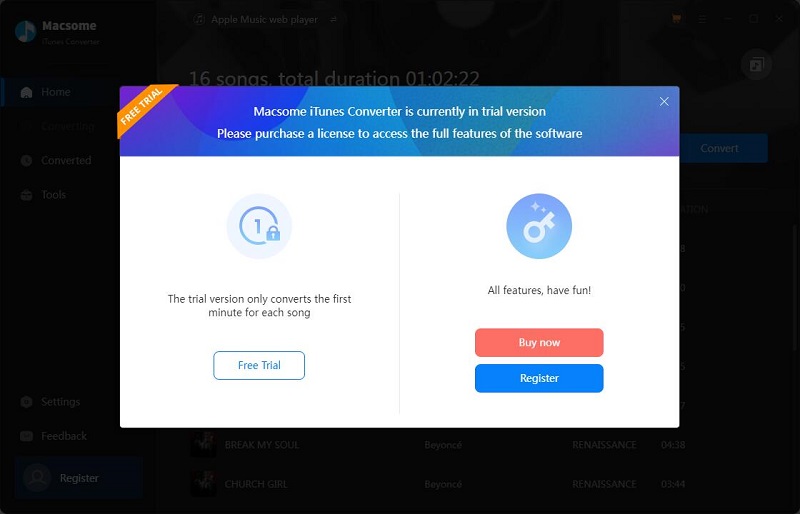
Q.Why the output file is only 1 minute long?
When you download and install the software, it's the limitation of trial version before you purchase the software. After you have bought a single user license, we'll send you a key/code to unlock the limitation.
Q.How to fix the problem that I can only see a fraction of my iTunes library in Macsome?
[1]Please make sure you've well downloaded all your music from iTunes to your computer and your computer is well authorized with the same Apple ID that you used when downloading the iTunes music.
[2]If you've already downloaded the music but the program fails to read them, please recreate your iTunes Music library.xml for a try:
a. Uninstall Macsome iTunes Converter from your computer.
b. Go to C:\Users\username\Music\iTunes and delete "iTunes Music Library.xml"
c. Download and install Macsome iTunes Converter from Download Center (DO NOT launch Macsome)
d. Start iTunes and play a song to generate a new .xml file.
Now close iTunes and start Macsome iTunes Converter to check whether the issue can be fixed.
Q. Does it work with the iTunes downloaded from Microsoft Store?
Yes, Macsome iTunes Converter is fully compatible with the iTunes downloaded from Microsoft store. To convert Apple Music smoothly, please make sure you are running the latest version of the program.
Q.How to fix the problem that there are short breaks of silence with the converted audios?
Please disable the Crossfade Songs in iTunes - Preferences - Playback.
Q.I'm getting "Conversion Failed". What should I do?
[1] At first, please make sure you are running the latest version of Macsome program, otherwise please directly download the latest version of Macsome iTunes Music Converter.
[2] Please make sure your original audio can be played on iTunes normally. -- If it is a purchased M4P music from iTunes, please make sure your computer is well authorized with the same Apple ID that you used when downloading the iTunes music.
[3] Please check whether the problem happen to certain music files or not. If it is, please re-convert the music for a try.
[4] Please check whether is there any external audio device connected with your computer including USB, Wi-Fi, Airplay, Bluetooth and HDMI, etc. If it is, please disconnect them and retry.
[5] After clicking "Convert", please open iTunes window and check whether is there any pop-up blocking message (such as download, authorization, update...). If it is, please resolve them and retry.
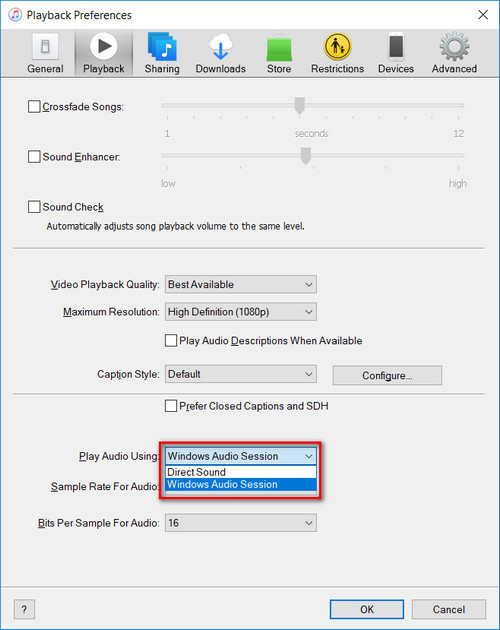
Q.How to fix the problem that the output MP3 files are silent?
Please open iTunes Preferences by going to "Edit - Preferences", choose "Playback", and then select "Windows Audio Session" from the drop-down list of "Play Audio Using" and click "OK". After that, close iTunes and launch Macsome iTunes Converter to convert those songs again.
Q. I'm getting a Failed error code - Failed 10**, Failed 110*, Failed 120*, Failed 170*, Failed 4***, Failed 6208, or Failed 6024. How can I fix it?
[1] Failed 1000:
Cause: Unknown error.
Solution: Please go to the Settings and select the "YouTube Mode" mode for a try.
[2] Failed 1005:
Cause: Failed to open encoder.
Solution: Please re-launch Macsome iTunes Converter for a try.
[3] Failed 1007:
Cause: Your Apple Music account is playing audios on another device.
Solution: Please make sure you are selecting "This Computer" alone to play the audio on iTunes.
[4] Failed 1010:
Cause:Conversion failed.
Solution: Please choose another output format or select the "Record Mode" mode for a try.
[5] Failed 1101:
Cause: Failed to initiate the app.
Solution: Please re-start Macsome for a try. If the issue still exists, please re-install the iTunes app from its official website to check whether the issue can be fixed.
[6] Failed 1102:
Cause: iTunes failed to play your music.
Solution:
1) Please make sure you are using the latest version of both Macsome and the iTunes app.
2) Please make sure the original audio can be played on iTunes normally, and your computer is well authorized with the same Apple ID that you used when downloading those songs from iTunes.
3) Please check whether the problem only happens to individual files, if so, please try to convert them again.
4) Please check whether is there any external audio device connected with your computer while conversion, including USB, Wi-Fi, Airplay, Bluetooth and HDMI, etc. If so, please disconnect them and retry.
[7] Failed 1200:
Cause: The actual duration is less than the acquired duration.
Solution: Please try again later.
[8] Failed 1201:
Cause: The conversion is done but the converted file is empty.
Solution: Please reopen Macsome, then convert the music songs again.
Note: For Failed 1201 on the macOS version of Macsome, please also go to uninstall the Recording Driver as below, after that, please restart iTunes Converter for a try.

[9] Failed 1700, 1701 or 1702:
Cause: There's no search result under YouTube Mode.
Solution: Please go to the Settings and select "iTunes Record" mode for a try.
[10] Failed 4000, 4001, 4101 or 4102:
Cause: Files do not exist.
Solution: Please run the program as Administrator and change the output path and select None in the Output Organized section.
[11] Failed 4002, 4100, 4103, 4104 or 4105:
Cause: No permissions to read or write.
Solution: Please run the program as Administrator and change the output path for a try.
[12] Failed 4003:
Cause: Insufficient disk space.
Solution: Please make sure there's enough disk space in the output directory.
[13] Failed 4004:
Cause: The file path is too long.
Solution: Please go to the Settings, change the output path and select None in the Output Organized section.
[14] Failed 4005:
Cause: The path format may contain special characters, trailing space or dot.
Solution: Please change the output path and select None in the Output Organized section for a try. Please provide us with the link if there are special characters in the song title, artist or album.
[15] Failed 4106:
Cause: The file is too large and exceeds the FAT disk format limit.
Solution: Please set the output directory to a non-FAT formatted disk.
[16] Failed 6208:
Cause: Get player timeout.
Solution: Please re-launch Macsome for a try.
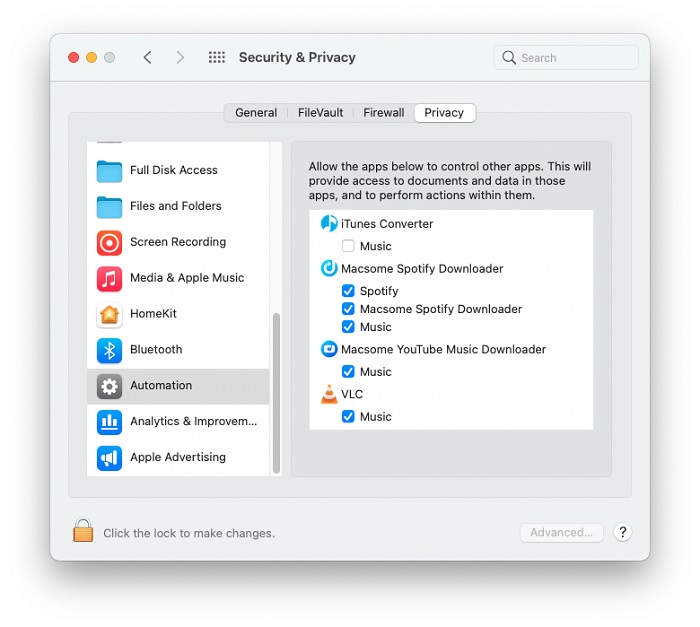
[17] Failed 1802:
Solution: To change these settings, choose "Apple menu > System Settings," then click "Privacy & Security" in the sidebar. Under "Autumation", toggle the "Music".
[18] Failed 1106:
Cause: Current PC does not have an audio output device.
Solution: Users should check the audio output device is connected. You can also try playing a song in the iTunes/Apple Music app to see if there is any abnormality, to make sure that the music can be played normally in the official app, and then start the conversion.
[19] Failed 6024:
Cause: You have both iTunes and the Apple Music app installed at the same time.
Solution: Please uninstall the Apple Music installed from the Microsoft Store. iTunes Converter will support it in the future, so stay tuned.
Q. What should I do if I encounter the "Login required" issue?
Cause: Some music requires a login to the Apple Music web player to download.
Solution: Please log into your Apple Music account.
Q. I encountered an issue that is not covered in the FAQ. How can I contact technical support?
If the solutions above do not resolve your issue, please contact our support team at [email protected]. We usually reply within 24 hours on weekdays and within 48 hours on weekends. To help us investigate the issue more efficiently, please include the following information in your email:
- 1. Which version of Windows or macOS are you using? Is your system 32-bit or 64-bit?
- 2. Which output format did you select (MP3, AAC, FLAC, WAV, etc.)?
- 3. Which download mode are you using: Apple Music App mode or Apple Music Web Player mode?
- 4. Please send us the specific songs, albums, or playlists that failed to convert so we can perform a test on our side.
- 5. Please attach the log files for troubleshooting. You can find them by clicking the menu icon and selecting Open Log File. Open the logs folder and send us all related log files.
Providing detailed information and log files will help our technical team identify the problem faster and provide a more accurate solution.