


"Device Limit Reached" Issue Bother You? Solved!
- Updated on Aug. 10, 2026
 Wyatt Maxwell
- General, Spotify Tips
How do I fix "Device limit reached" trying to download music onto my phone? I can’t download my music onto my phone, I recently just got a new phone and can't fix this problem. I want to download my likes from my library. - Epicburrito8 asked on the Spotify community.
Spotify is one of the most popular music streaming services. With a Spotify Premium subscription, you can download albums, playlists, and podcasts for offline listening. However, it only allows a maximum of five different devices on an account to download music for offline use.
That's why when some Spotify users attempted to download music on a new device, the "Device limit reached" notification appears on Spotify. It prompts you that your offline max device limit has been reached, you need to remove all downloads from an older device to listen offline with the new one. It's so annoying!
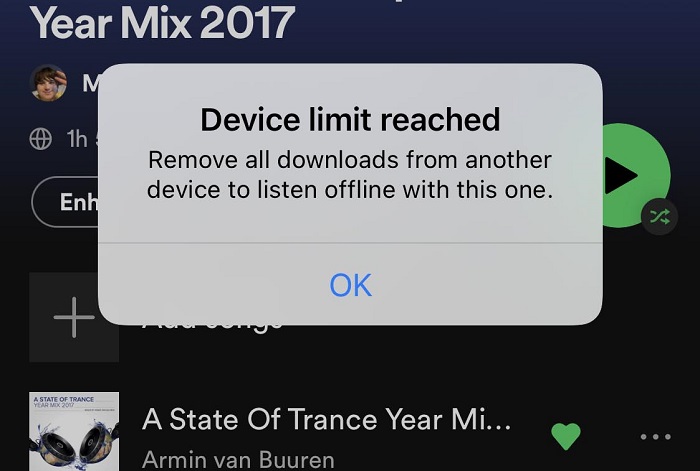
Don't worry, we are going to provide different methods to fix the "Device limit reached" issue.
Method 1. How to Remove the Downloads from Devices
If you have downloaded content on several devices, you'll have to remove the downloads either from the Spotify app or by clearing the app's cache and data in order to be able to download content on the current device. The process is simple, follow the instructions listed below.
1.1 Manually Remove the Downloads from the Spotify App
Step 1. Open the Spotify app and go to the Your Library tab. Here, you'll see what you've downloaded.
Step 2. Select the downloaded album or playlist you want to remove. Tap the green circle with the down arrow icon, you will see a pop-up window asking if you want to delete the download.
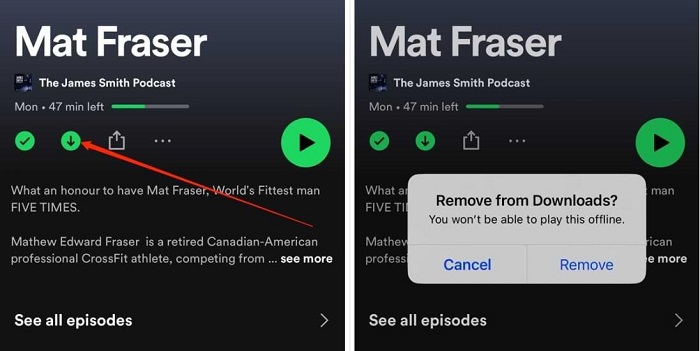
Step 3. Select "Remove", and the downloads will be removed from your Spotify app immediately. Please note the songs will remain in your library for you to listen to when you get back online.
If you want to remove all downloads from your mobile device, tap Settings icon. Go to Storage. Select Remove all downloads.
1.2 How to Clear Your Spotify Cache
On the other hand, you can also clear the cache on Spotify, which will remove offline access to any downloaded music. If you are determined to clean your Spotify cache up, here's how to do it.
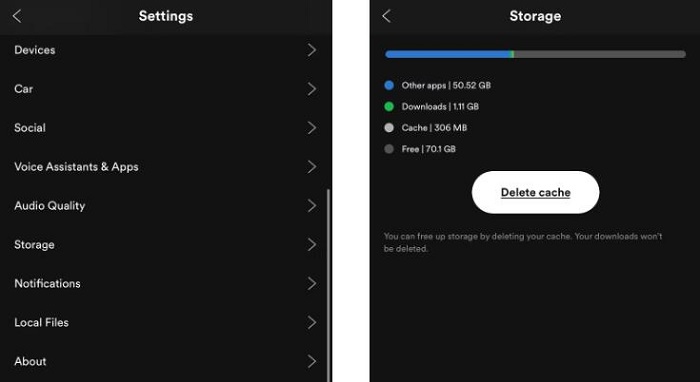
To clear your Spotify Cache on Android or iOS devices, open your Spotify app. Then, select Settings icon. Go to Storage and tap Delete cache.
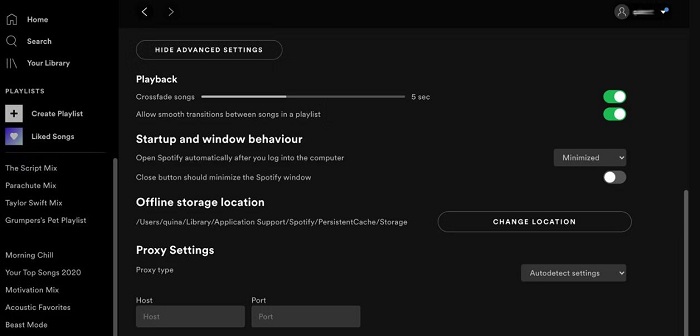
To clear the Spotify cache on your desktop, go to your Spotify app and click Settings - Show Advanced Settings. Under Offline storage location, you will find the folder wherein your Spotify client saves your cache. Then, navigate to this folder and delete its contents.
Method 2. How to Remove Devices from Your Spotify Account
In most instances, the "Device limit reached" notification is on a mobile device. You changed mobile devices, but your previous device may still be enabled for the offline download feature. Thus, removing the older devices from your account is the most thorough and ideal method to fix the issue.
2.1 Remove Devices from Spotify Account on Mac or PC
Step 1. Open the Spotify app on your Mac or PC and log into your Spotify account.
Step 2. Click on your profile and select Account from the list.
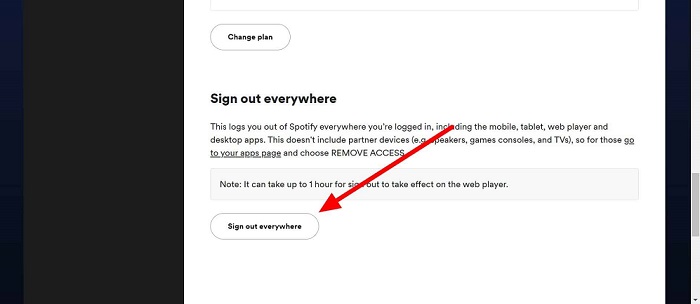
Step 3. Scroll to the bottom of the Account overview page, and click the "Sign Out Everywhere" button. Then you will sign out of all the devices currently connected to your Spotify account.
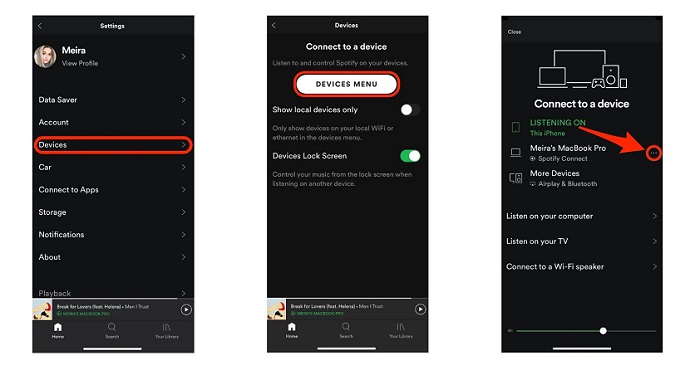
2.2 Remove Devices from Spotify Account on iPhone or Android
Step 1. Launch the Spotify app on your iPhone or Android devices.
Step 2. Tap the Settings icon in the home menu.
Step 3. Go to the Devices, and select "Devices Menu". From the connected devices list, select the one you want to remove. Tap "Forget device" to remove the device.
Method 3. Download Spotify Music on Any Device Without Limits
With the above methods, you will delete the downloaded items. If you want to listen to them offline, you have to download them again. If the above does not work, the other choice is to reach out to Spotify for the platform to resolve the issue on their end. From our side, we offer another alternative method - using a third-party tool. Here we will confidently recommend Macsome Spotify Downloader to you.
It is specially designed to download Spotify songs, albums, playlists, and podcasts to your local folder. As an excellent Spotify Music Converter, it is able to convert Spotify music to MP3, AAC, WAV, FLAC, AIFF, and ALAC with 100% original quality. After that, you can transfer Spotify music to any device without limits. What's more, this program is available for all Spotify users, including Spotify Free and Premium users.
Main Features of Macsome Spotify Downloader
- Download Spotify music, playlists, and podcasts with high quality.
- Convert Spotify songs to MP3, AAC, WAV, FLAC, AIFF, or ALAC.
- Support batch downloading at up to 40x faster speed.
- Available for both Spotify Free and Premium users.
- Almost all the ID3 tags will be preserved.
- Free updates and technical support.
- Simple, concise, and user-friendly.
Download Spotify Music to Any Device Without Limits
Want to download Spotify music for offline listening without being limited to the Spotify app? With Macsome Spotify Downloader, you can save Spotify songs and playlists as local audio files and transfer them to compatible devices. Follow the steps below to get started.
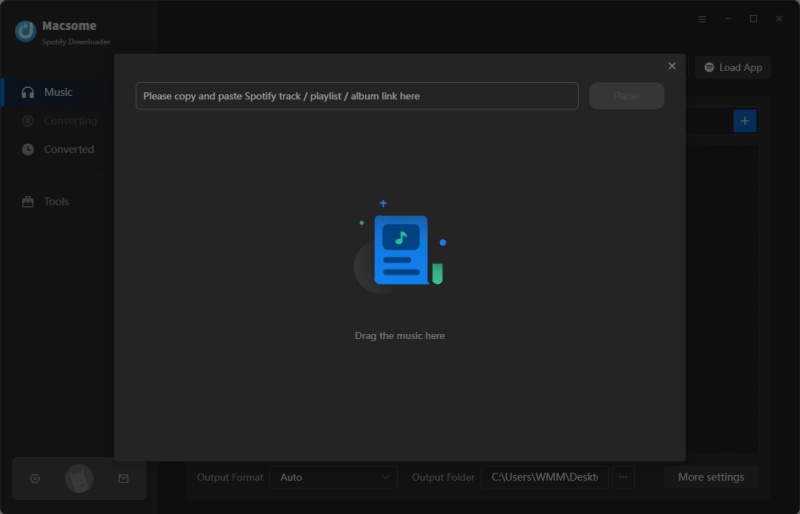
Step 1. Add Spotify Songs or Playlists.
Launch Macsome Spotify Downloader on your computer. The Spotify app will open automatically. Select the songs or playlists you want to download, then copy and paste their links into the search box. You can also drag and drop Spotify content directly into the program.
Step 2. Customize the Output Settings.
Click the "Settings" icon in the top-right corner to customize your download preferences. You can choose an output format such as MP3, AAC, WAV, FLAC, AIFF, or ALAC and adjust audio quality settings, including bitrate and sample rate. You can also select a preferred output folder and organize downloaded music by album or artist.
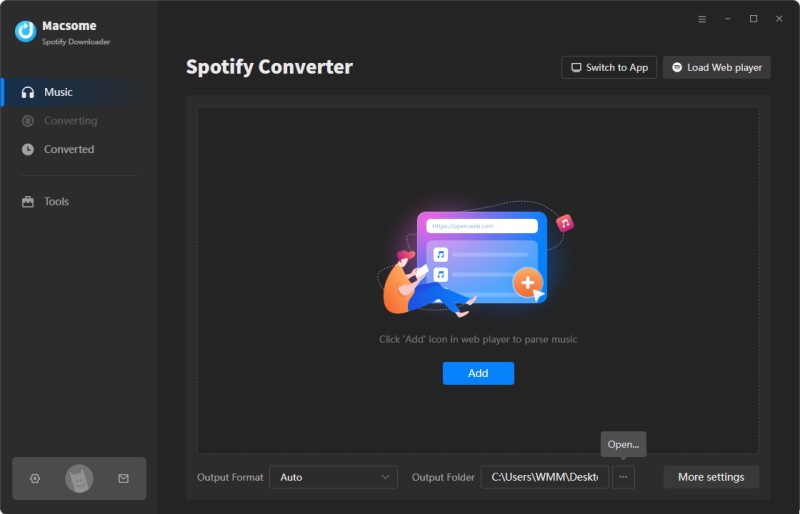
Step 3. Download Spotify Music and Playlists.
Once your settings are ready, click the "Convert" button to start downloading. Macsome Spotify Downloader will process the selected Spotify songs or playlists and save them to your computer in the format you selected.
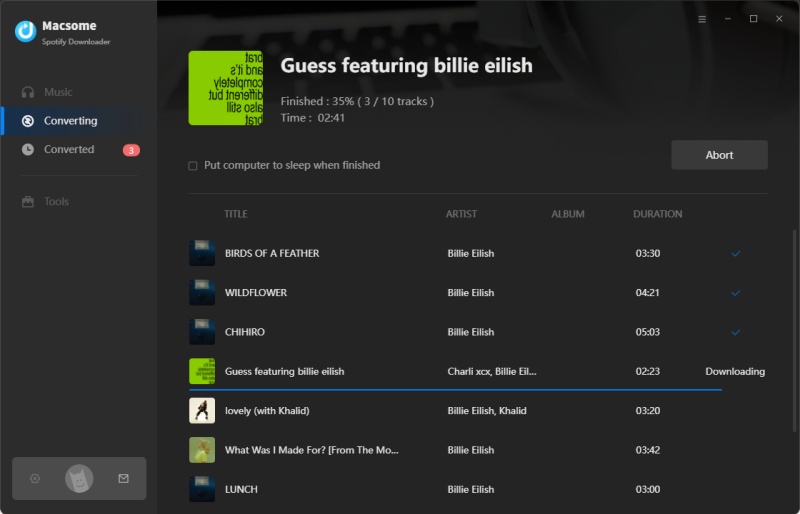
Step 4. Find and Transfer the Downloaded Music.
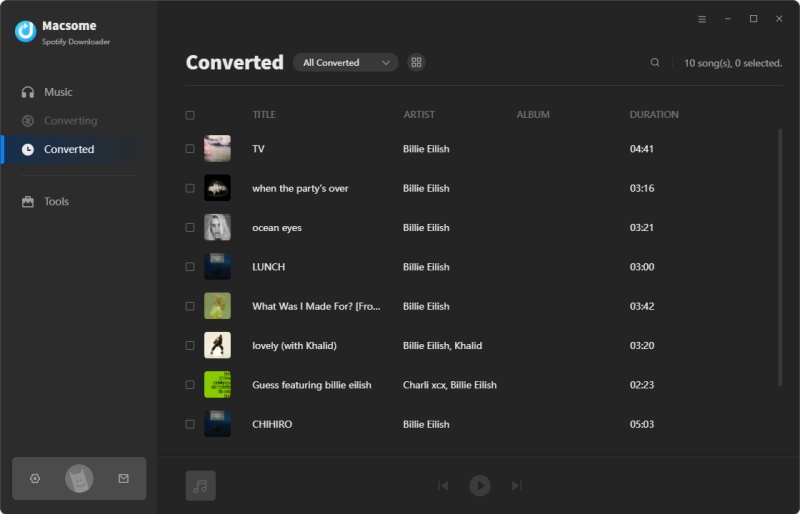
When the download is complete, open the "Converted" tab to view your downloaded Spotify music. Click the folder icon to open the destination folder and locate the downloaded files. You can then transfer the local music files to compatible devices for offline playback without relying on the Spotify app.
Final Thoughts
If you run into the "Device Limit Reached" problem when you are trying to download music on Spotify, don't panic, this article provides multiple methods for you to try. If you want to put the downloaded Spotify music on devices as many as you want, Macsome Spotify Downloader is an ideal tool for you. With it, you can download music from Spotify even with a Spotify Free account. Macsome Spotify Downloader has a free trial, which enables you to download the first minute of each song. Please have a free trial.