


Can't Play Spotify Music on Amazon Fire TV Stick? Solved!
- Updated on Aug. 10, 2026
 Wyatt Maxwell
- General, Spotify Tips
The Amazon Fire Stick is a portable streaming device developed by Amazon Inc. It essentially allows you to straight access a range of channels and platforms on your TV simply by plugging it into the back of the TV with an HDMI port. With it, you can access hundreds of apps for various video streaming services including Netflix, Amazon Prime Video, Disney +, and Hulu. Music fans can also listen to songs and playlists with popular music streaming services, like Amazon Music, Spotify, Apple Music, Pandora, etc.
Because the Spotify app is available on Amazon Fire Stick, you can enjoy all the Spotify music and podcasts you love, right here on the big screen. In this article, we will discuss how to play Spotify music on Amazon Fire Stick in different ways.
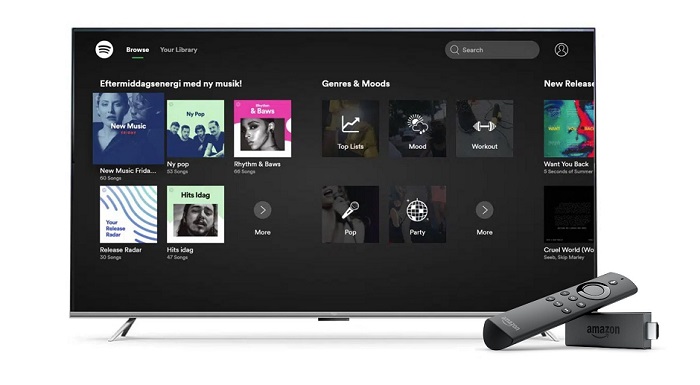
Method 1. Play Spotify Music on Amazon Fire Stick Using Spotify App Directly
With the Spotify Fire Stick app, both Spotify Premium and Free users can listen to the music they love. It is simple, just download the Spotify app from the Amazon App store, follow the detailed instructions below to learn how to install the Spotify app, and play music from Spotify on Amazon Fire TV Stick.
1. Turn on the TV, and go to the Search icon among the group of tabs above the Fire TV home screen.
2. Type Spotify in the search bar, and from the search results, click on the Spotify app.
3. Open Spotify and click the Get icon. Wait for the Spotify app to download and install successfully.
4. Finally, tap the Open icon to launch the Spotify app on Fire TV Stick. Once you launch the app, log in to your Spotify account.
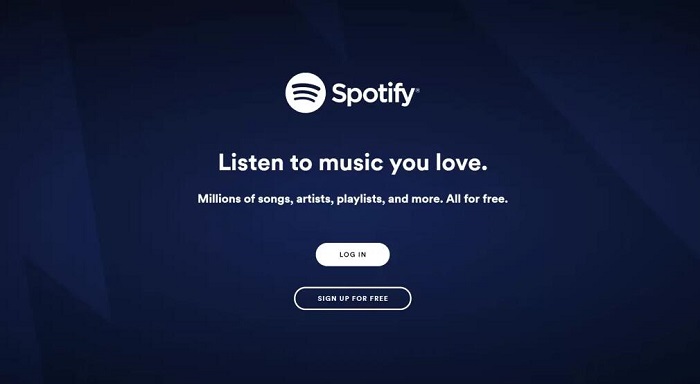
Now, you can enjoy your favorite Spotify artists, songs, and albums on your Amazon Fire TV Stick for free.
Method 2. How to Cast Spotify to Amazon Fire TV Stick
As the Spotify app has an in-built cast option, it is much more convenient to search for songs from a mobile phone than from the Spotify Stick app, the later needs to use the remote controller. So some users prefer to cast Spotify content to a Fire Stick from smartphone or tablet with the Spotify app installed.
First, press and hold the Home button on the controller of your Fire TV Stick, the House button, and then click Mirror. And make sure your phone and Fire TV Stick are connected to the same Wi-Fi network.
1. Download and install the Spotify app on your Android or iPhone.
2. Launch the app, and log in to your Spotify account. Then you can browse and select the song or playlist you want to cast.
3. Select a track to play, and click on the Devices Available icon at the bottom of the screen. This will bring up the list of devices on your network that you can cast to. Select the Amazon FireTV Stick option.
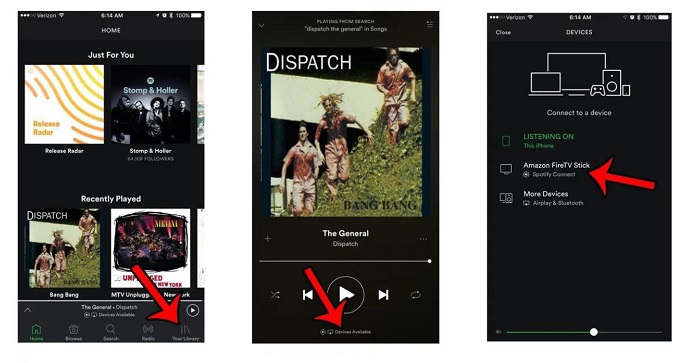
Then the selected track will play on your Firestick-connected TV.
Method 3. Alternative Method to Play Spotify Music on Fire TV Stick
Though Spotify offers a free account that gives you access to millions of songs, the ads might be so annoying. So to block ads, upgrade to a Spotify premium account. On the other hand, if you cancel your Premium subscription, all the downloaded are not available anymore, and you will cease to be able to download and listen to music offline.
You can play music from external microSD or USB drives on Amazon Fire TV Stick, or use third-party apps like VLC or Kodi to play the music you have stored. Therefore, in this part, we will provide another alternative method to help you to enjoy Spotify music on Amazon Fire TV Stick. As a professional Spotify Music converting tool, Macsome Spotify Downloader is specially designed for both Spotify Premium and Free users to convert Spotify songs to widely-supported audio formats like MP3 with lossless quality.
This fantastic tool is capable of downloading Spotify tracks, albums, playlists, and podcasts to MP3, AAC, WAV, FLAC, AIFF, and ALAC at up to 40x faster speed. After using it, you can freely transfer Spotify music to a USB drive so that you have the ability to listen to Spotify music on Amazon Fire TV Stick or other devices.
Key Features of Macsome Spotify Downloader
- Download Spotify music, playlists, and podcasts with high quality.
- Convert Spotify songs to MP3, AAC, WAV, FLAC, AIFF, or ALAC.
- Support batch downloading at up to 40x faster speed.
- Almost all the ID3 tags will be preserved.
- Play Spotify music on Amazon Fire TV, Apple TV, etc.
- Free updates and technical support.
- Simple, concise, and user-friendly.
How to Download Spotify Music to Amazon Fire TV
Before you begin, download and install Macsome Spotify Downloader on your PC or Mac. Then follow the steps below to download Spotify music and transfer it to an Amazon Fire TV Stick for offline playback.
Step 1. Import Spotify Songs or Playlists
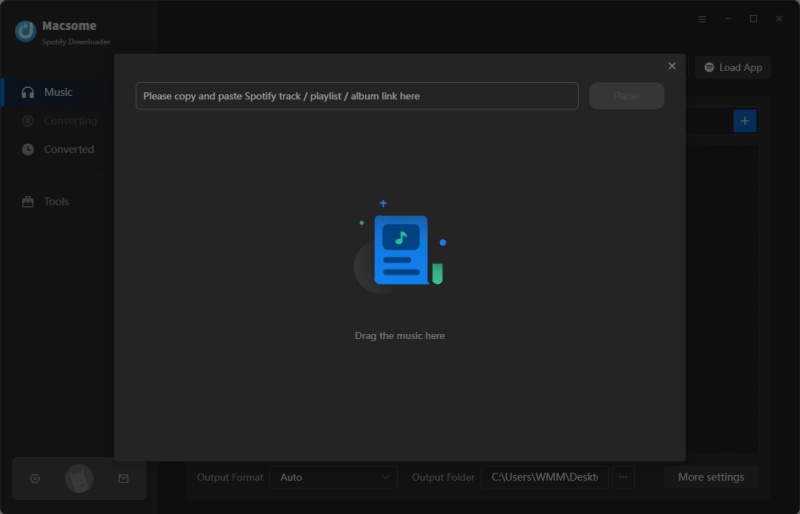
Launch Macsome Spotify Downloader on your computer, and the Spotify app will open automatically. Click the "+" button to open the window for adding Spotify songs or playlists.
Open Spotify and select the song or playlist you want to download. Copy and paste its link into the parse box, or drag and drop the playlist directly into the adding window. Then click the "OK" button to load the selected tracks into the main window.
Step 2. Set the Output Format
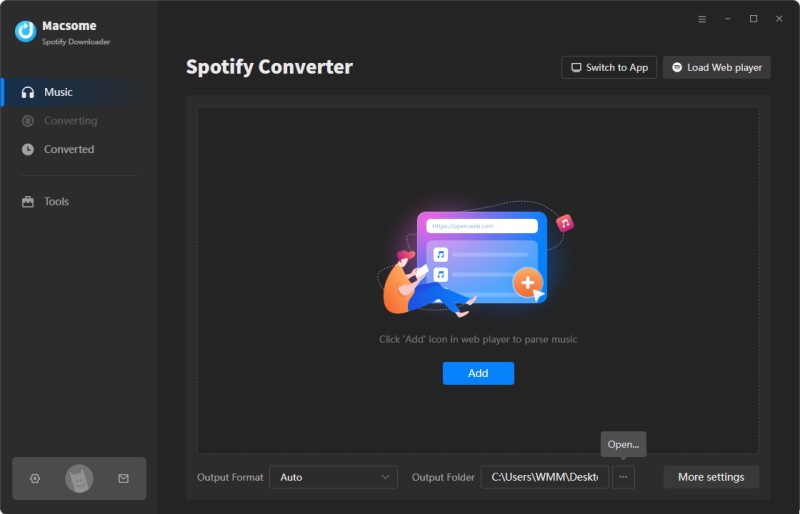
Click the "Settings" icon in the lower-left corner to open the settings window. Select MP3 as the output format. Macsome Spotify Downloader also supports AAC, WAV, FLAC, AIFF, and ALAC formats.
You can also adjust the output quality, choose a different output folder, customize the output file name, and organize the downloaded music files according to your preferences.
Step 3. Download Spotify Music
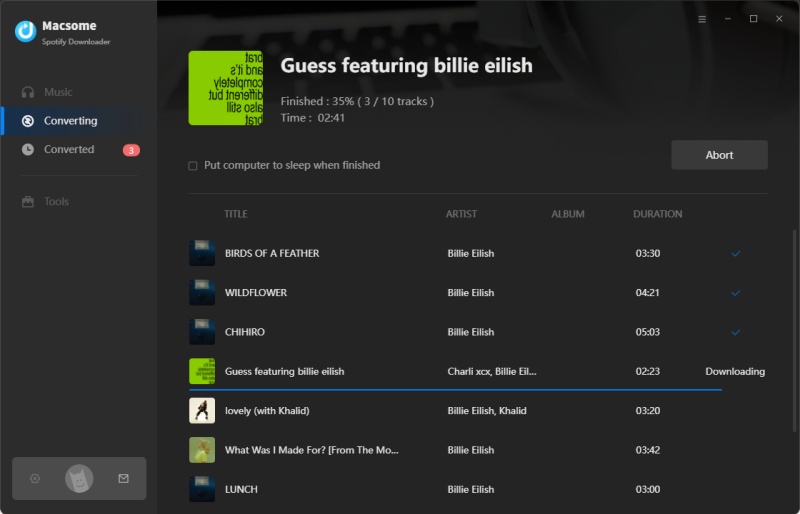
After configuring the output settings, click the "Convert" button to start downloading the selected Spotify songs or playlists. The download process may take a few moments depending on the number of tracks.
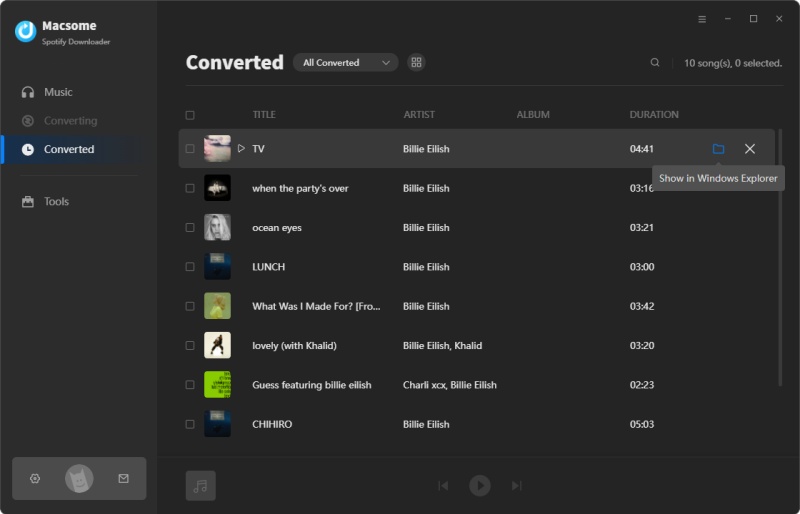
When the download is complete, open the "History" tab to view your downloaded Spotify music. Click the "folder" icon next to a track to locate the downloaded files on your computer.
Step 4. Transfer Spotify Music to Amazon Fire TV via a USB Drive
Connect a USB drive to your computer and copy the downloaded Spotify music files to the drive. Then connect the USB drive to your Amazon Fire TV Stick using a compatible USB adapter or OTG cable.
Install and open a media player such as VLC on your Fire TV Stick. Navigate to the folder containing your downloaded Spotify music, select a track, and start playback on your TV.
Summary
In this article, we mainly discussed how to play Spotify music on Amazon Fire TV Stick using three methods. With the first two methods, you can listen to the music on Amazon Fire TV Stick with the Spotify app installed directly. By using Macsome Spotify Downloader, you can easily download Spotify songs and podcasts with a Spotify Free account so that you can get Spotify music on Amazon Fire TV Stick using VLC or Kodi from a USB drive. It has a free trial, enabling you to convert each song's first minute. Now download the Macsome Spotify Downloader to try it out.