
How to Transfer Spotify Playlist to Deezer: A Simple Guide
- Updated on Apr. 22, 2026
 Wyatt Maxwell
- General, Spotify Tips
Are you looking to switch from Spotify to Deezer but don’t want to lose your favorite playlists? Whether you're exploring Deezer's expansive catalog of over 120 million songs or seeking its Deezer HiFi option for lossless, CD-quality audio, there are several reasons to consider moving your Spotify playlists. While Spotify offers HiFi as well, Deezer has long been known for its high-quality streaming and extensive music library. If you prefer Deezer's interface, audio quality, or regional availability, transferring your playlists is a seamless way to continue enjoying your music collection. In this guide, we'll show you how to easily transfer your Spotify playlists to Deezer and keep your music listening uninterrupted.

Method 1. Use FreeYourMusic App to Transfer Playlist on Mobile Devices
If you only want to transfer playlist from Spotify app to Deezer app on your mobile device, this method is helpful. What you need is to download FreeYourMusic app on the device.
Step 1. Select Spotify as a source.
Use your current Spotify platform as a source and start to transfer playlists music with FreeYourMusic.
Step 2. Select Deezer as a destination.
Select Deezer as a platform where you want to create a new playlist. All you need to do is just one button click!
Step 3. Select playlists for a transfer.
Find playlists, albums or tracks you want to transfer from Spotify service to Deezer and select all the music you want to move. Once the transfer is finished, your Spotify songs and playlists have been moved to Deezer and you can start enjoying your new music streaming service.
Method 2. Transfer Spotify Playlists to Deezer Using PlaylistGo
With PlaylistGo, you can easily transfer your favorite songs, albums, or entire playlists from Spotify to Deezer in just a few clicks. Follow the steps below to get started.
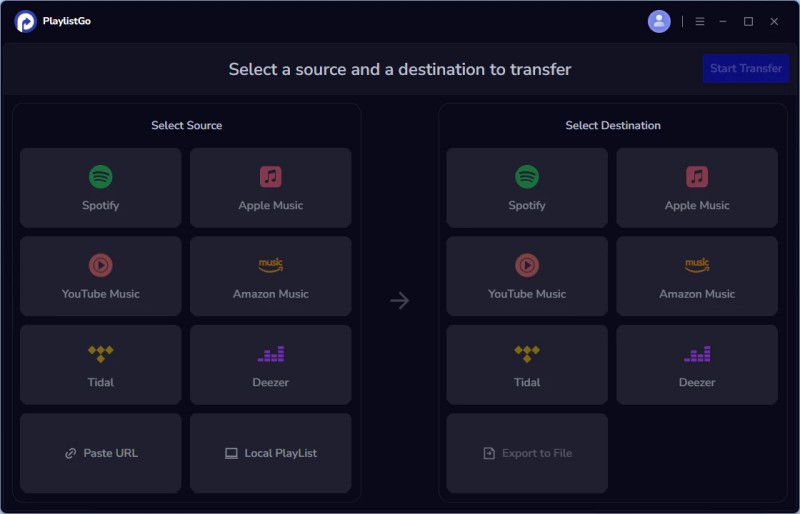
Step 1. Launch PlaylistGo to Enter Main Interface
Download, install, and open PlaylistGo on your computer.
Step 2. Select Spotify as the Source Platform
Select Spotify as your source platform to log in, and PlaylistGo will display your library so you can select what to transfer. You can also transfer playlists using a URL. Simply copy and paste the playlist URL into the text box and click Parse to load it.
Step 3. Select Deezer as the Target Platform
Click your target platform to log in.
Step 4. Select the Song/Album/Playlist You Want to Transfer
Select the songs, albums, or playlists from Spotify that you want to transfer. Click the "Start Transfer" button. PlaylistGo will search for matching songs on the Spotify and display the results for confirmation.
Step 5. Start to Transfer Your Spotify Playlist to Deezer
Click the "Transfer Settings" button on the right to start matching songs. Click "Next" to begin. PlaylistGo will transfer the selected music from the source platform to the specified location on the target platform.
Method 3. Use Macsome Spotify Music Downloader to Download Spotify Playlist
As you know, even you can download Spotify playlist for offline playing with Windows 10, you can't sync or move the downloaded playlist to other players or mobile device, because of Spotify's limitations. Is there any method to download Spotify playlist and then copy them to Deezer?
Macsome Spotify Music Downloader offers you a simple yet useful solution. With it,you can easily download Spotify playlist to MP3, AAC, FLAC, WAV and AIFF format as you like with ID3 tags kept. You don't need to worry about the downloading speed, which supports up to 10x downloading speed. After the downloading, the playlist can easily transfer to Deezer as you like.
Macsome Spotify Music Downloader
- Download Spotify music and playlist with high quality .
- Convert Spotify songs to MP3, AAC, WAV, FLAC, AIFF and ALAC.
- Support batch downloading at fast speed.
- All the ID3 tags will be preserved.
- Transfer downloaded Spotify files to USB or any device.
- Free updates and technical support.
- Simple, concise, and user-friendly.
Steps to Download Spotify Playlist and Sync to Deezer
Step 1. Download, install and launch Macsome Spotify Downloader on your PC.
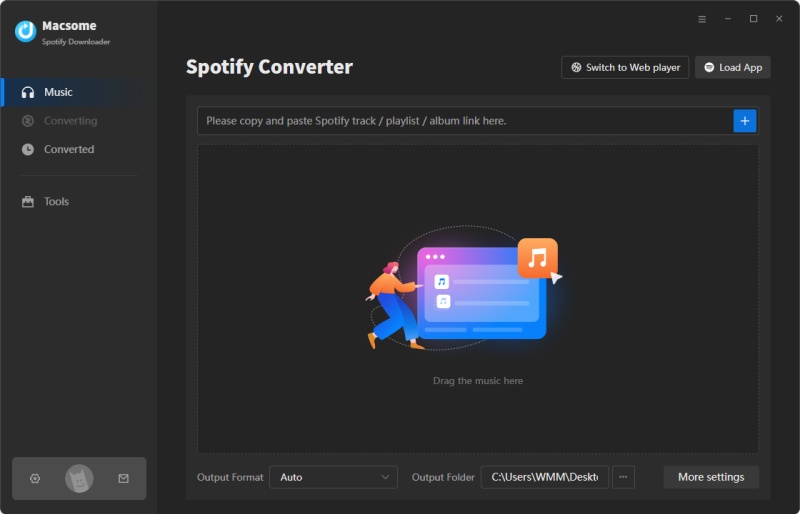
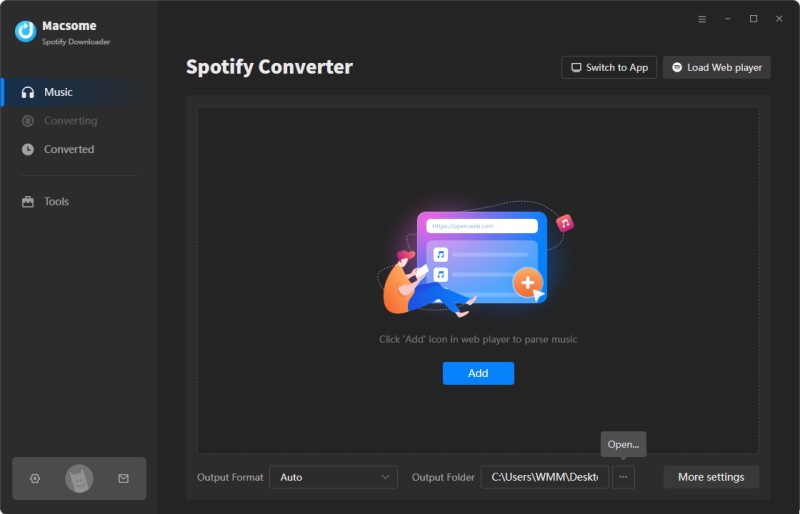
According to your system, download the corresponding version of Macsome Spotify Music Downloader, and follow the tips to install on your computer. When the installation is complete, click to launch it, and you will see the next user interface. Here we take Windows version for example.
Step 2. Import the song or playlist from Spotify to the program.
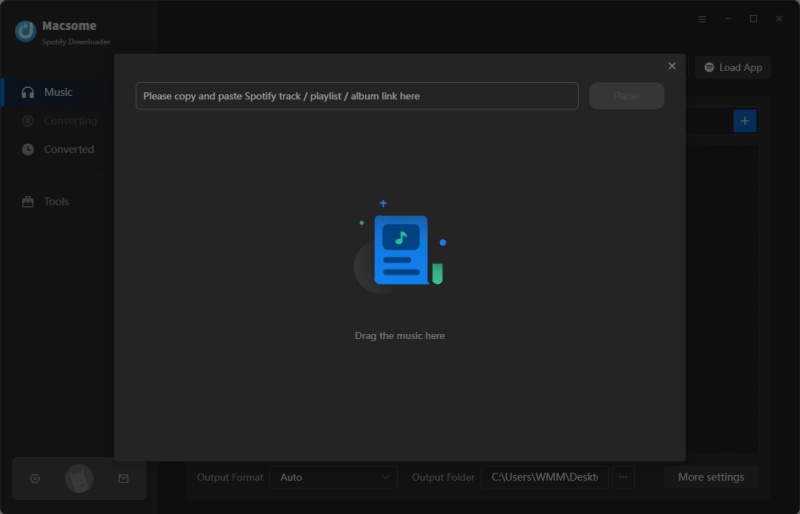
Choose to download music from the Spotify app. Open Spotify application, check the songs or playlist you would like to convert, then drag and drop them to add window.
In addition, you can also directly copy and paste the link of a song or playlist to the clipboard.
Step 3. Output settings.
Now move to the lower left corner of the interface and click the settings button. Now you can customize your output parameters as you like. Here we choose MP3 as the output format.
Step 4. Start to download Spotify playlist.
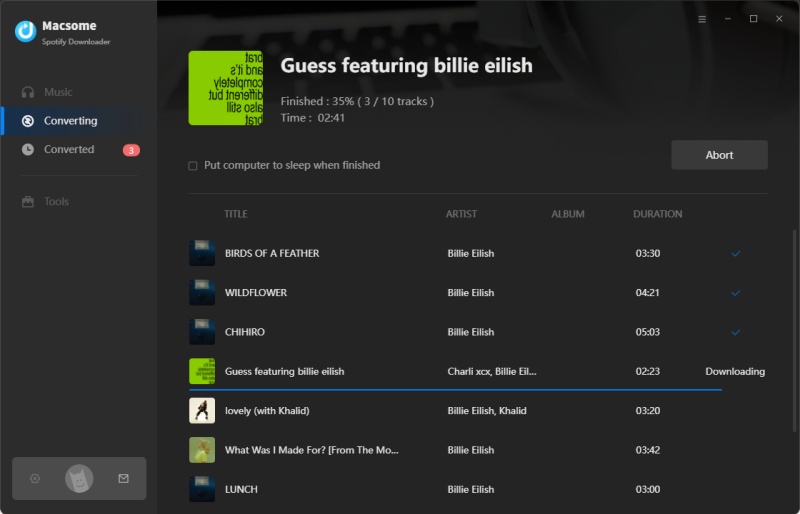
When the above setting is completed, you can click "Convert" button to start converting Spotify playlist.
Step 5. Sync playlist to Deezer.
Users can also use Deezer on Web, Android, iOS, Windows Mobile, BlackBerry OS and Windows, macOS. After the downloading, you can find the converted files and then go to Deezer.com (premium account is needed) on computer - Click My Music - Tap the More tab - Tap My MP3s - Select the downloaded MP3 files from computer for uploading the downloaded Spotify playlists to Deezer.
Conclusion
More and more music streaming services come to users. That is a good news for all the music fans for you have more options. When you try to download Spotify playlist with the help of Macsome Spotify Music Downloader, you have no need to worry about your primary Spotify playlist any more, and you can also transfer these playlist to Amazon Music, Pandora and so on.